

Compare the output you will actually use
We make Sitepeel. This is an editorial comparison based on official documentation and listings checked on September 20, 2026, not a speed benchmark or a claim that one tool wins every task. Check the publisher’s current plan and permissions before installing.
| Tool | Useful output | Best next step |
|---|---|---|
| ColorZilla | Samples, color analysis and gradient work | Record the selected value with its page role |
| Eye Dropper | Picked colors with saved palette/export options | Organize samples before handing them off |
| Sitepeel | Extracted page colors alongside design tools | Review the palette against visible elements |
| Chrome DevTools | Element styles and a built-in color editor | Trace the rule, variable and background context |
ColorZilla and Eye Dropper for direct sampling
ColorZilla combines an eyedropper with additional color and gradient utilities. It is a sensible candidate when you regularly move between picking colors and building CSS gradients. Try the exact operation you need instead of judging it by the size of the feature list.
Eye Dropper provides point sampling, stored picks and color export options. That suits a lightweight collection workflow: pick several visible colors, then organize them into a small reference. Its official site documents HEX, RGB, HSL and JSON outputs.
Open the install link from the publisher’s official page. Color-picker listings can have similar names; the publisher and requested access are better identifiers than the icon alone.
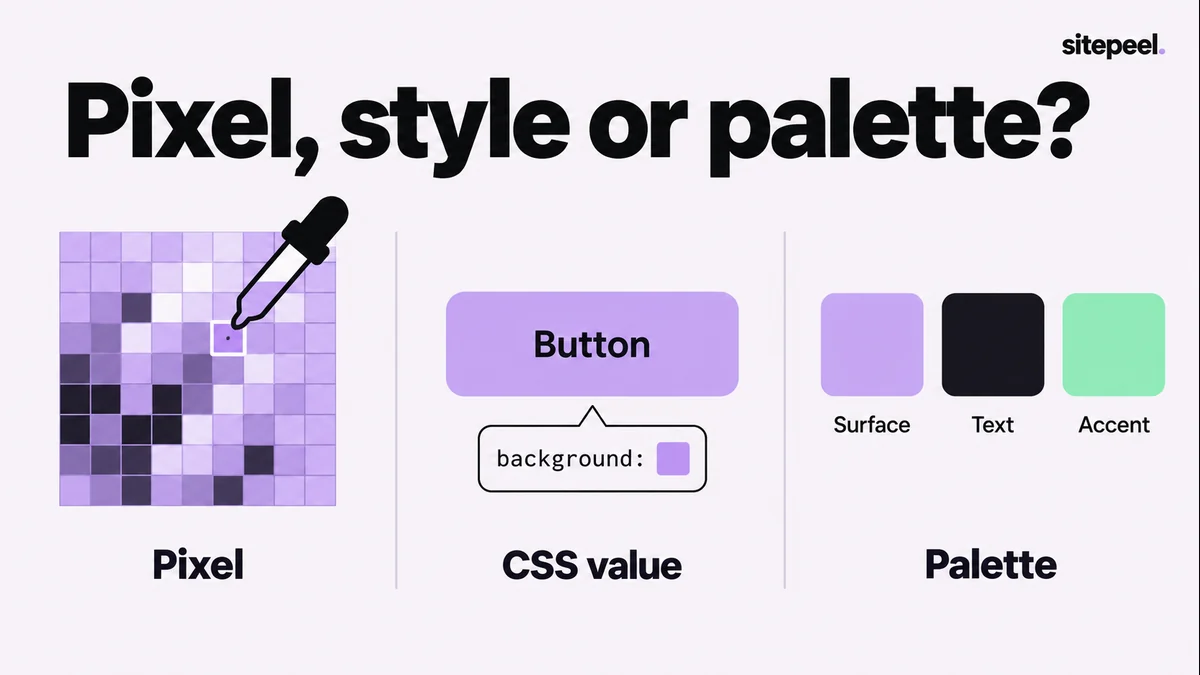
A pixel sample and a CSS color answer different questions
An eyedropper answers “what color is visible at this point?” That point may include a translucent overlay, a gradient, an image or antialiased text. The result can be correct for the pixel while differing from the element’s declared CSS.
For a button’s design token, inspect its background rule and any custom property it uses. For a pixel inside a photograph, sampling the image is the relevant operation. Do not turn every captured pixel into a new design-system color.
A practical comparison uses a flat solid panel, text on that panel and a transparent overlay. Sample each, then inspect the styles. Label which values describe source styles and which describe a rendered combination.
Use Sitepeel to connect colors to the rest of the design
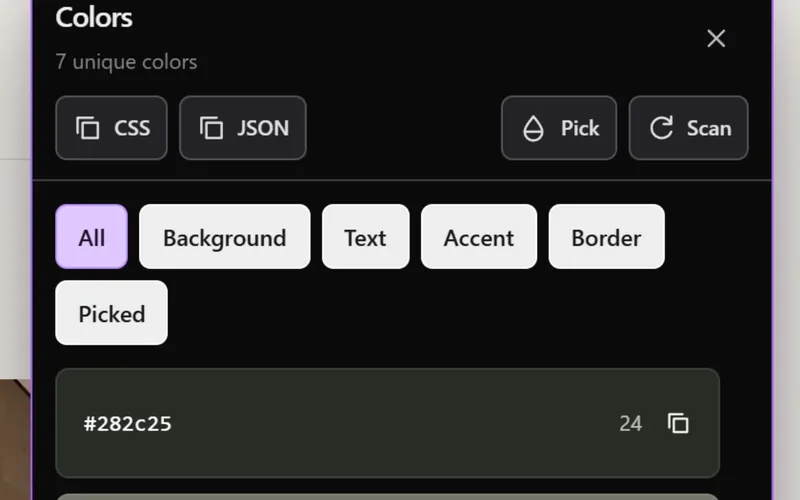
Sitepeel’s Extract colors tool is useful when you also need fonts, spacing or a Design MD handoff. Review the collected values against the page and decide which belong to surfaces, text, actions and borders. A list of hex codes is only the beginning of that work.
Keep the raw observations before consolidating them. Two close values may be intentional states, or they may be unrelated details in an image. Compare representative sections before merging either into a shared token.
If the page includes a dark theme, inspect it separately. A light-theme palette cannot describe how colors are paired after the backgrounds change.
Check the foreground and background together
A color’s role depends on the surface around it. Record the text and background pair for a button, notice or input. For text over imagery, compare more than one point and relevant image states rather than checking an unrelated flat background.
Keep decorative colors separate from controls and reading text. A palette tool finding a value does not establish that the combination is accessible. Use an appropriate contrast check and review focus, hover and disabled appearances in context.
When colors disagree between tools, first compare the selected point, page state, opacity and background. Do not “fix” your CSS by repeatedly pasting slightly different samples without understanding which value you intend to preserve.
# Website color collection

Page / theme / viewport:

For each color:
- Value and format:
- Source: [pixel sample / CSS rule / extracted palette]
- Element and role:
- Paired foreground or background:
- Transparency, gradient or image involved:
- State: [default / focus / hover / other]
- Contrast check and result:

## Palette decisions
Values to preserve:
Values needing more evidence:
Proposed tokens: [keep separate from raw observations]