On this page7
Step by step
Open a representative page
Pick a page where the main text, surfaces and controls are all visible.
Extract the colors
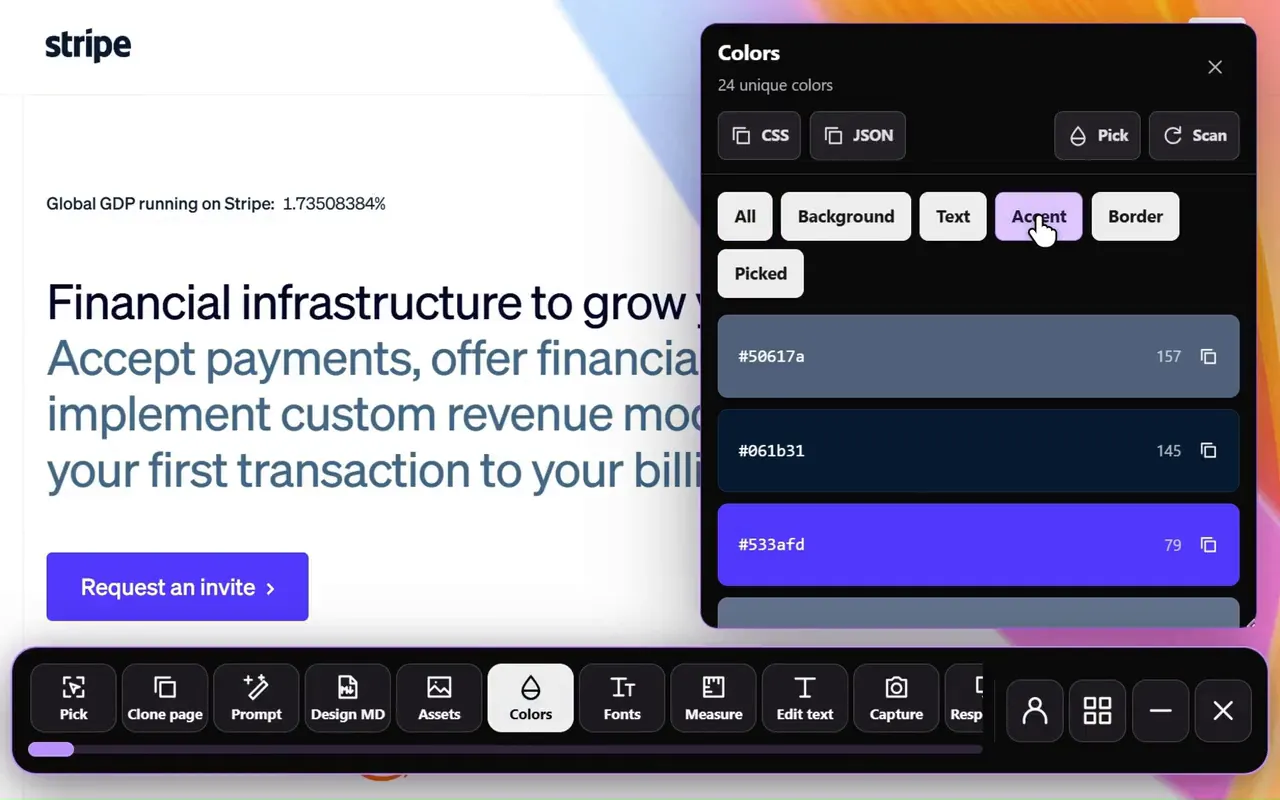
Use Extract colors in Sitepeel, or paste the link into the free color palette generator.
Find what repeats
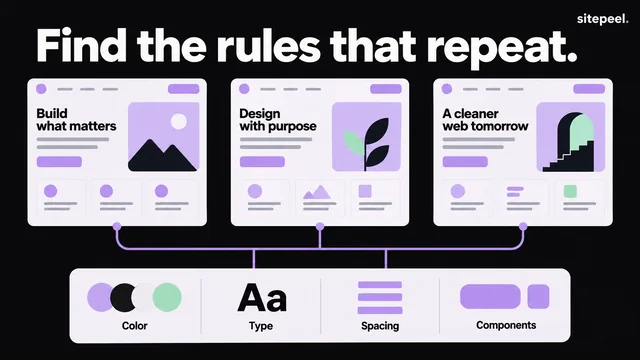
Compare several components. Merge near-duplicates only after checking why they differ: a translucent overlay isn’t a solid gray.
Name each role
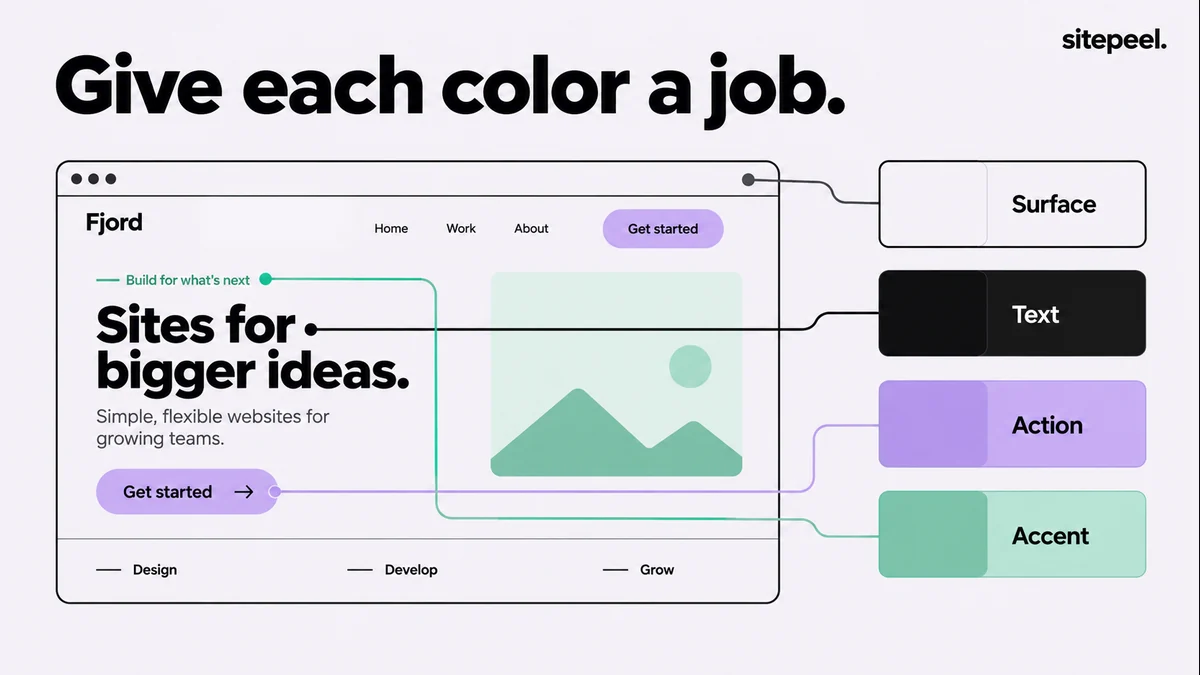
Assign roles such as page background, surface, primary text, border and accent.
Export and test
Export CSS or JSON, then check text contrast on the real backgrounds and in every state.
Name colors by role
A role tells you how to use a value; “purple-3” only says where it sits in a list. Roles let you change the palette without rewriting every component.
| Role | Used for |
|---|---|
| Page | The main background |
| Surface | Cards and raised panels |
| Text | Primary text |
| Muted text | Captions and hints |
| Border | Dividers and inputs |
| Accent | Actions, highlights and focus |
Export as CSS variables
With role names, a design change means editing one value. This is a hand-written sample, not a measured result.
:root {
  --color-page: #0b0a0d;
  --color-surface: #131016;
  --color-text: #f5f0f8;
  --color-muted: #b9adbf;
  --color-accent: #c4a5ed;
}
Or keep roles in a JSON token file
Keep an observed color apart from any accessible replacement you choose, and adapt the values to your own design.
{
  "surface": { "value": "#131016", "role": "Card background" },
  "text": { "value": "#ffffff", "role": "Primary text" },
  "accent": { "value": "#c4a5ed", "role": "Highlight and focus treatment" }
}Check real color pairs
- Primary and muted text stay readable on their surfaces.
- Button labels are readable in default and hover states.
- Focus is visible without relying on a subtle color shift.
- Errors and status make sense without their color.
- Text over images and overlays is checked on the real background.
Write down the decisions
Add the roles and their uses to DESIGN.md, including exceptions such as a light surface inside a dark page. Then build one component first: adjusting five roles in a small example beats undoing a large rollout.
Questions
How do I find the colors a website uses?
Paste the link into Sitepeel’s free color palette generator, which groups the colors the page actually uses by role, or use the Extract colors tool on the open page.
Can I export a website’s palette to Tailwind?
The free color palette generator exports a Tailwind theme, CSS variables or JSON. Sitepeel’s Extract colors tool exports CSS or JSON.
Does an extracted palette guarantee accessible contrast?
No. Check the actual text and background pairs, including hover, focus, overlays and images, before you use them.