
Guides
Start here
3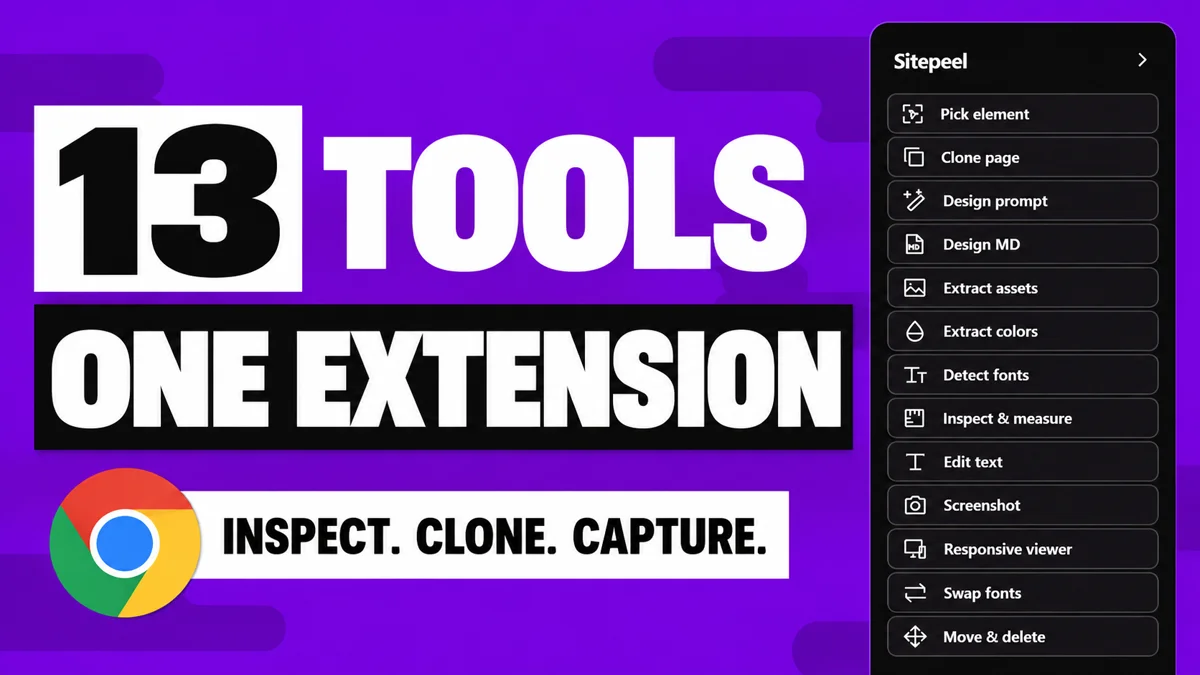
How to use all 13 Sitepeel tools
Watch the 12-minute Sitepeel tutorial and follow written steps for all 13 tools: website inspection, Design MD, screenshots, responsive testing and more.
Watch the tutorial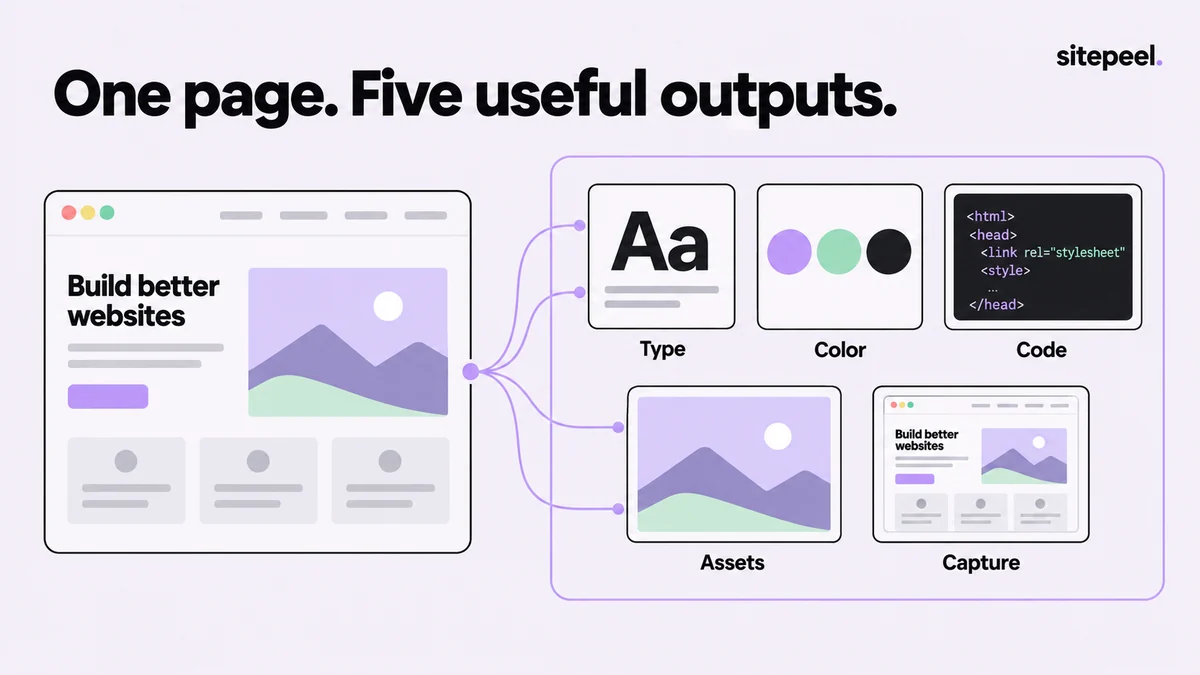
Turn one reference page into a design handoff.
Collect fonts, colors, HTML and CSS, assets and a screenshot from one page with one extension, then package them into a design handoff someone can use.
Read the guide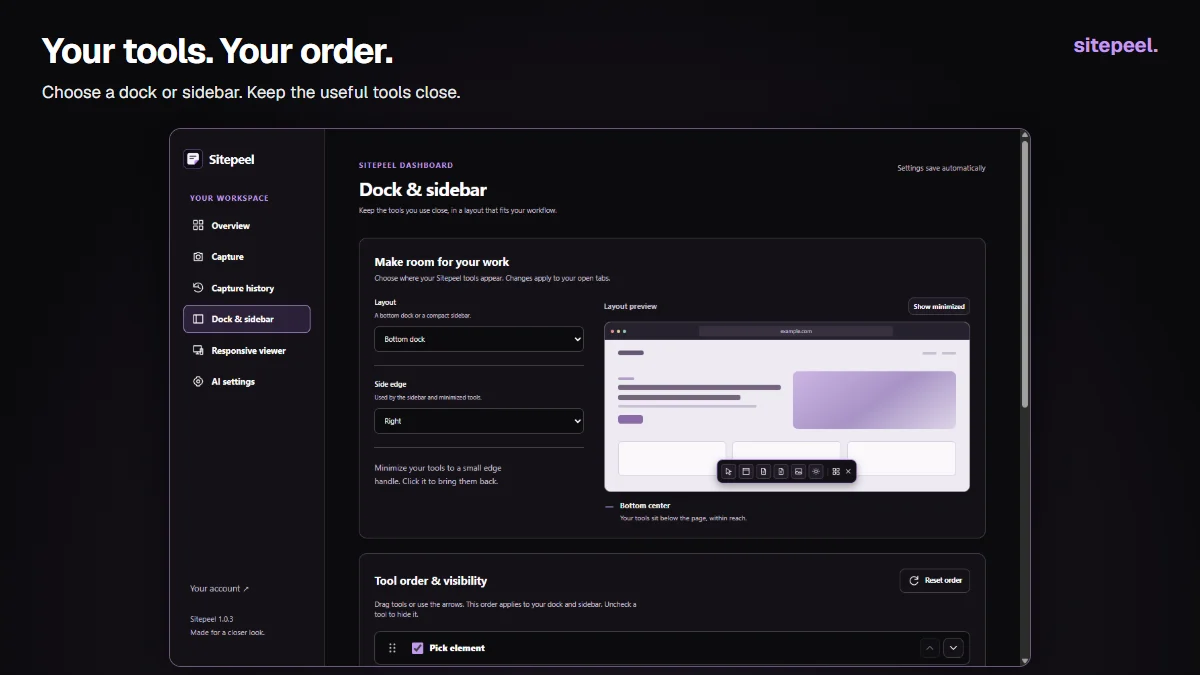
Set up Sitepeel tools around the way you work.
Choose a dock or a sidebar, rearrange the Sitepeel tools, set your screenshot defaults and find the AI settings in the Sitepeel Chrome extension dashboard.
Read the guideDESIGN.md & AI
23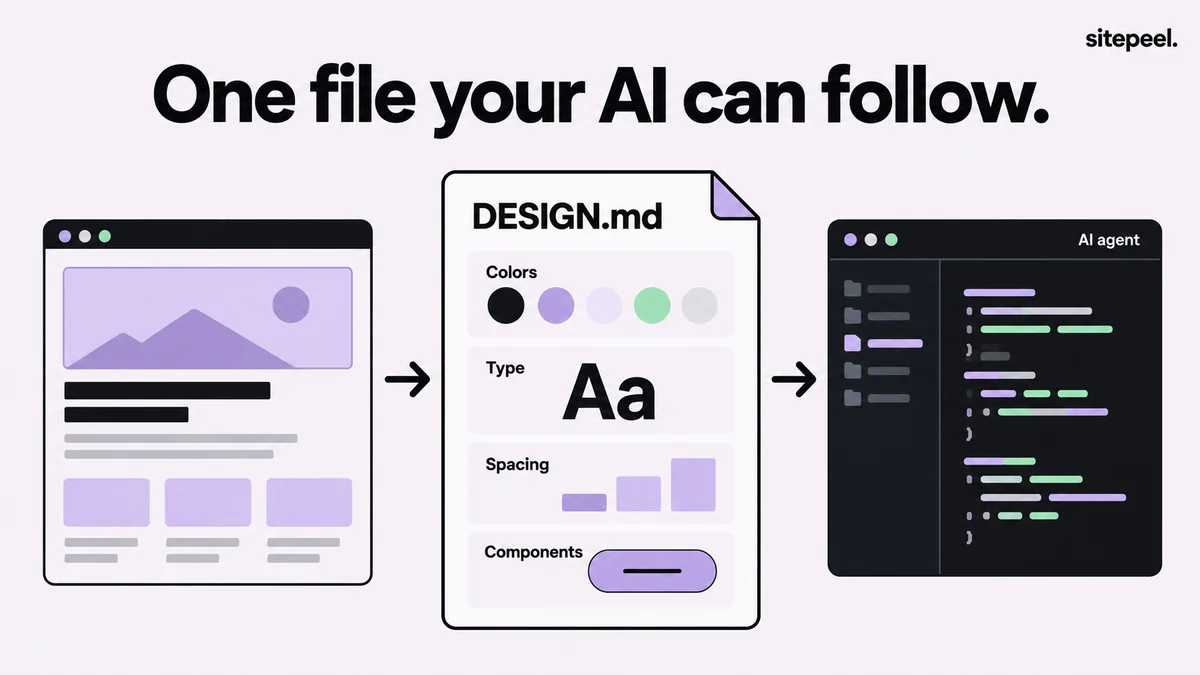
What is DESIGN.md?
DESIGN.md is a Markdown file that tells AI coding agents how your UI looks. See Google’s spec, three real examples, where to get templates and how to make one.
Read the guide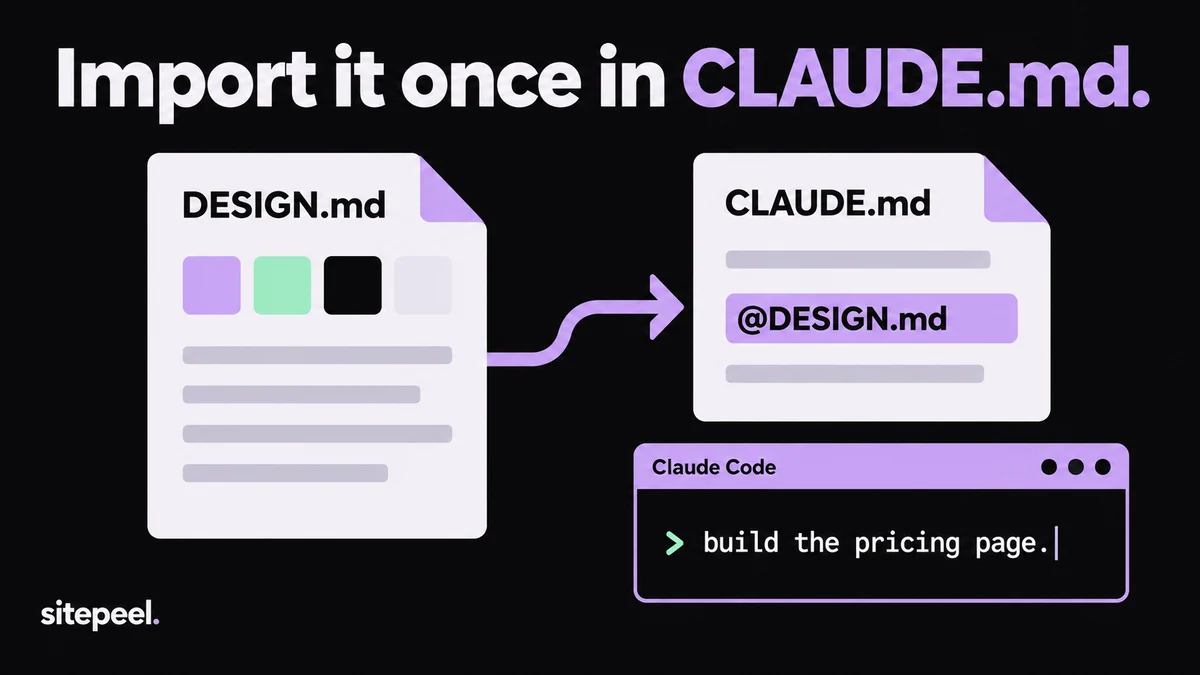
How to use DESIGN.md with Claude Code
Import DESIGN.md into CLAUDE.md with @DESIGN.md so Claude Code follows your colors, type and spacing. Includes a sample CLAUDE.md and checks.
Read the guide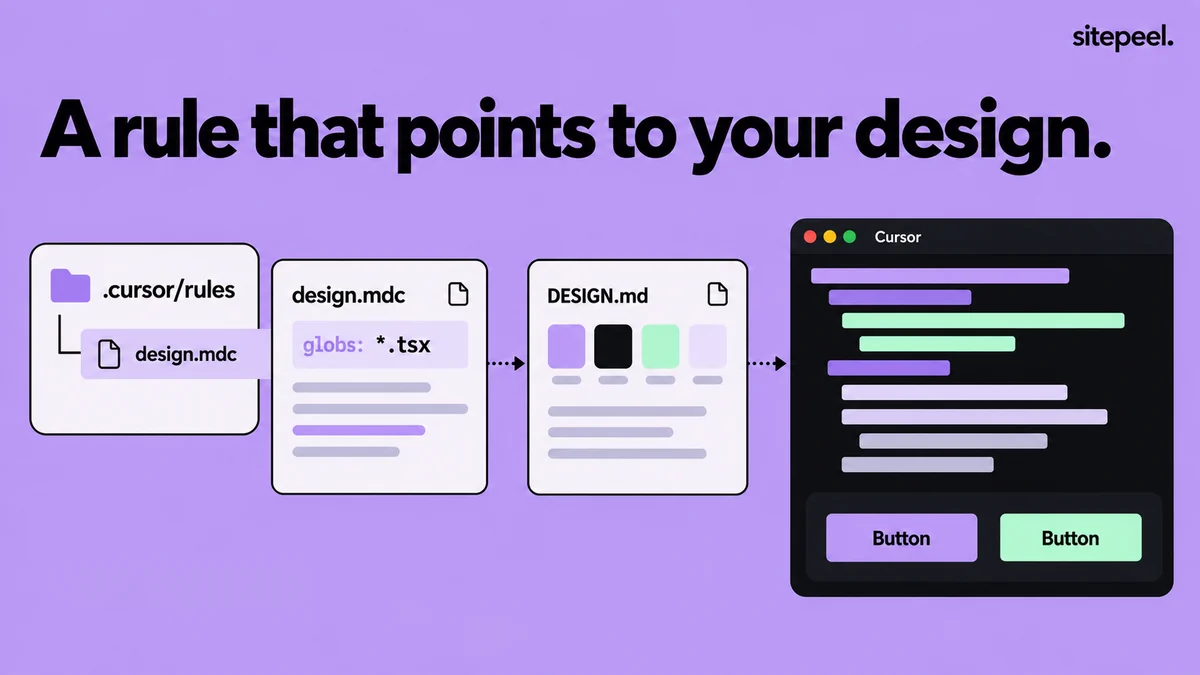
How to use DESIGN.md with Cursor
Point Cursor at DESIGN.md with a project rule in .cursor/rules, AGENTS.md or an @ mention. Includes a sample .mdc rule and the four rule types.
Read the guide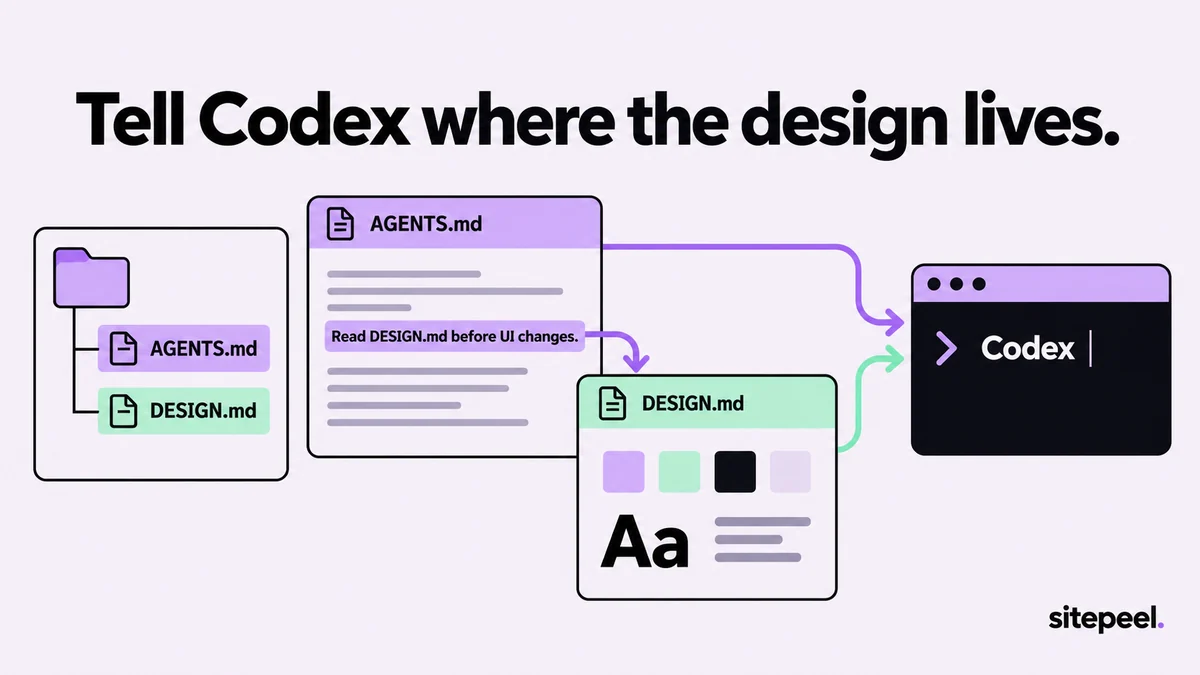
How to use DESIGN.md with OpenAI Codex
Make OpenAI Codex follow DESIGN.md with a few lines in AGENTS.md. See where Codex looks for instructions, its size limit and how to check what loaded.
Read the guide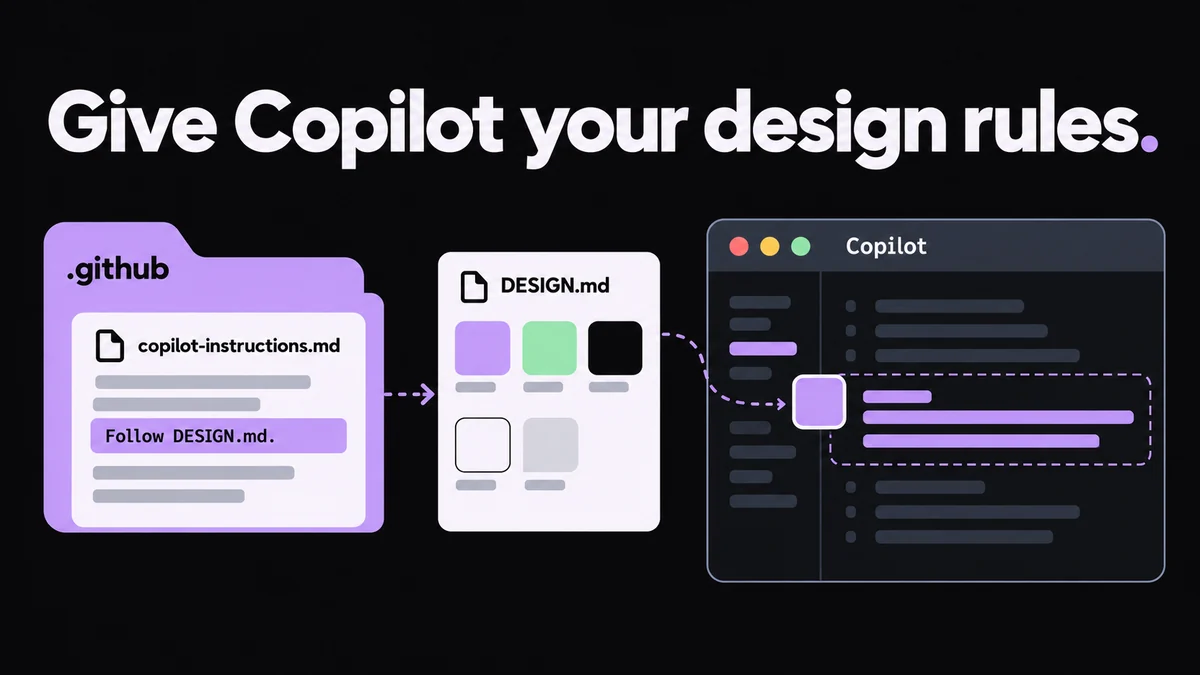
How to use DESIGN.md with GitHub Copilot
Make GitHub Copilot follow DESIGN.md with copilot-instructions.md, a path-specific .instructions.md file or AGENTS.md. Includes a sample file.
Read the guide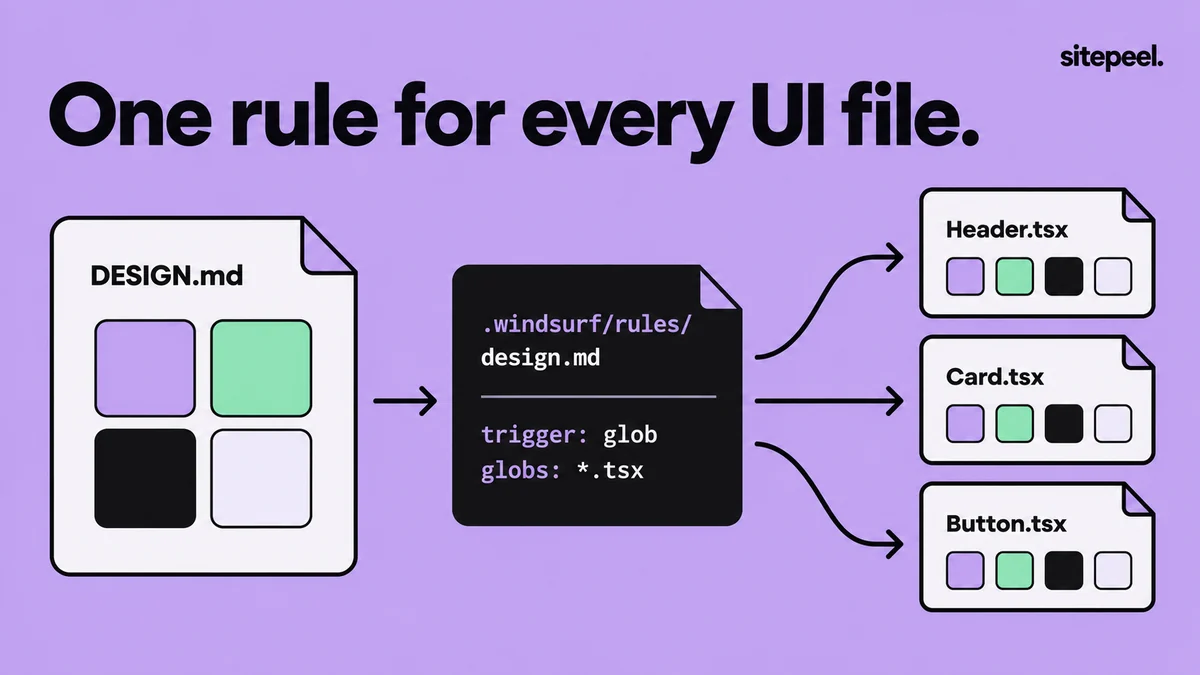
How to use DESIGN.md with Windsurf
Make Windsurf, now Devin Desktop, follow DESIGN.md with a workspace rule or AGENTS.md. Includes a sample rule and the four activation modes.
Read the guide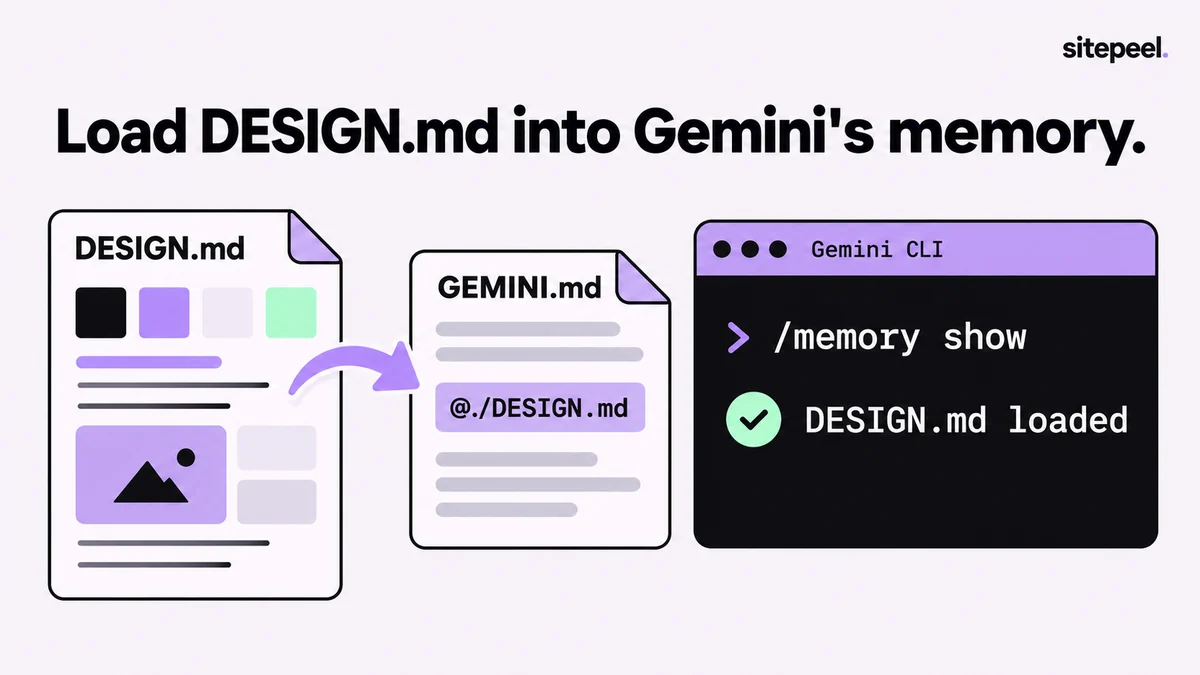
How to use DESIGN.md with Gemini CLI
Import DESIGN.md into GEMINI.md with @./DESIGN.md so Gemini CLI follows your design tokens. Check what loaded with /memory show. Sample file included.
Read the guide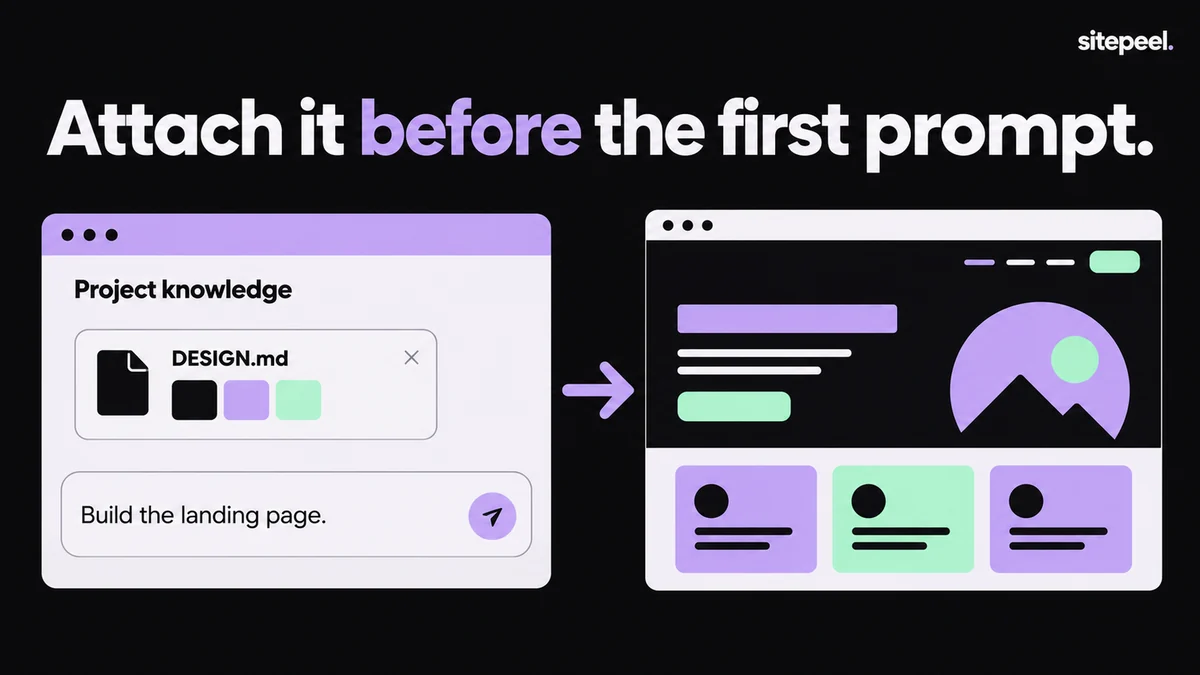
How to use DESIGN.md with v0, Lovable, Bolt and Replit
Where v0, Lovable, Bolt and Replit keep project instructions, how to add DESIGN.md to each, and a short prompt you can paste into any of them.
Read the guide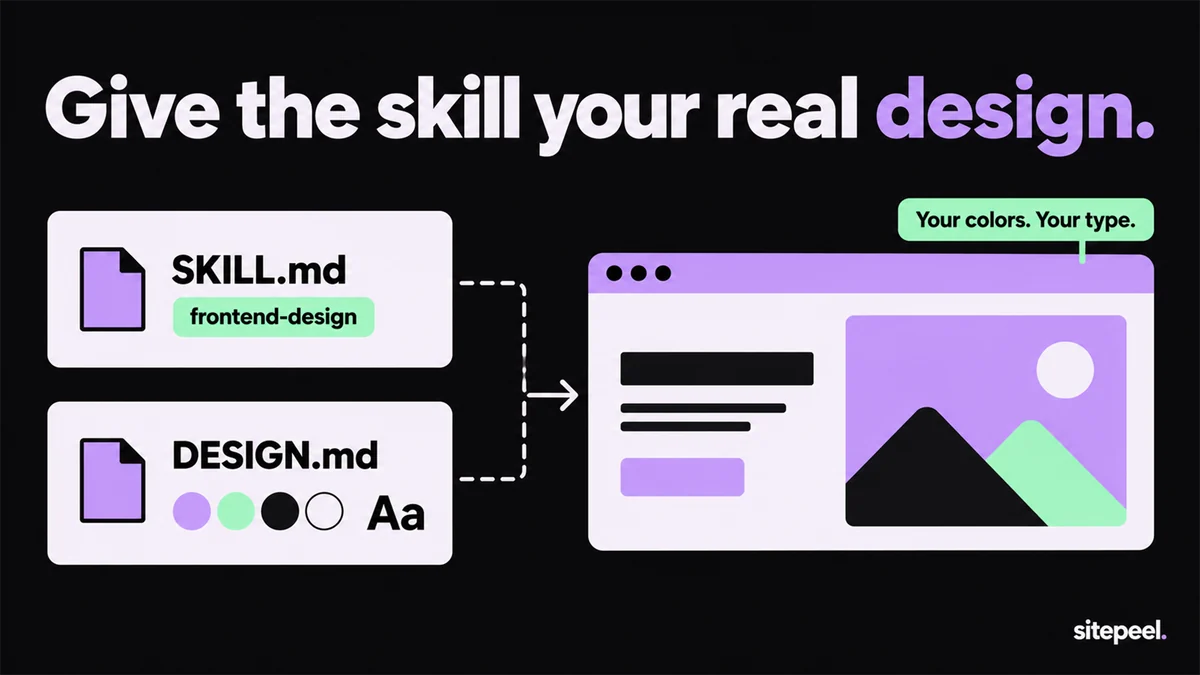
Claude’s frontend design skill, plus a DESIGN.md
Install Anthropic’s frontend-design skill in Claude Code, see why it still makes generic UI, and give it a measured DESIGN.md so it builds your real look.
Read the guide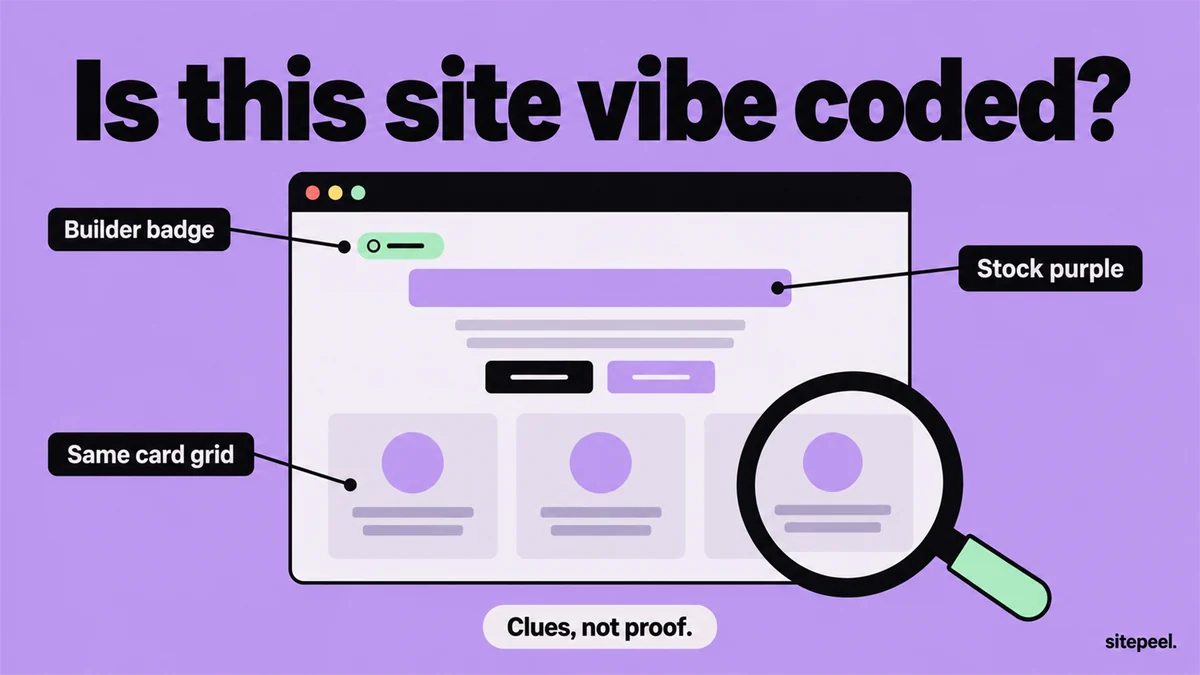
How to tell if a website was vibe coded
What a vibe coded website is, the clues that give one away, from builder badges to the same card grid, and how to check any site for free from its link.
Read the guide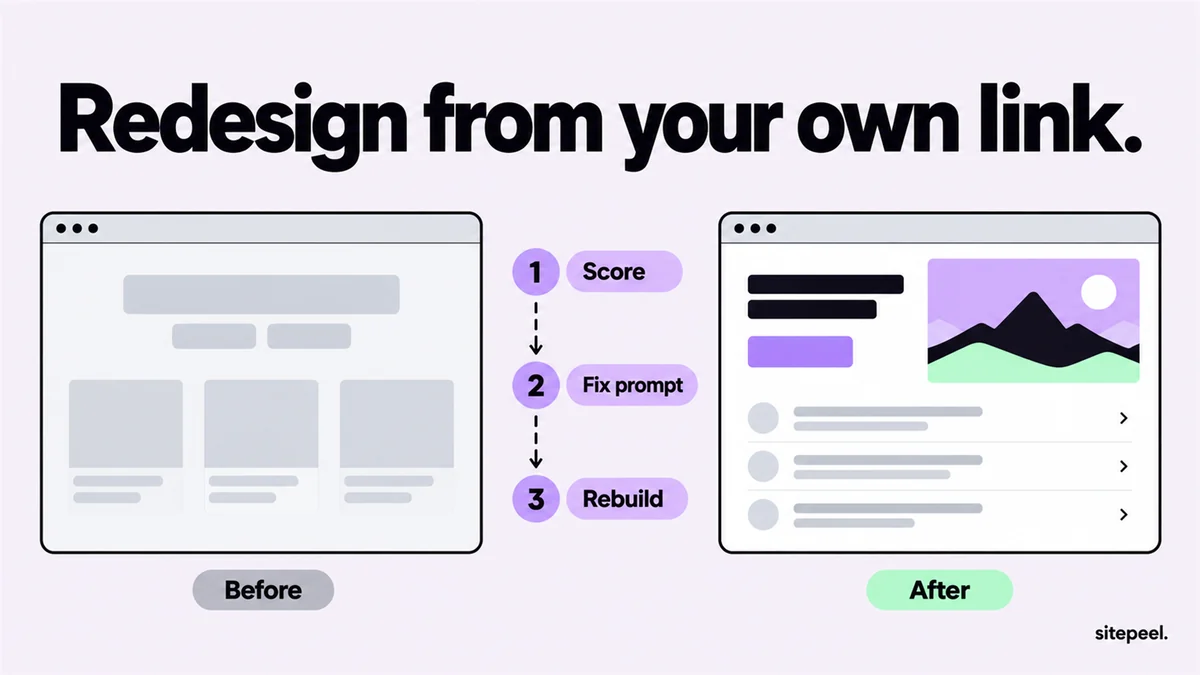
Redesign your website with AI, starting from its link
Redesign your website with AI from its link: find what looks generic, get a fix prompt, pick a look as a DESIGN.md, then rebuild in Lovable, v0 or Cursor.
Read the guide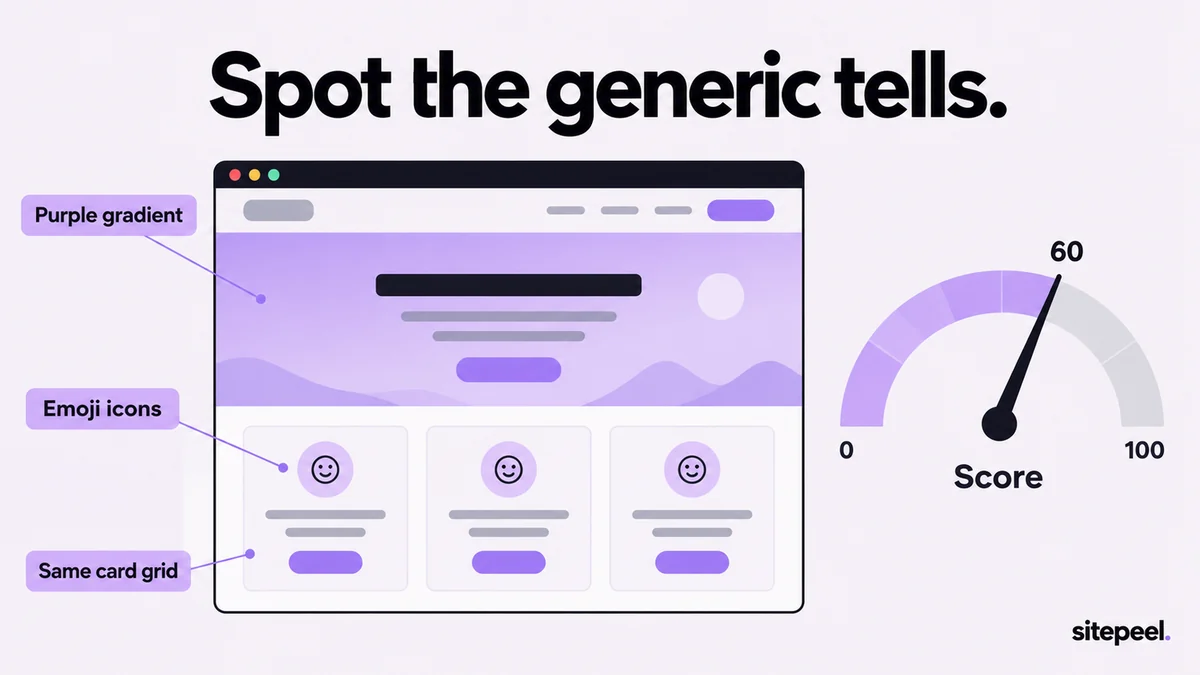
How to tell if a website looks AI-generated
Spot the tells of AI-made web design, from default fonts and purple gradients to icon card grids, then check any site free and get a fix prompt.
Read the guide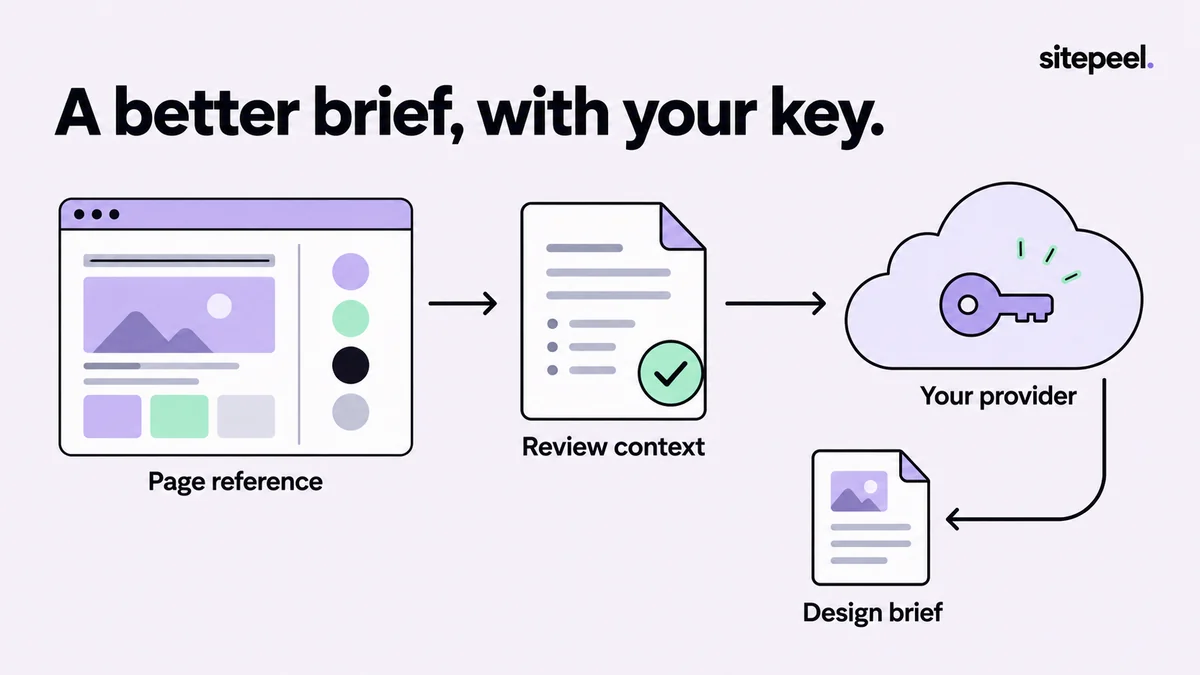
Refine a website design prompt with your own AI key.
Connect your own AI provider in Sitepeel to refine a website design prompt. Set it up, see what is sent and what it costs, and fix failed requests.
Read the guide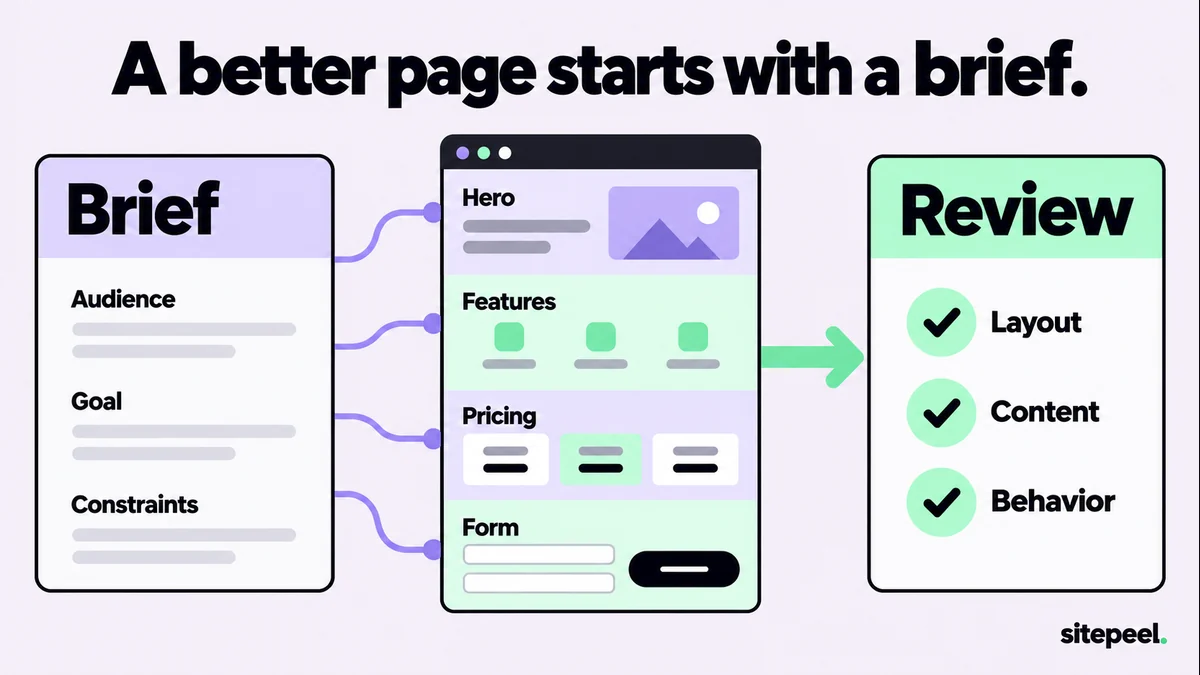
Six AI landing-page prompts you can copy
Copy six AI landing-page prompts for a full brief, hero, features, pricing, forms and a final review. Each one asks for real facts, not invented proof.
Read the guide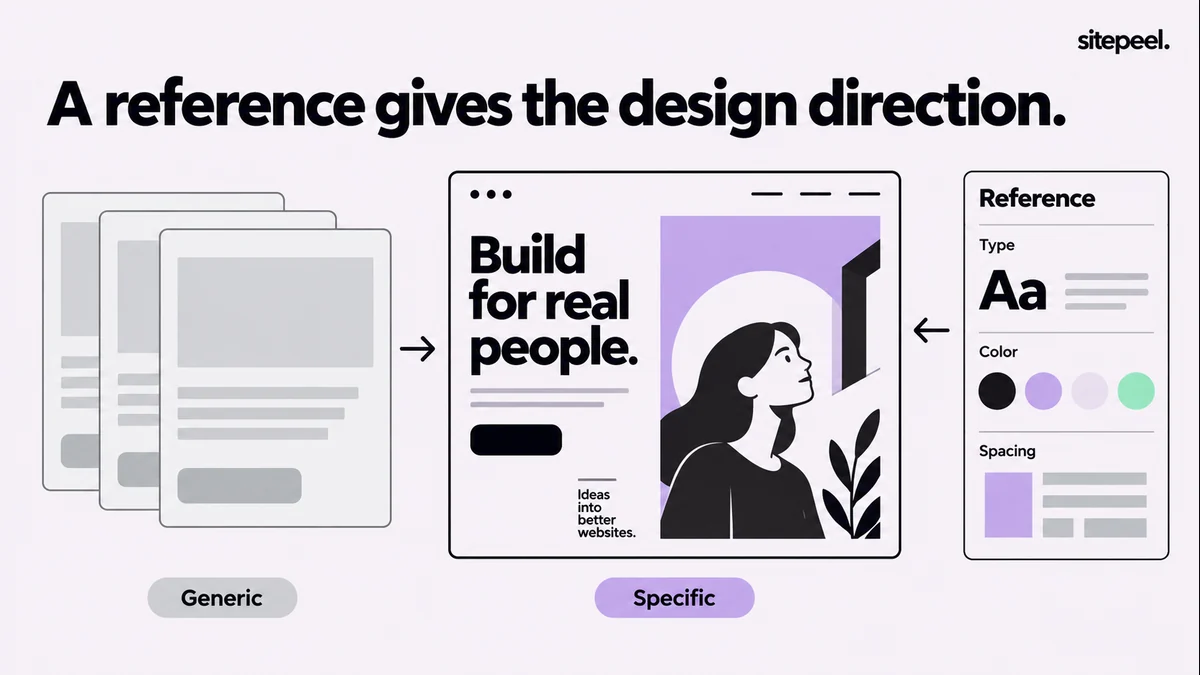
Why does your AI website look like every other one?
Why AI-made websites look generic, and how to fix yours: one real user task, your real copy, references with a clear job and design rules you can check.
Read the guide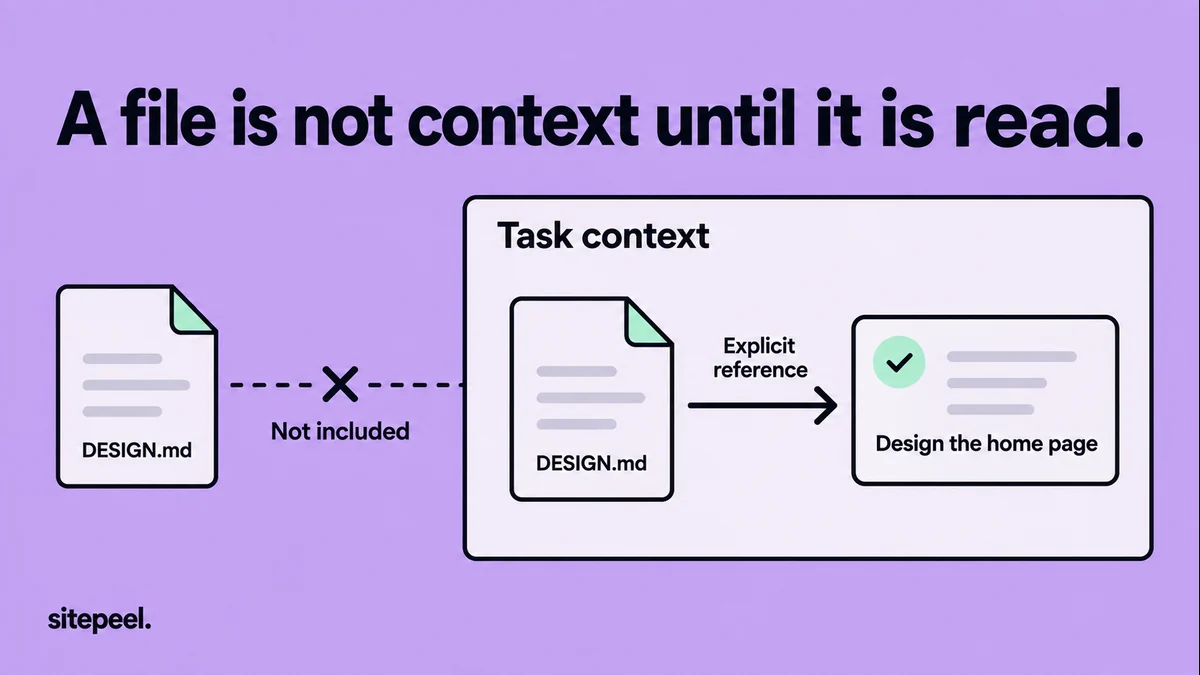
Your AI agent has DESIGN.md. Why is the UI still wrong?
Your agent has DESIGN.md but the UI is still wrong? Check that it loads, remove conflicting rules, name real components and verify the result.
Read the guide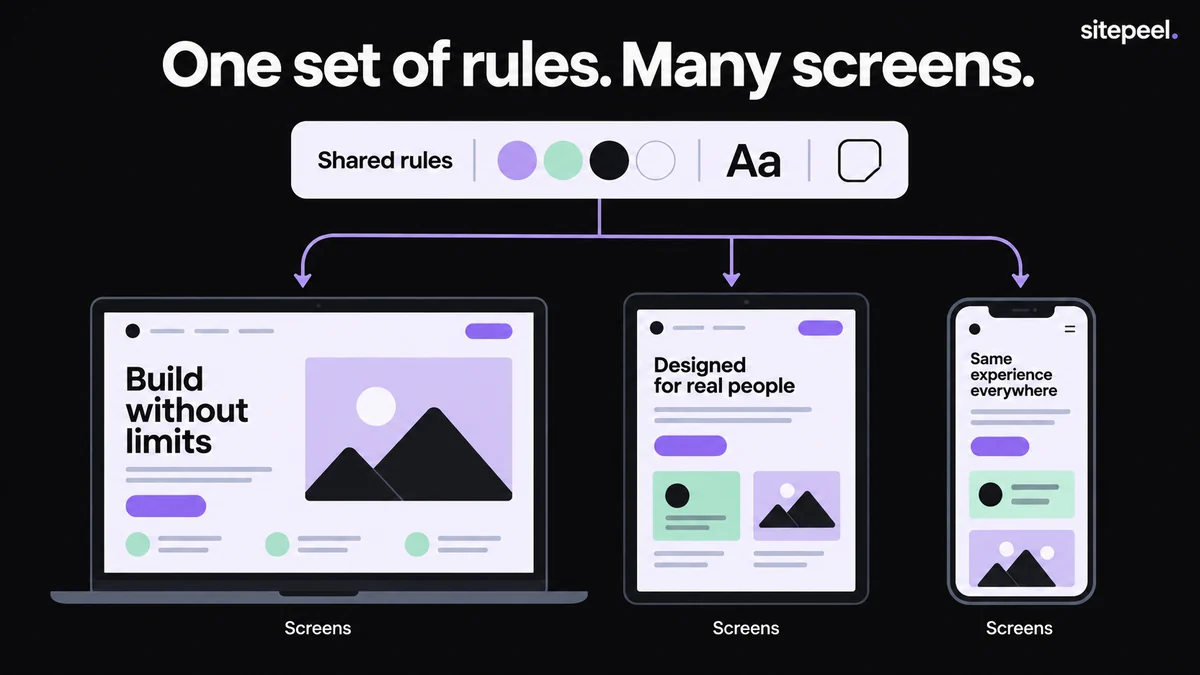
How to keep AI-generated UI consistent across projects
Keep separate sites and apps looking consistent when AI writes the UI: one shared token file, shared components and a versioned DESIGN.md file.
Read the guide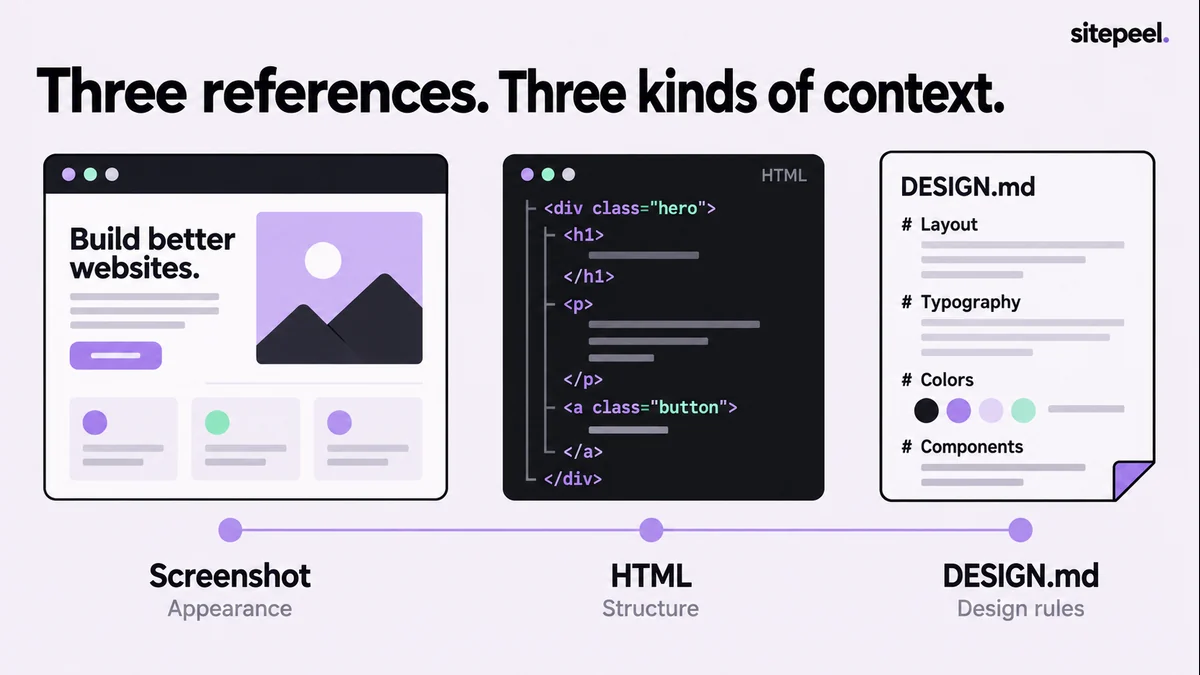
Should you give AI a screenshot, HTML or DESIGN.md?
Screenshot, HTML or DESIGN.md? See what each kind of reference shows an AI coding tool, what it misses, and which one to send for your task.
Read the guide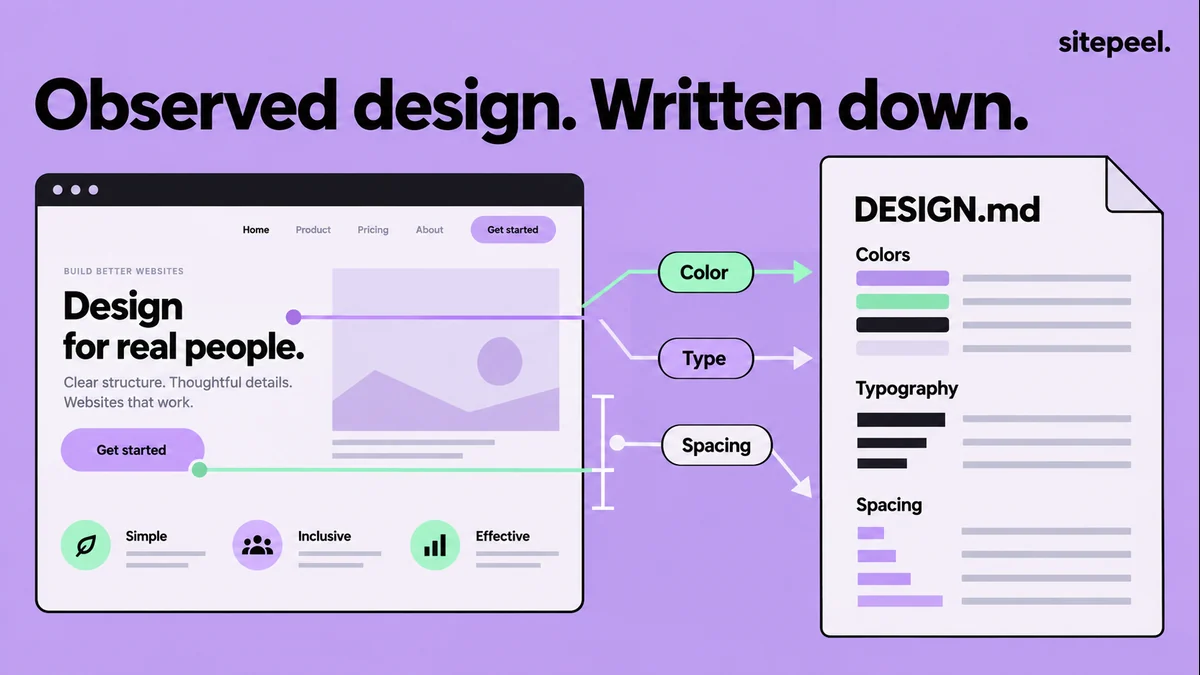
How to create DESIGN.md from a website
Make a DESIGN.md file from any website with the free generator or the Design MD tool in Sitepeel, then check it so your AI agent can use it well.
Read the guide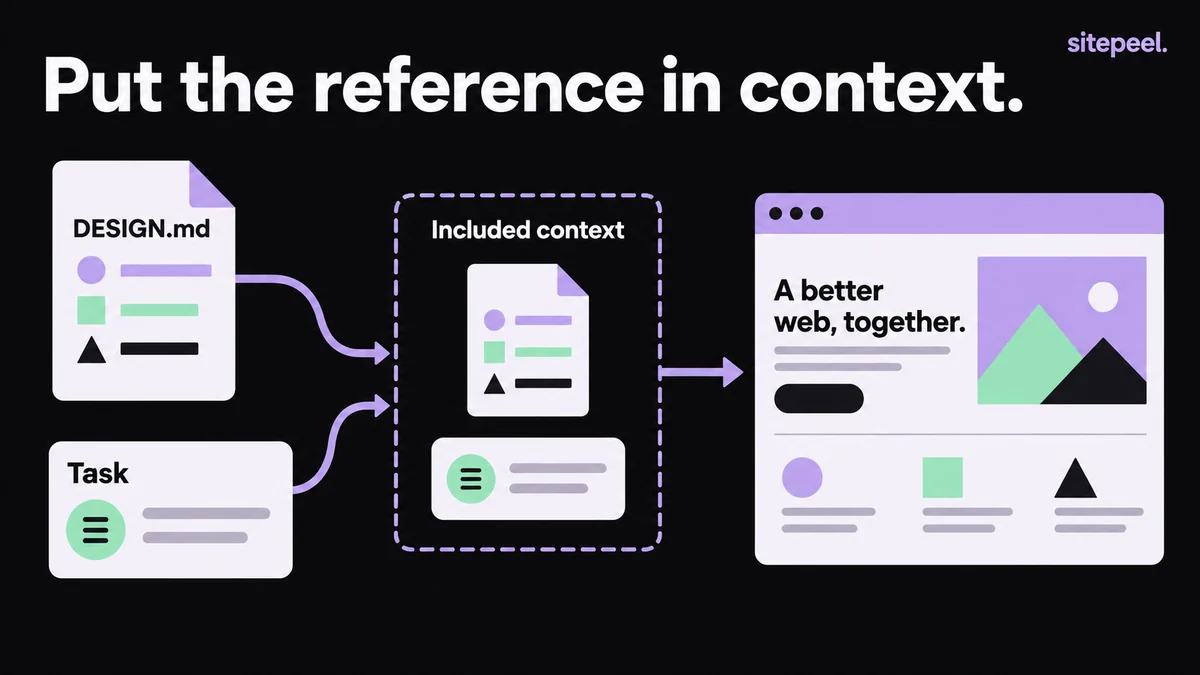
Use DESIGN.md with your AI coding assistant
Hand DESIGN.md to Cursor, Claude Code or another AI coding assistant: where to save it, two prompts to copy and how to review what it builds.
Read the guide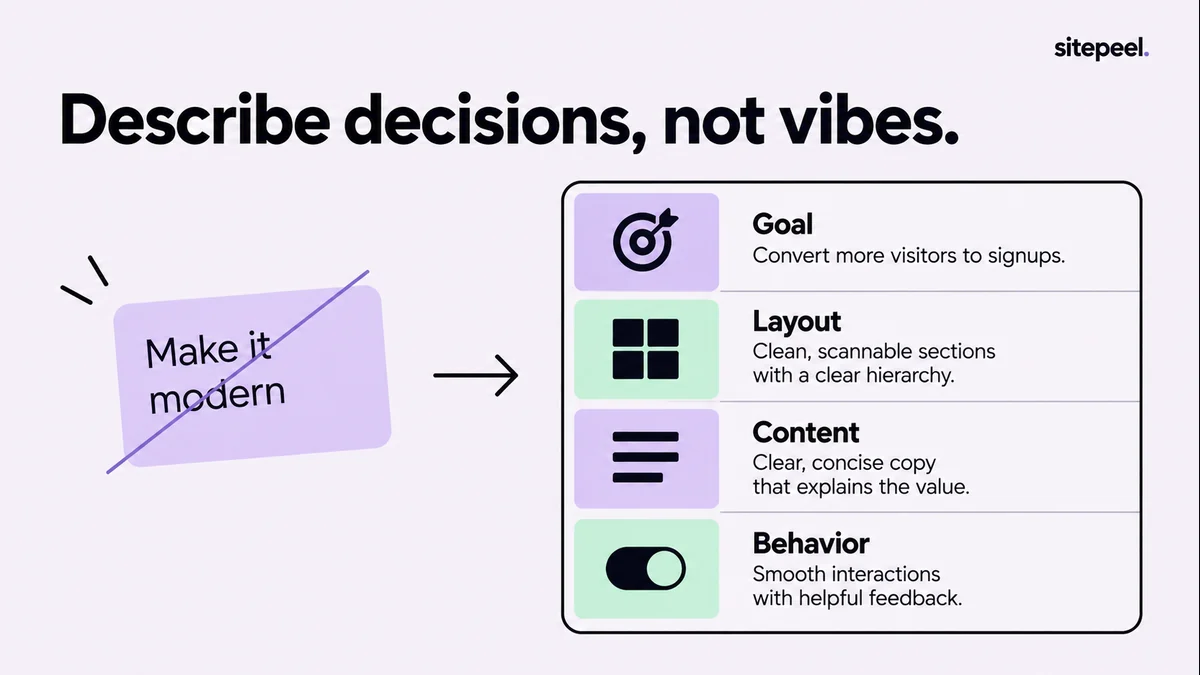
Write a website prompt an AI can act on
Write an AI website design prompt that works: the visitor’s task, the visual direction, states and mobile behavior. Copy and adapt the example.
Read the guide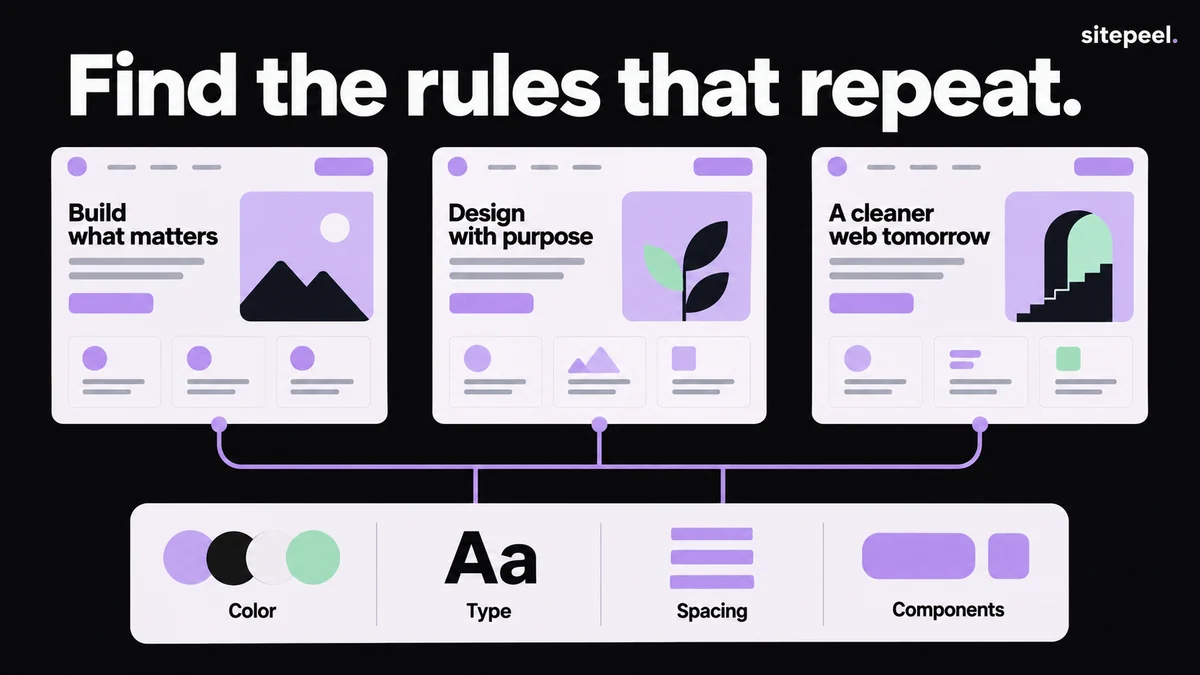
Extract a design reference from a real website
Turn a website’s repeated colors, type, spacing and components into a design system reference in DESIGN.md, with an evidence template to copy.
Read the guide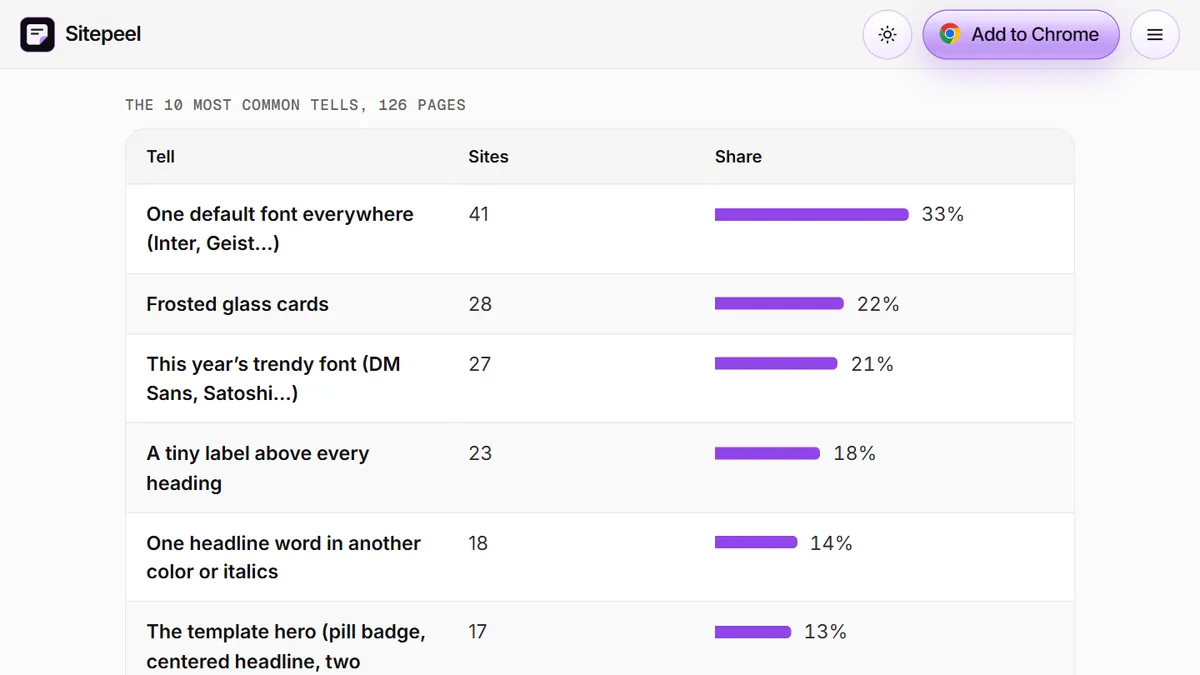
What AI slop looks like on real websites
We ran the AI slop checker on 126 startup home pages from YC’s 2026 batches. The score spread, the 10 most common tells and the method, with a free CSV.
Read the guideCode & cloning
12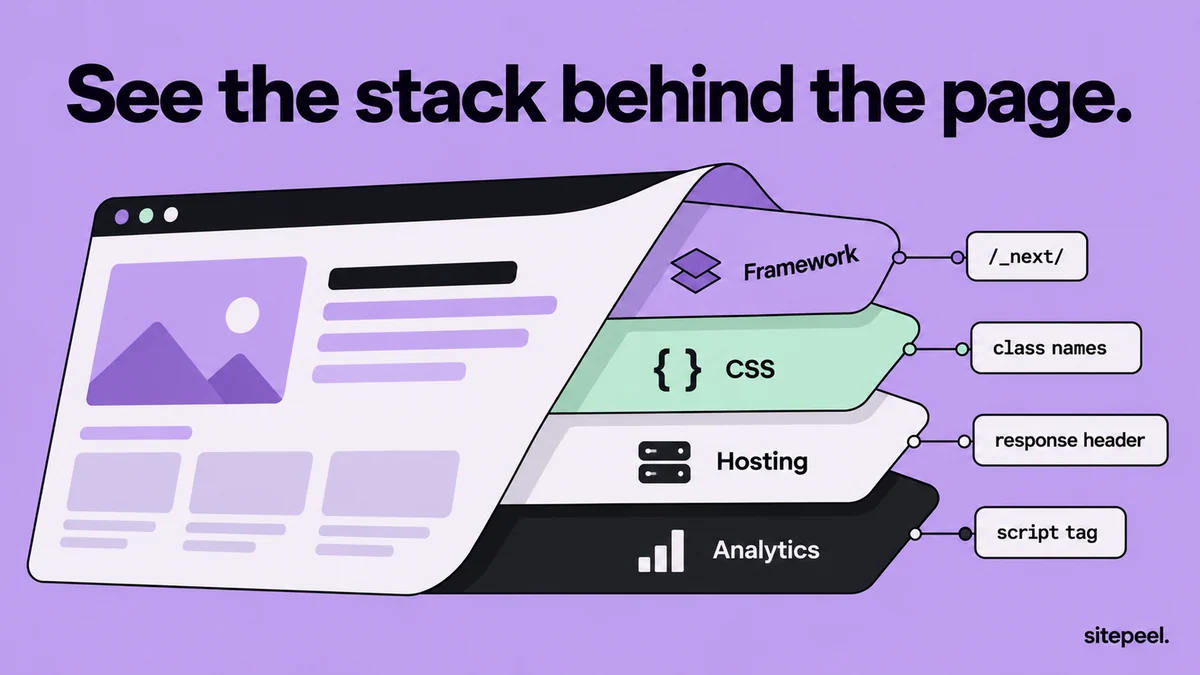
How to find out what a website is built with
Find a website’s framework, CMS or site builder, hosting and libraries from the traces in its code and headers, and learn what no checker can see.
Read the guide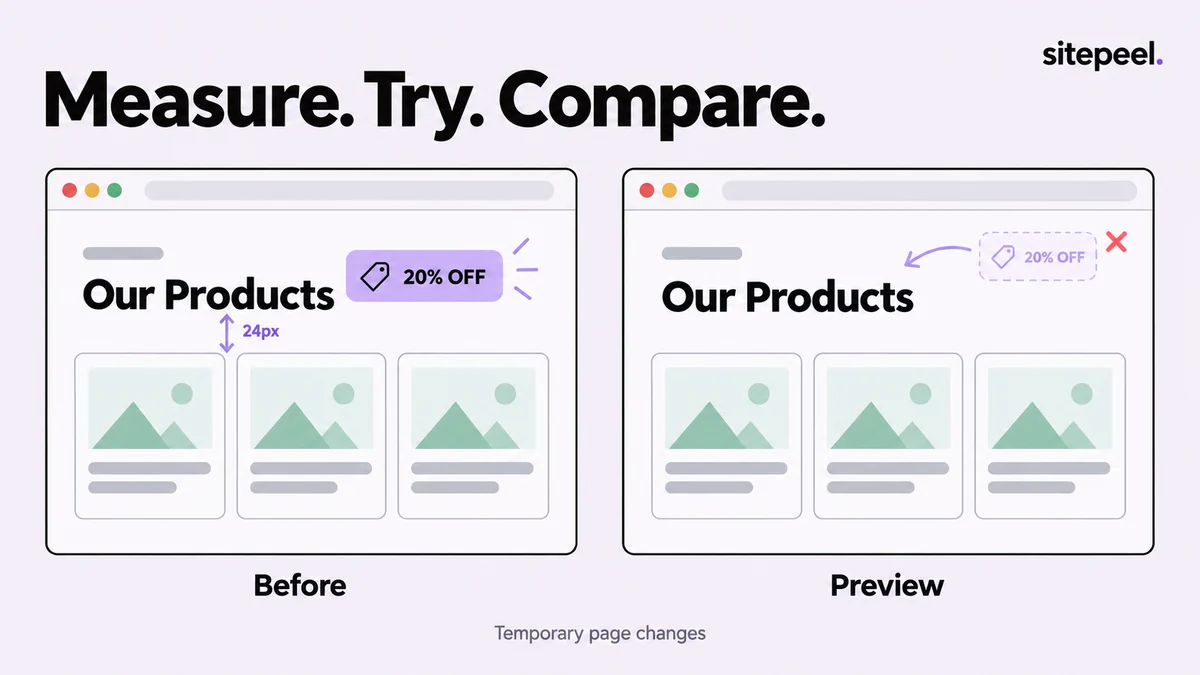
Try a layout idea on the page before rebuilding it.
Measure a website layout, then move or remove elements temporarily to test an idea. Turn the experiment into clear notes and before-and-after screenshots.
Read the guide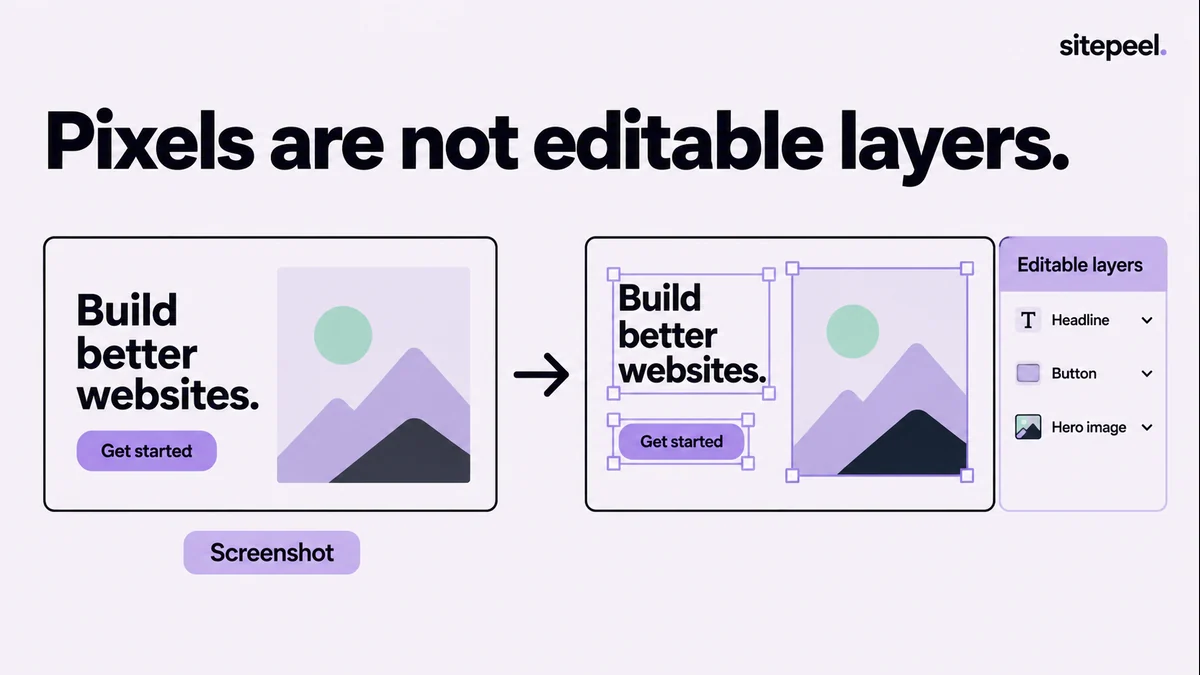
Website to Figma: how to import a page and clean it up
Bring a website into Figma with an editable import or a screenshot. Then check fonts, images, layers and mobile layouts before making components.
Read the guide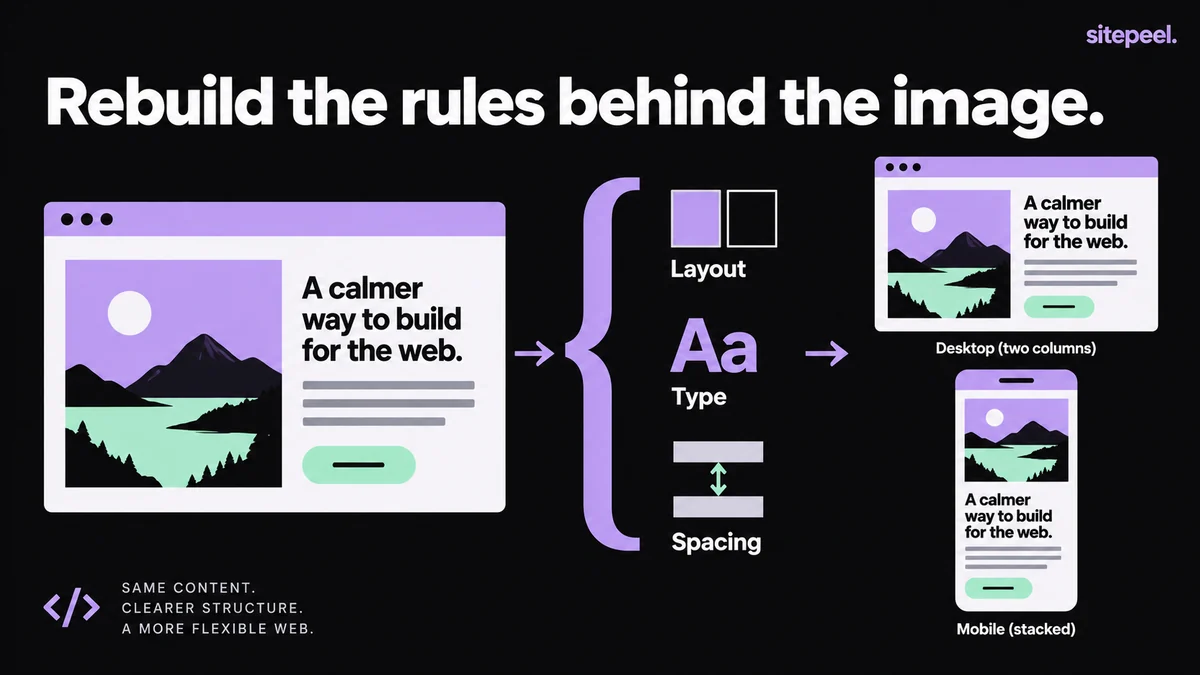
How to turn a screenshot into HTML and CSS
Turn a screenshot into responsive HTML and CSS: map the sections, build a flexible layout, brief an AI coding assistant and compare the result.
Read the guide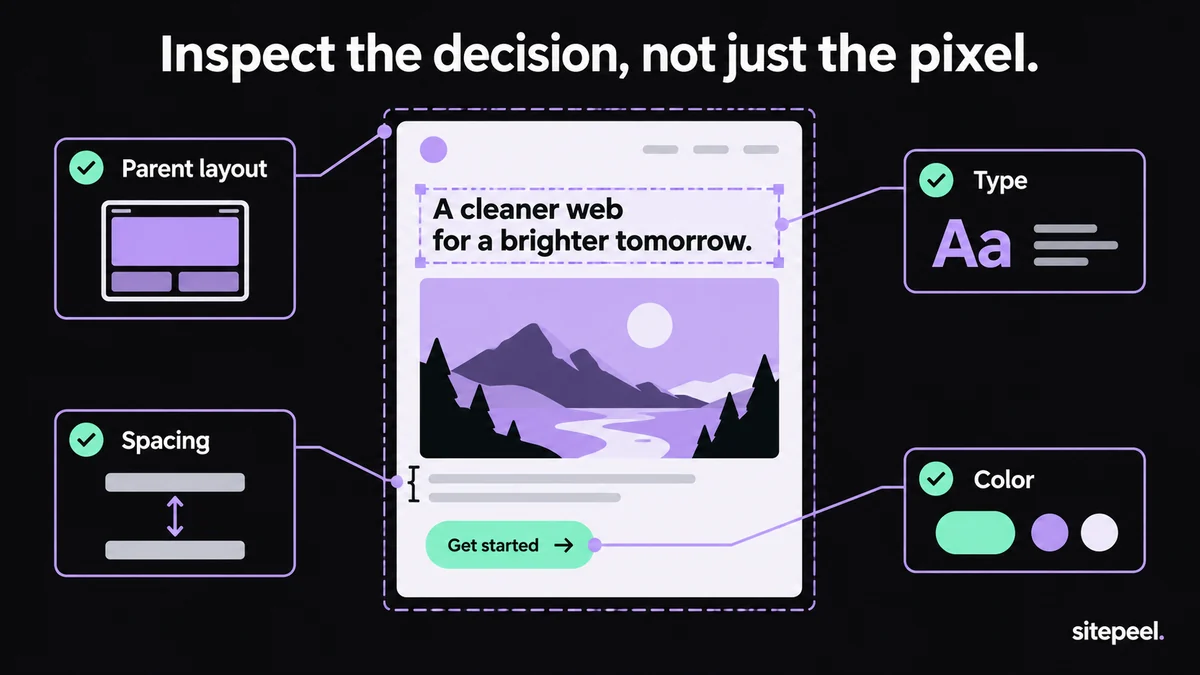
How to inspect a website’s design
Inspect a website’s layout, fonts, colors and spacing in Chrome, step by step, with a checklist you can copy for writing down what you find.
Read the guide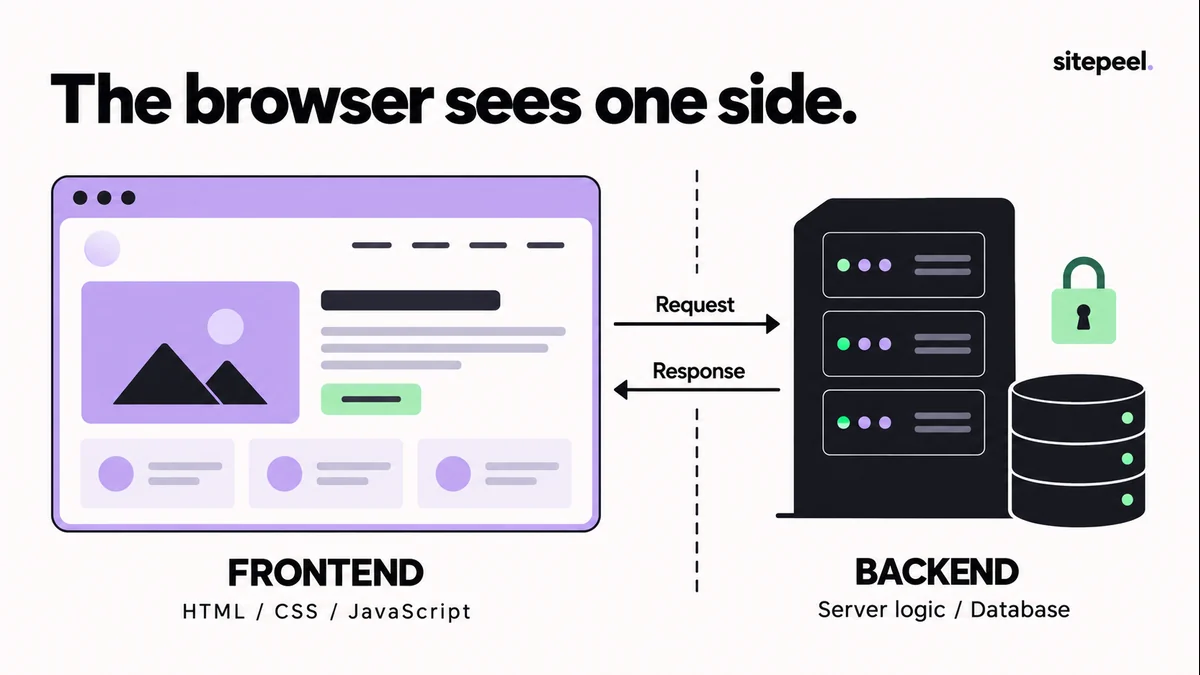
Can you clone a website’s backend from the browser?
No: a browser export copies the frontend you see, not server code or databases. See what a clone includes, why buttons break and what to rebuild.
Read the guide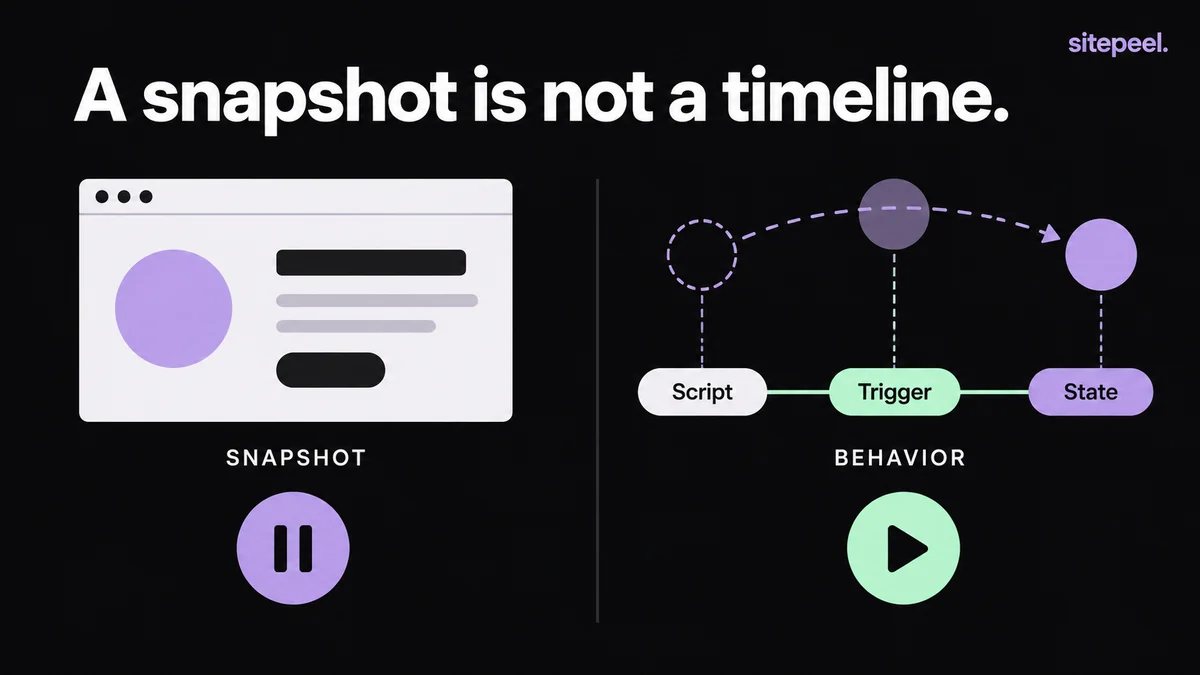
Why do animations break when you clone a website?
Fix missing scroll effects, broken GSAP timelines and hidden content after cloning a website. Rebuild one effect at a time on a readable static layout.
Read the guide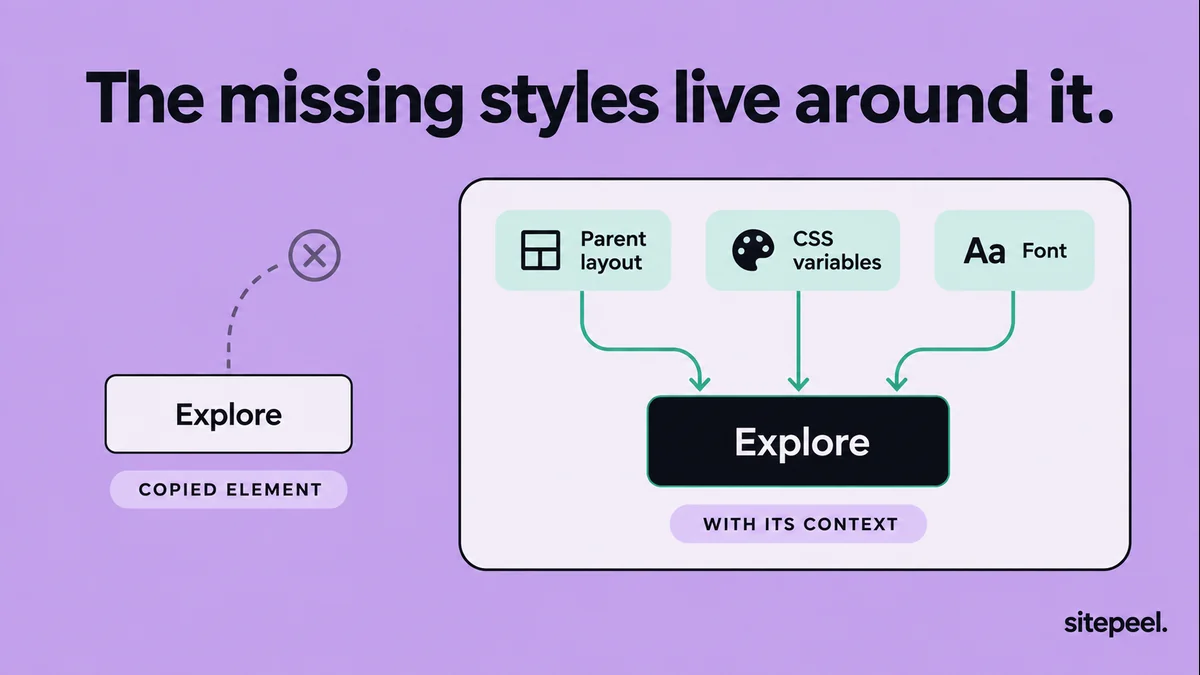
You copied the CSS. Why does the element look different?
Copied HTML and CSS looks different? Check the stylesheet loads, then compare inherited values, custom properties, the parent layout and pseudo-elements.
Read the guide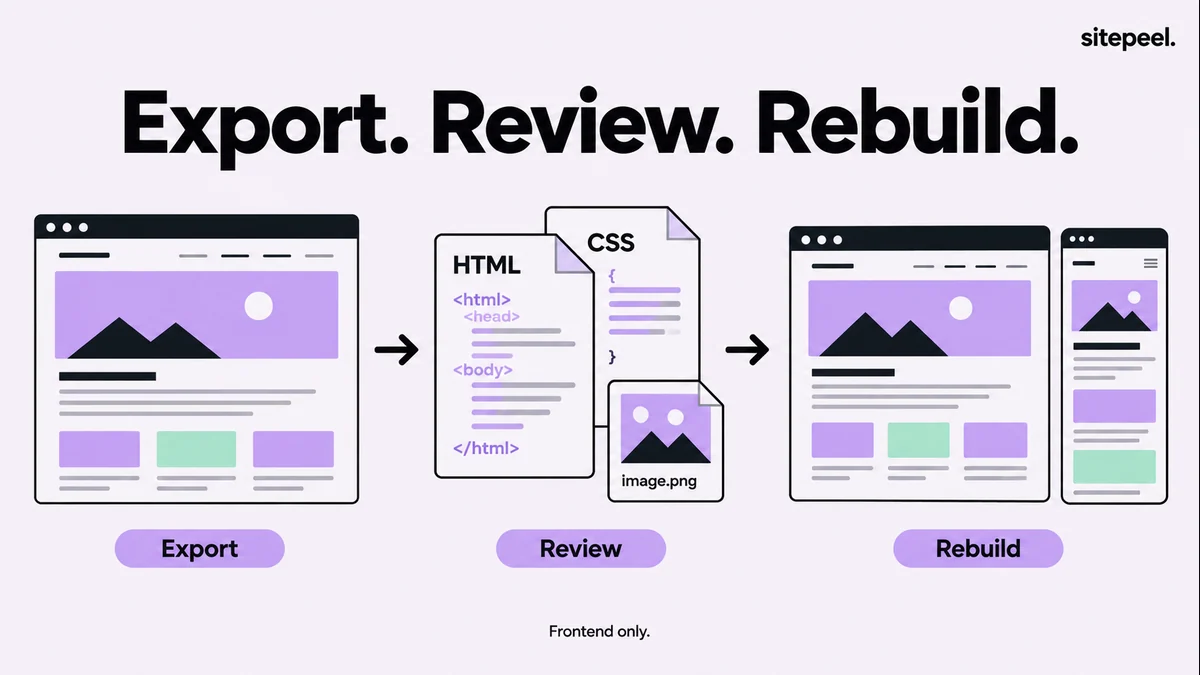
How to clone a website’s frontend
Clone a website page as HTML and CSS: load it fully, export it with the Clone page tool in Sitepeel, then check what you still need to rebuild.
Read the guide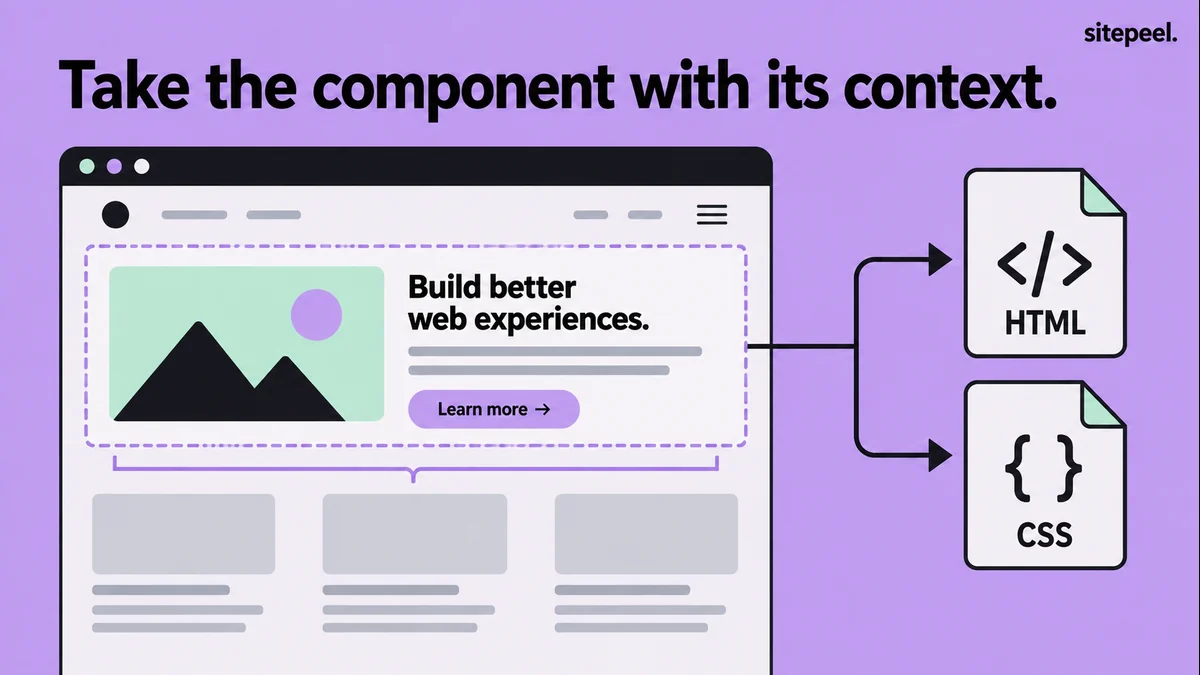
Copy a website element’s HTML and CSS
Copy a website element’s HTML and CSS with the Pick element tool in Sitepeel, then fix the fonts, assets and parent styles that it depends on.
Read the guide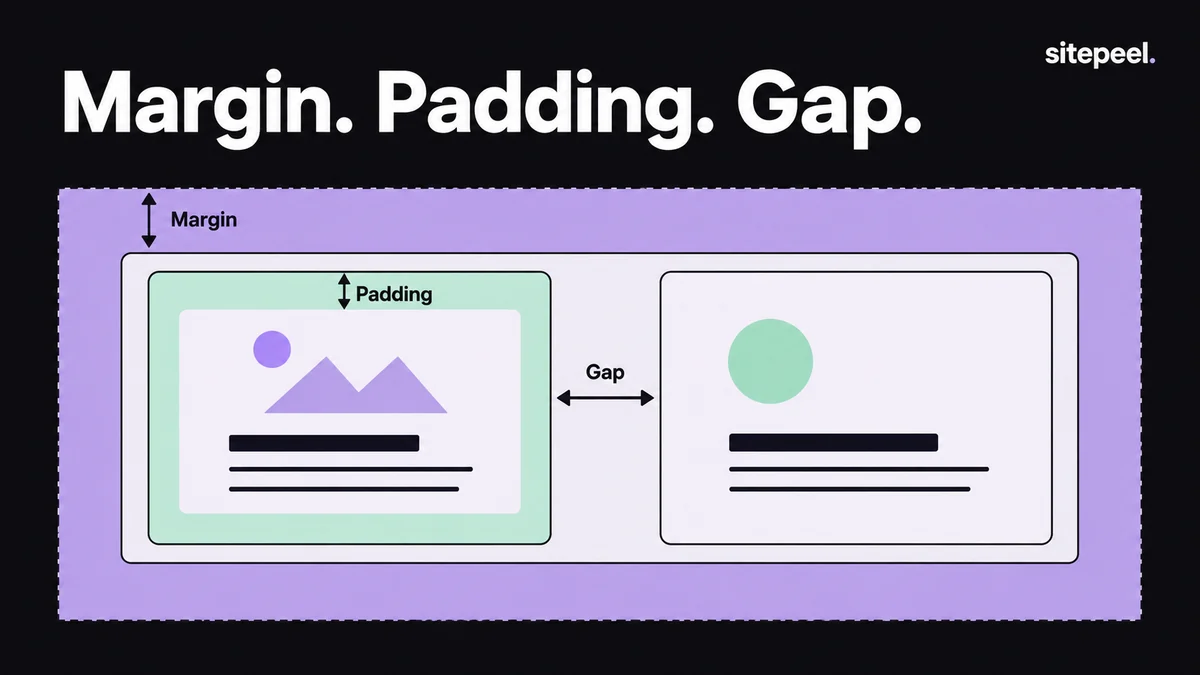
How to measure spacing on a website
Measure the padding, margins and gaps behind any website layout with the Inspect & measure tool in Sitepeel, then turn them into a spacing scale.
Read the guide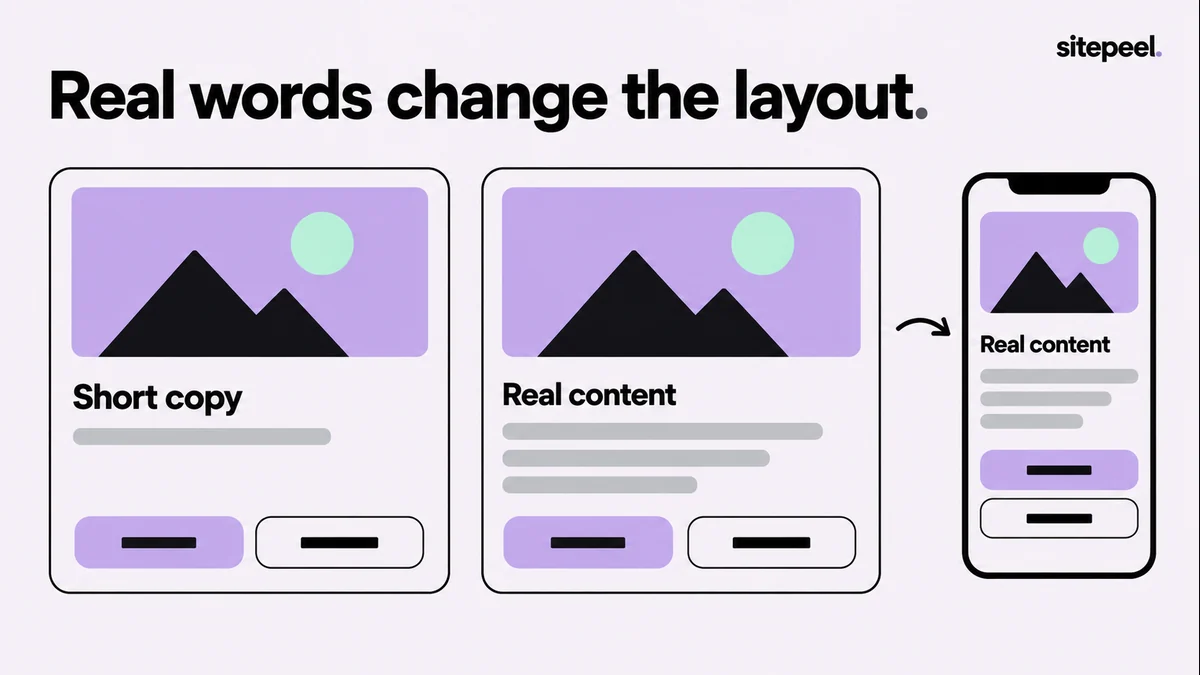
Preview website copy in the real layout
Try new headlines, button labels and section orders in place with Sitepeel’s Edit text and Move & delete tools, before you change your site.
Read the guideAssets & screenshots
13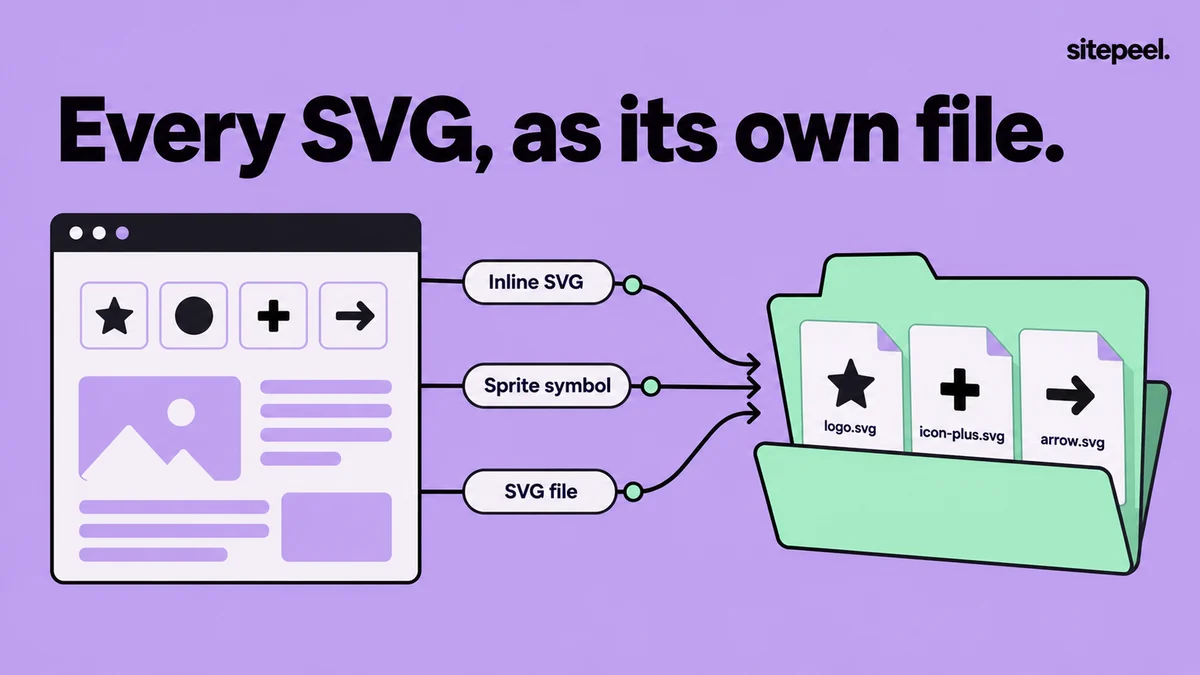
How to download SVGs from a website
Save inline SVGs, sprite icons, SVG files and CSS background SVGs from any website, step by step, with Chrome DevTools or a free online asset extractor.
Read the guide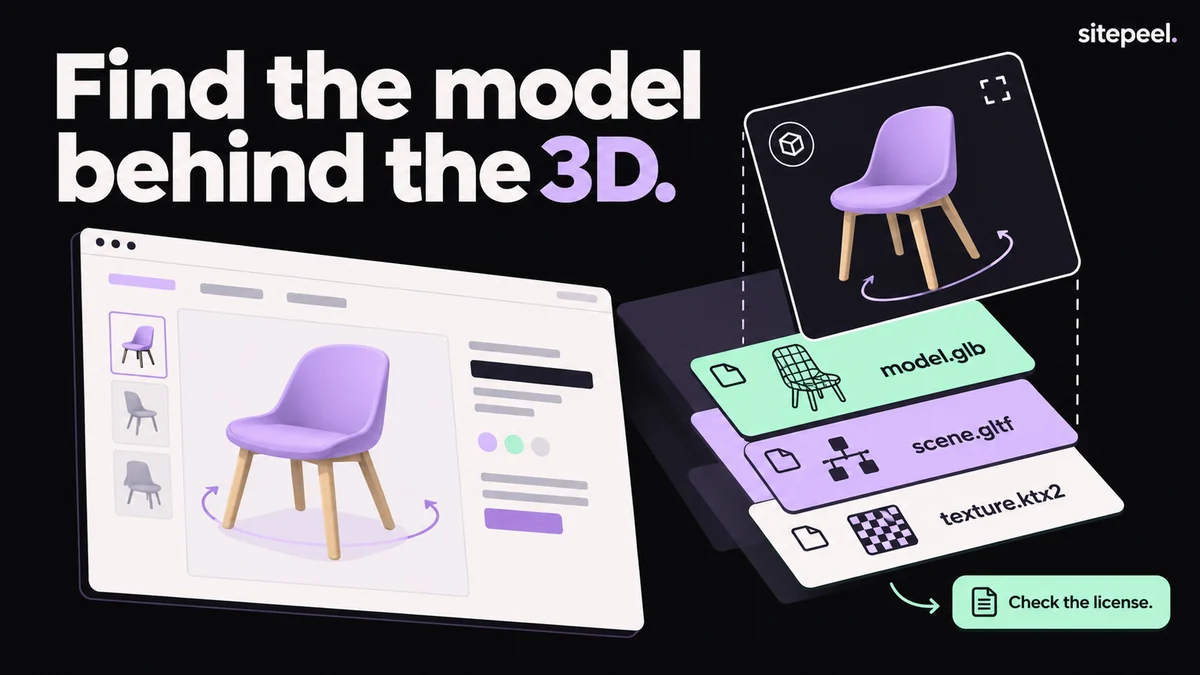
How to download 3D models from a website
Find and save the GLB, glTF, USDZ and Spline files a website loads, using Chrome DevTools or a free asset extractor, and learn what you may reuse.
Read the guide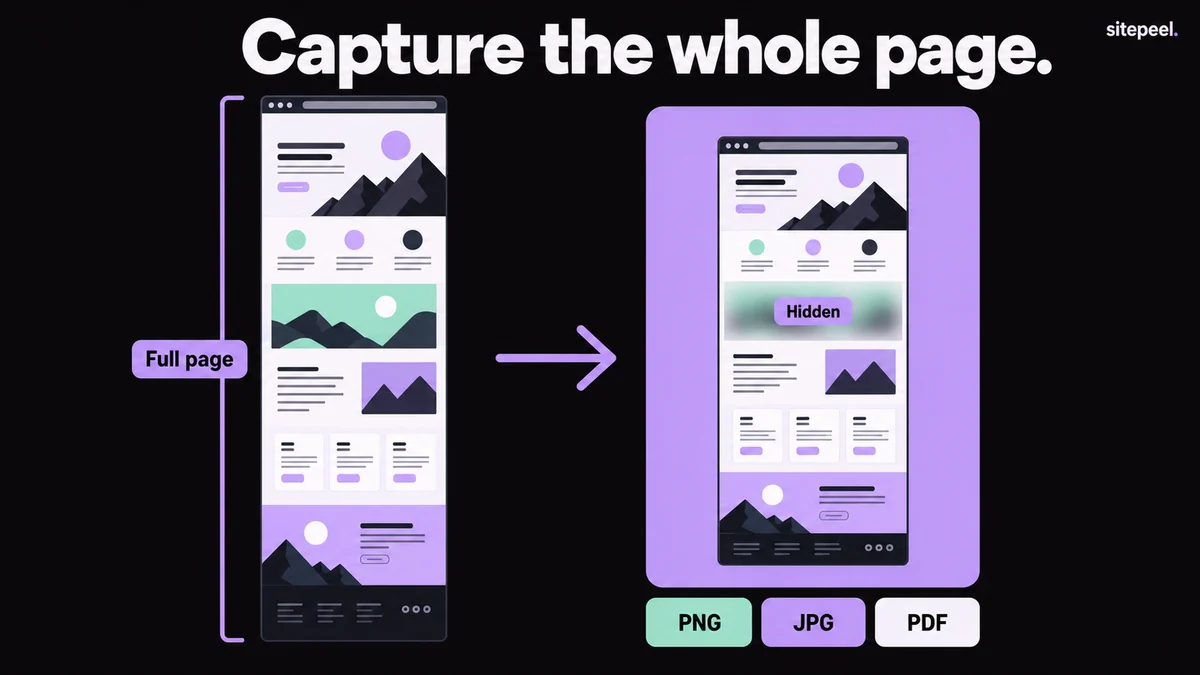
How to screenshot an entire webpage
Screenshot an entire webpage in Chrome, Edge, Firefox or Safari, on Mac, Windows or a phone, with no extension. Or capture any page online from its link.
Read the guide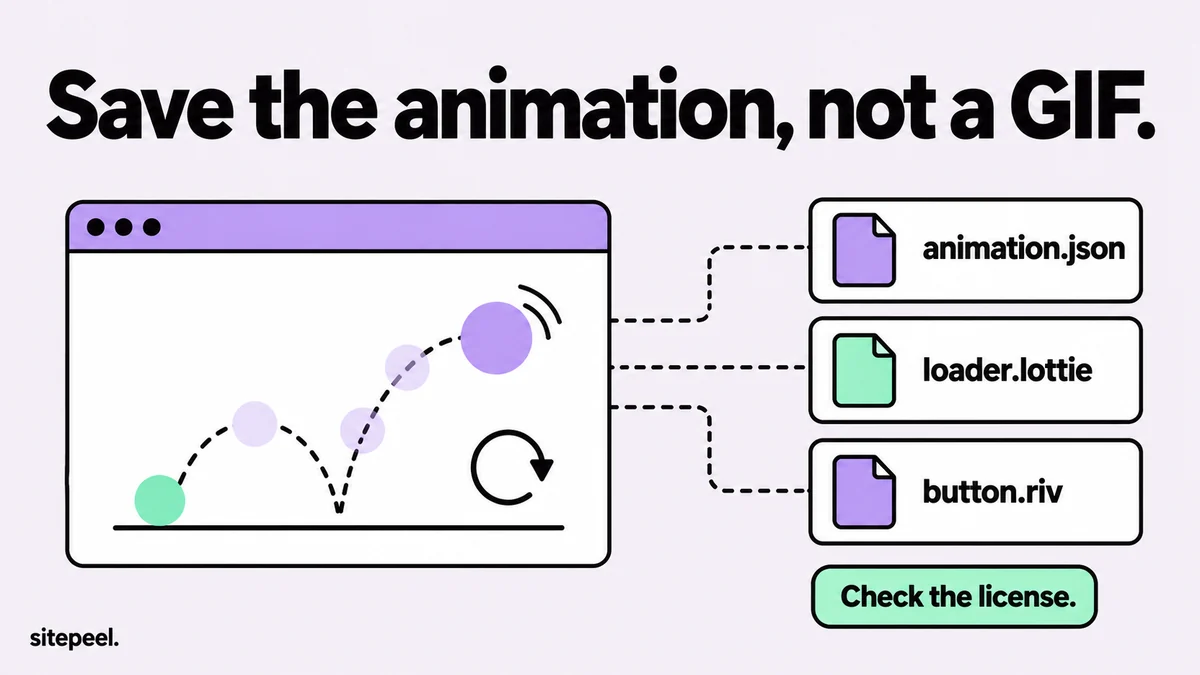
How to download Lottie animations from a website
Save the Lottie JSON, .lottie and Rive files a website plays, with a free asset extractor or Chrome DevTools, then play them and check the license.
Read the guide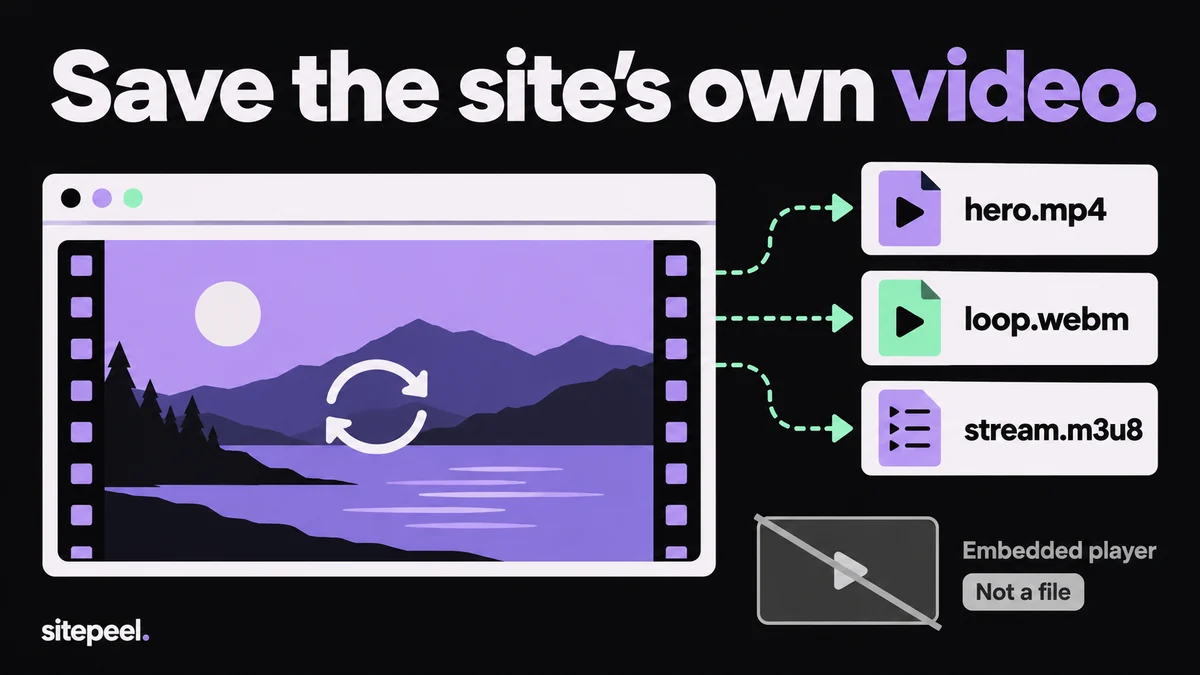
How to download a video from a website
Download a video from a website four ways: Save video as, a free video downloader, Chrome DevTools or ffmpeg for streams. Plus what to do for YouTube and Vimeo.
Read the guide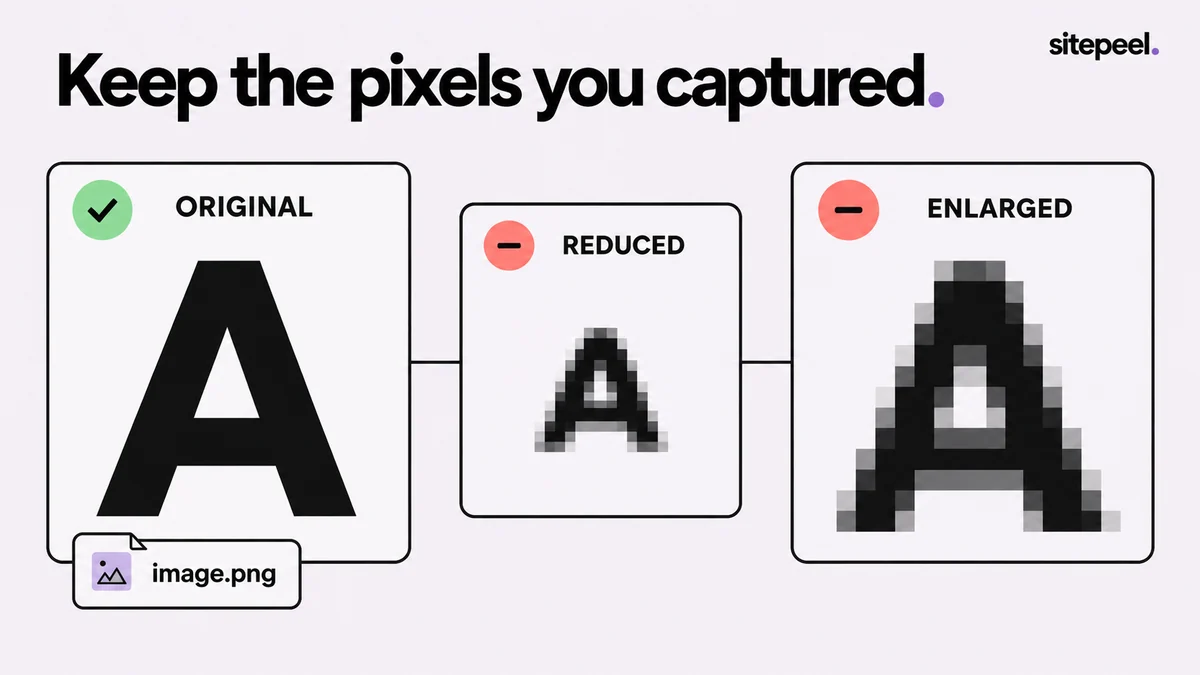
Why is my website screenshot blurry?
Find where a website screenshot loses detail: the capture, the export or the app you shared it in. Check pixels at 100%, formats and downscaling.
Read the guide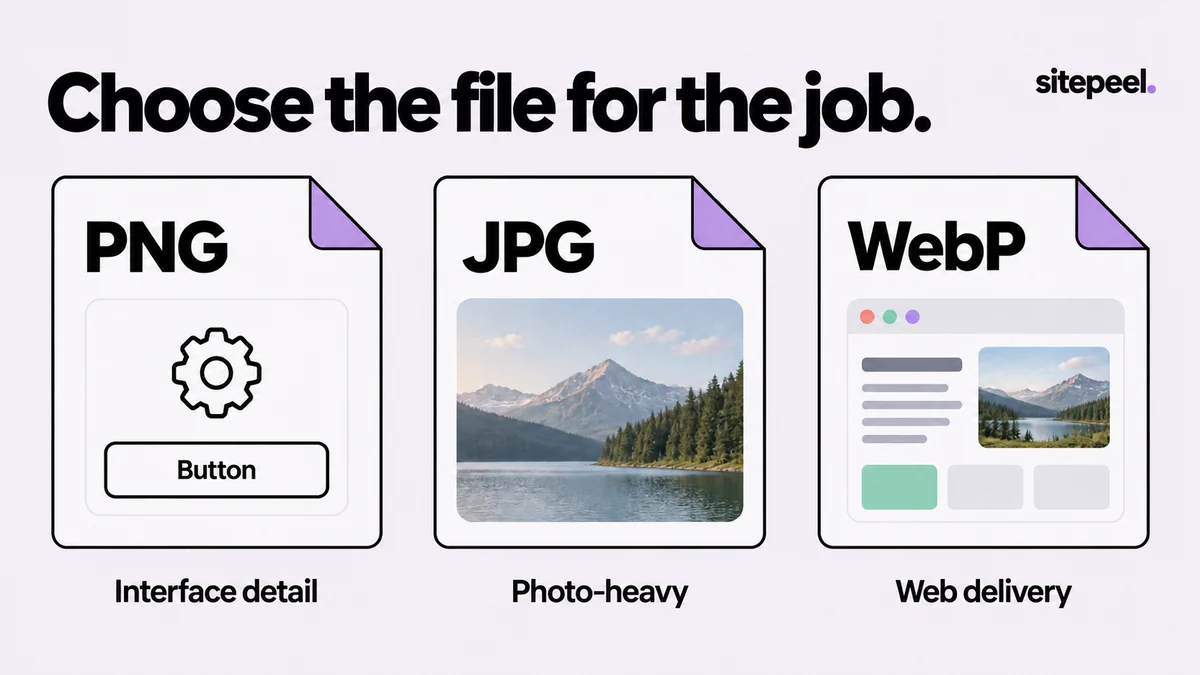
PNG, JPG or WebP: which is best for screenshots?
Which format to use for website screenshots: PNG for interface text, JPG or WebP for photo-heavy pages, PDF for paged review. Compare quality and size.
Read the guide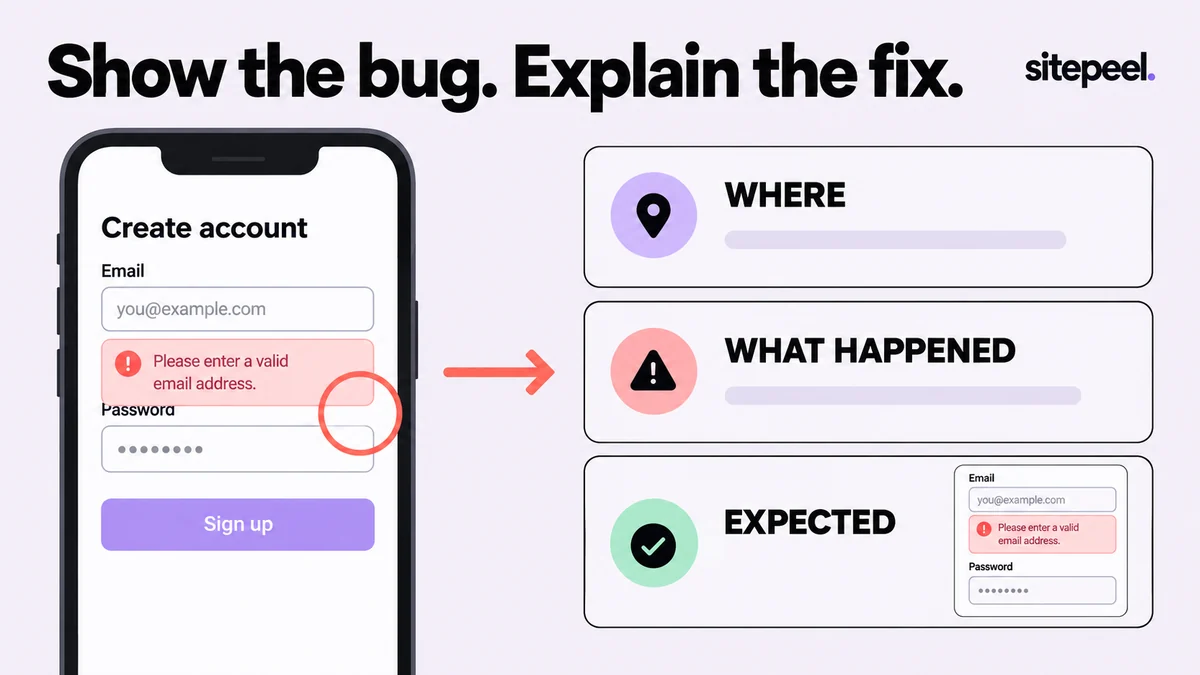
How do you write a useful visual bug report?
Write a visual bug report someone can reproduce: one focused screenshot, the viewport, steps and the expected result. Includes a copyable template.
Read the guide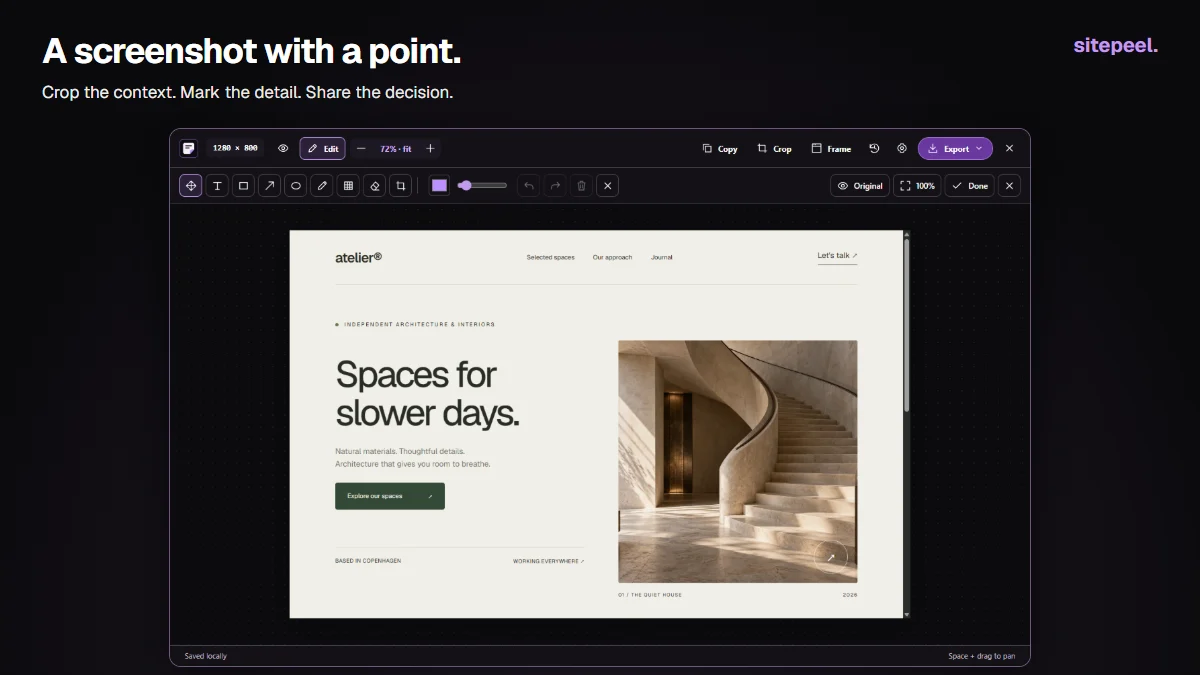
Crop, annotate and export a website screenshot.
Use the Sitepeel capture editor to crop website screenshots, add arrows and text, choose a browser frame or background, and export PNG, JPG, WebP or PDF.
Read the guide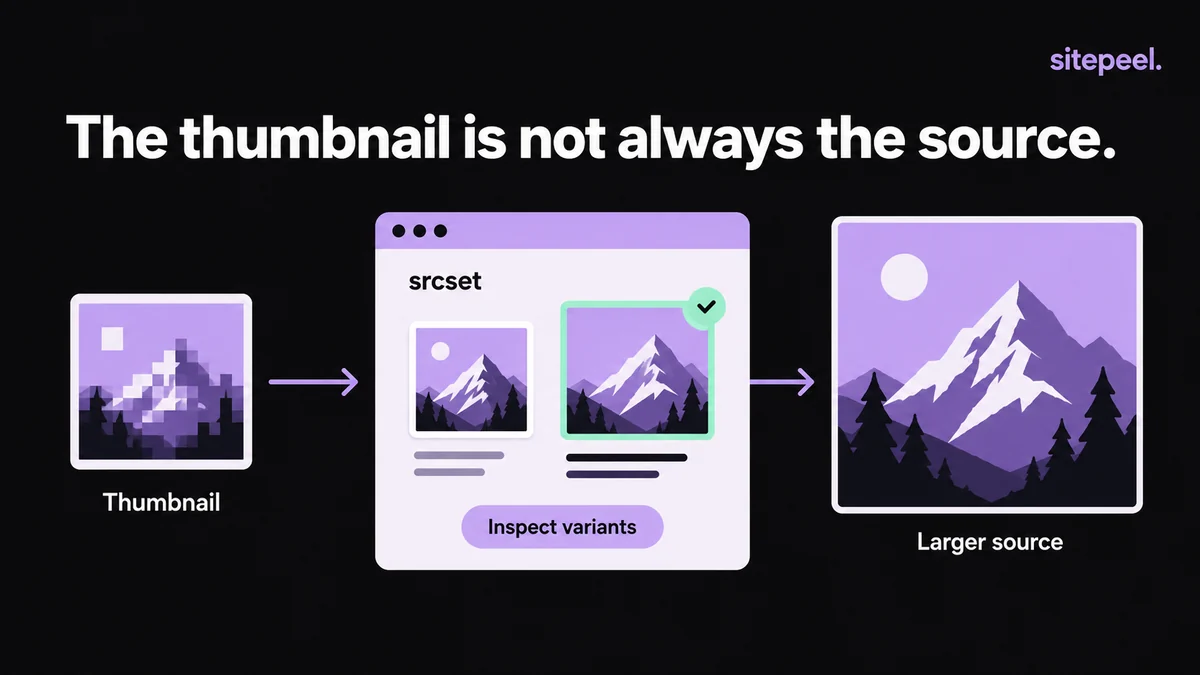
How to find the larger image behind a website thumbnail
Get the larger image behind a website thumbnail: open the gallery view, check srcset and currentSrc, and know when the original isn’t public.
Read the guide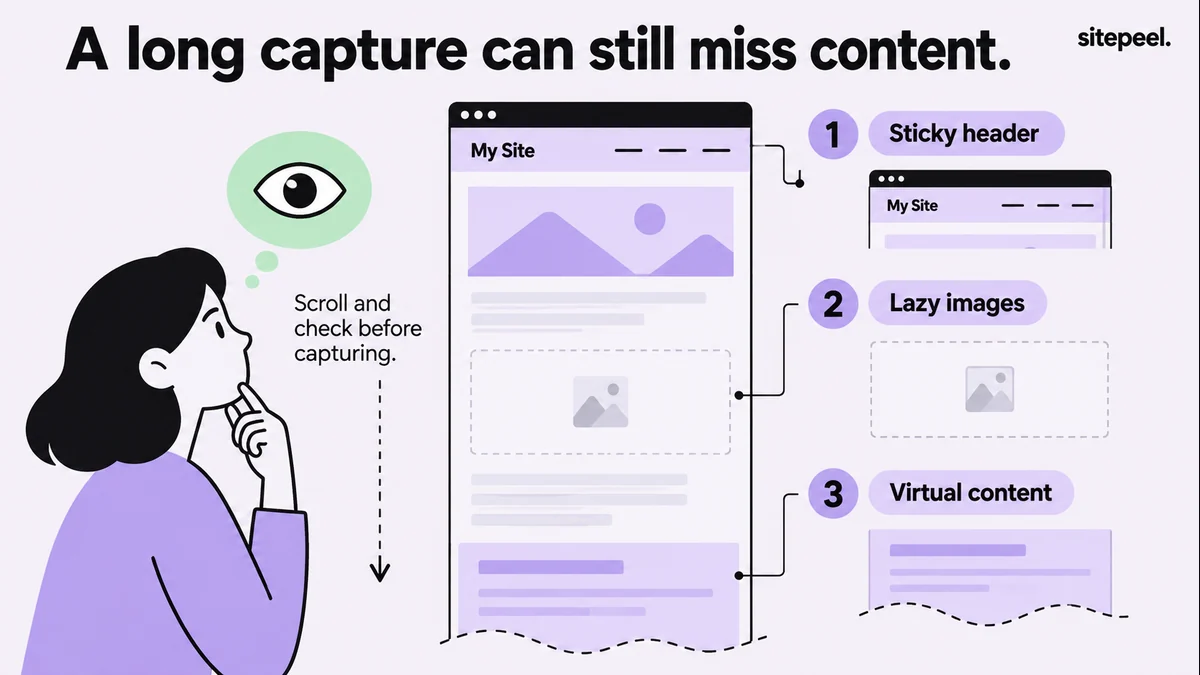
Why does your full-page screenshot miss part of the page?
Fix cut-off full-page screenshots, repeated sticky headers and blank images. Find what really scrolls, load lazy content and pick the right capture.
Read the guide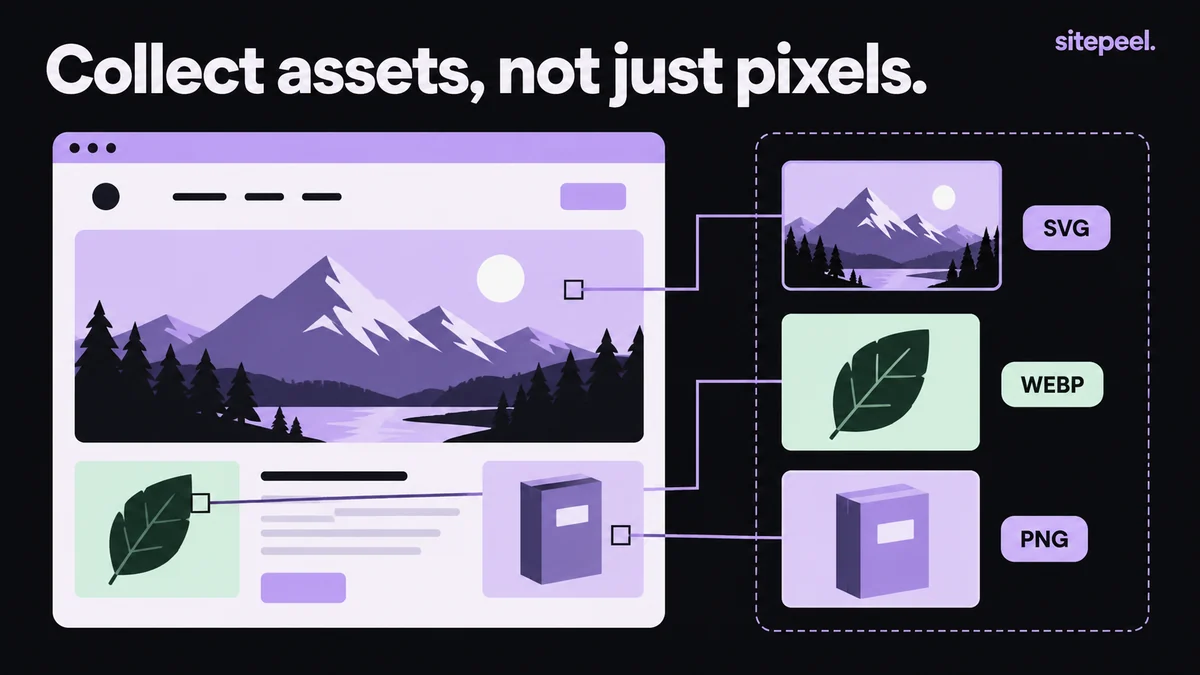
How to extract images and assets from a website
Download a website’s images, SVGs and videos, choose the right size and see why some files won’t download. Online or with Sitepeel for Chrome.
Read the guide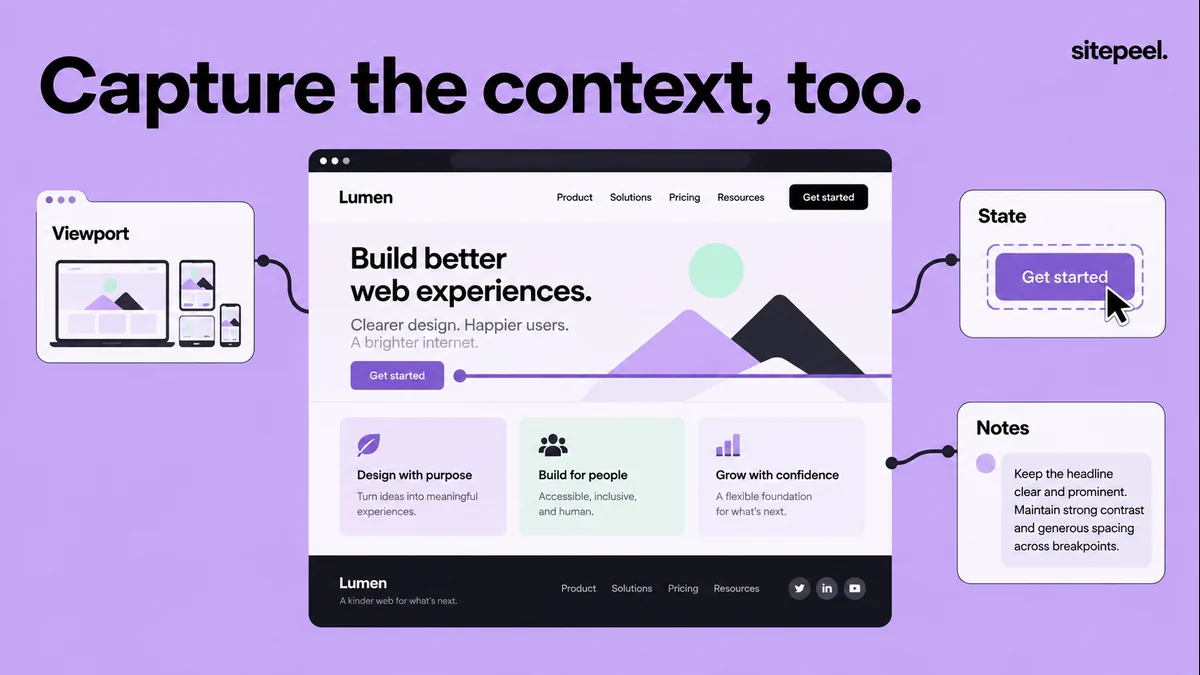
How to capture a website design reference
Pick the right screenshot type for a design reference, capture it cleanly, and add the URL, screen width and notes that make it useful later.
Read the guideResponsive
5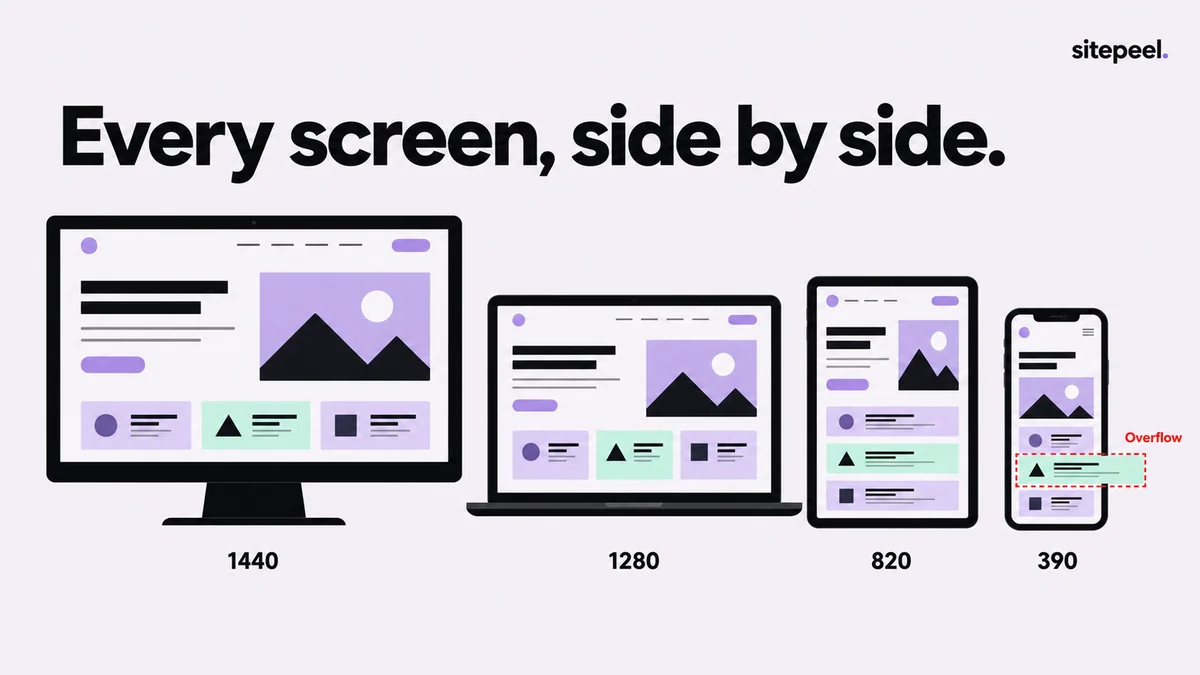
How to check a website on every screen size
See a website on phones, tablets, laptops and monitors side by side, free. Find overflow, tiny text and small tap targets, then test real devices.
Read the guide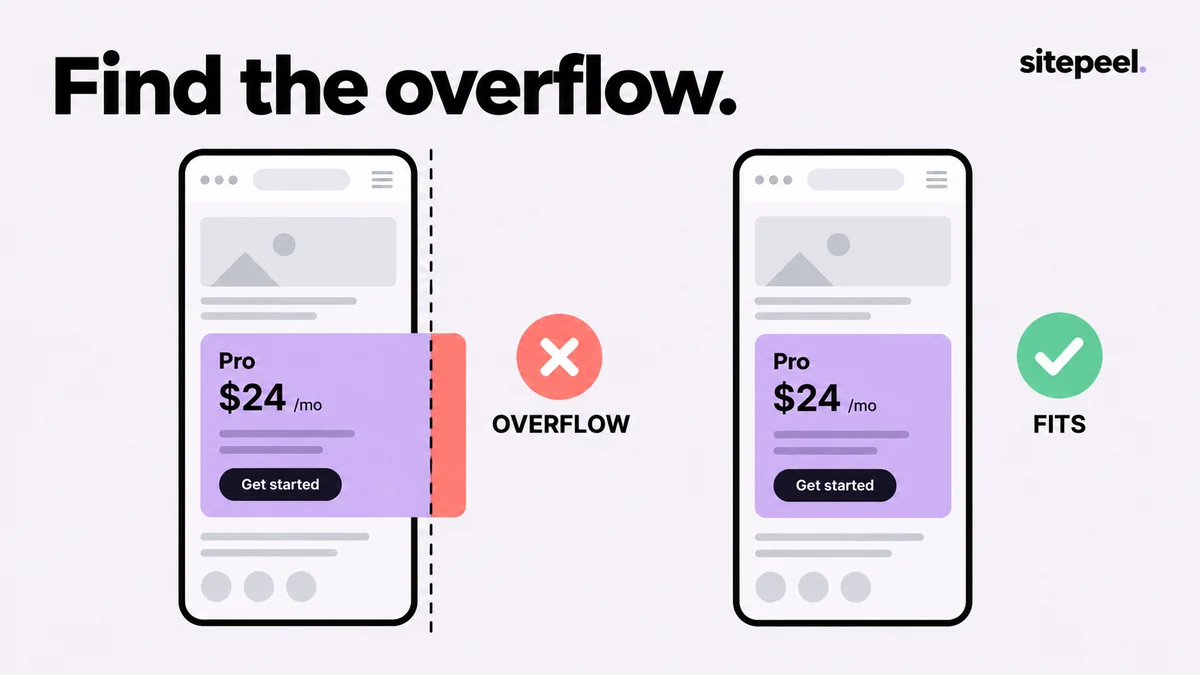
Why does my mobile website scroll sideways?
Find the element that makes your mobile site scroll sideways, fix the CSS cause and retest. Includes a console snippet and a table of common fixes.
Read the guide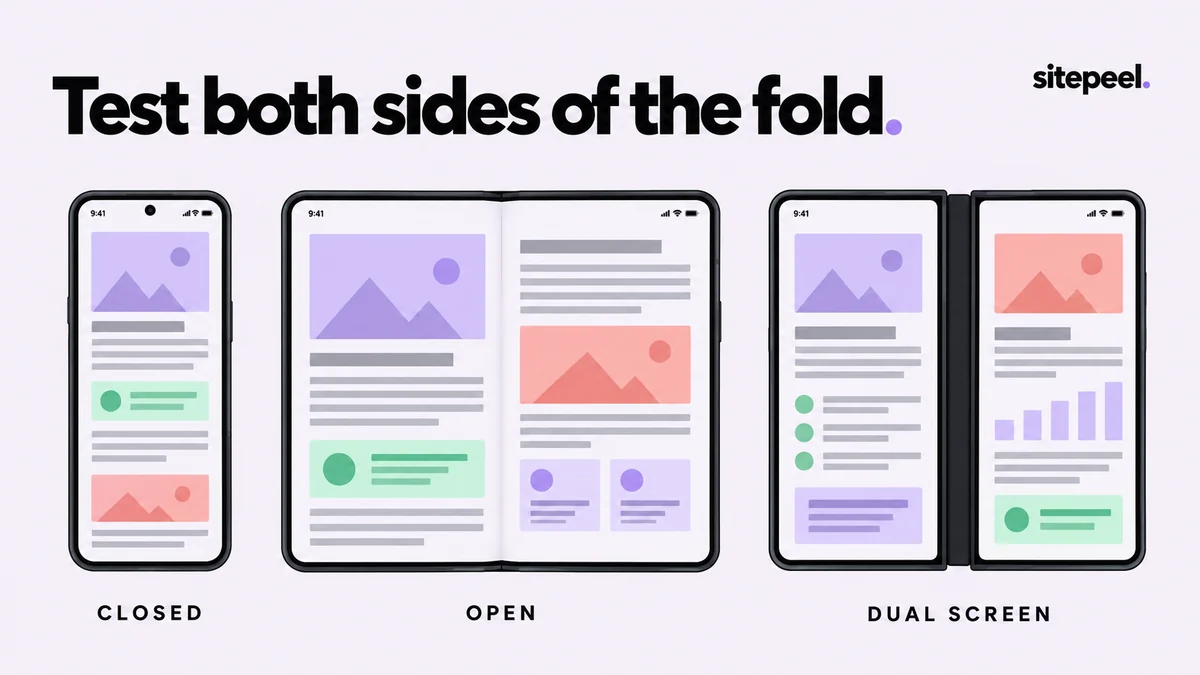
How do you test a website on a foldable phone?
Test a website on foldable and dual-screen layouts: compare closed, open and dual states, keep content off the hinge, and know what previews prove.
Read the guide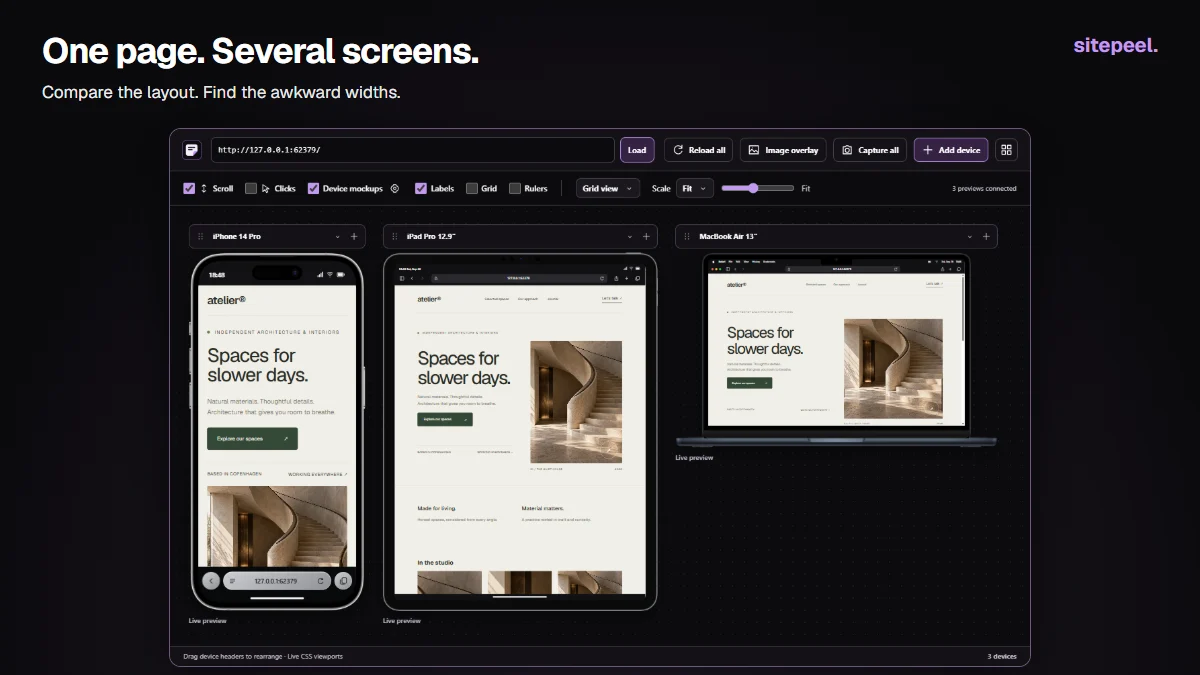
How do you test a responsive website?
Test a responsive website at phone, tablet and desktop widths. Find where the layout breaks, check hard content, record the bug and verify on devices.
Read the guide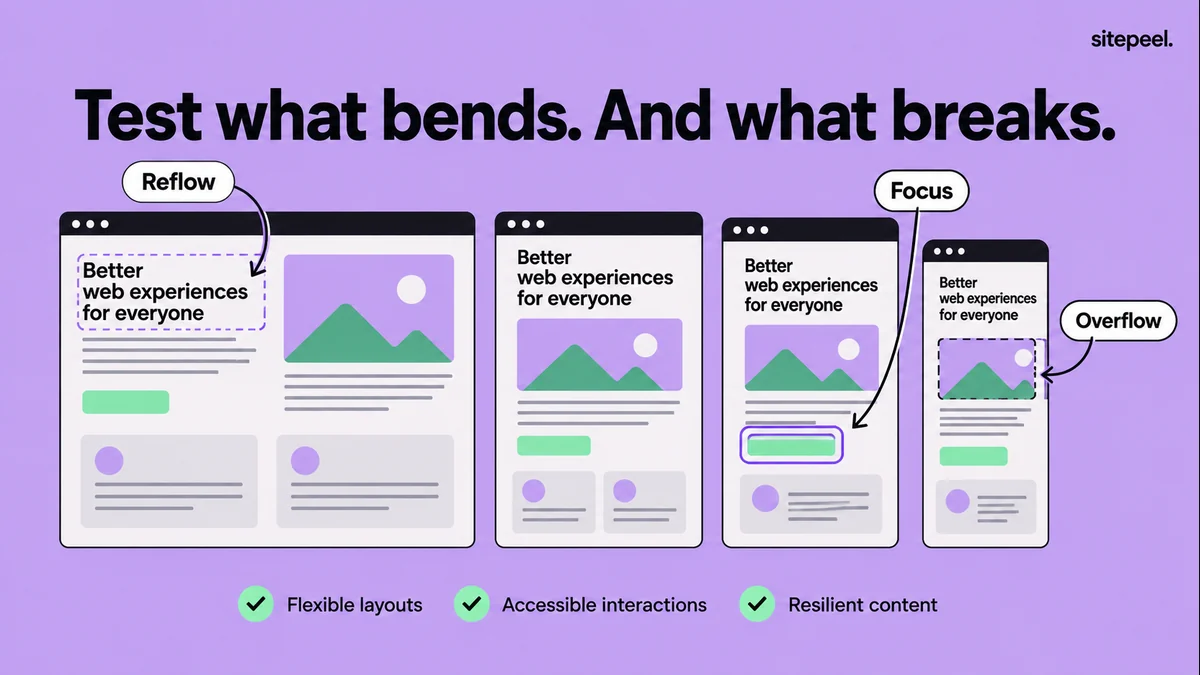
A responsive website testing checklist
Test responsive layouts, menus, forms, long content and zoom with a practical checklist, a read-only overflow finder and a bug-report template.
Read the guideFonts & colors
6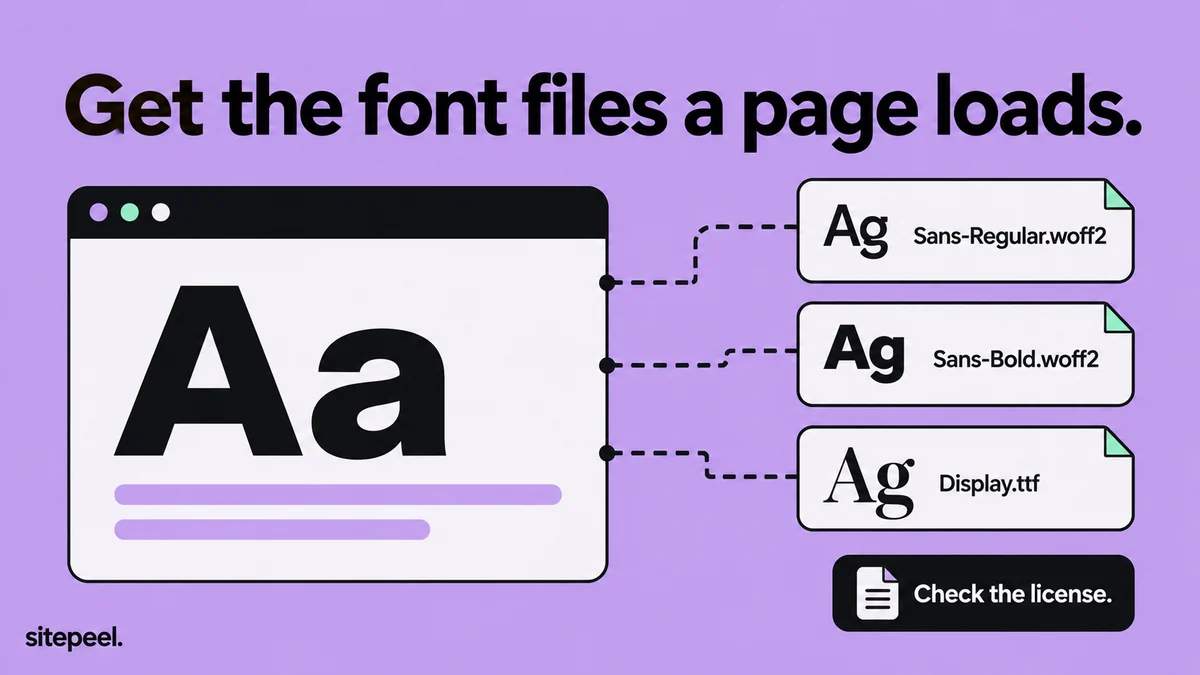
How to download fonts from a website
Find and save the WOFF2, WOFF and TTF font files a website loads, convert WOFF2 to TTF for desktop apps, and check the license before you use them.
Read the guide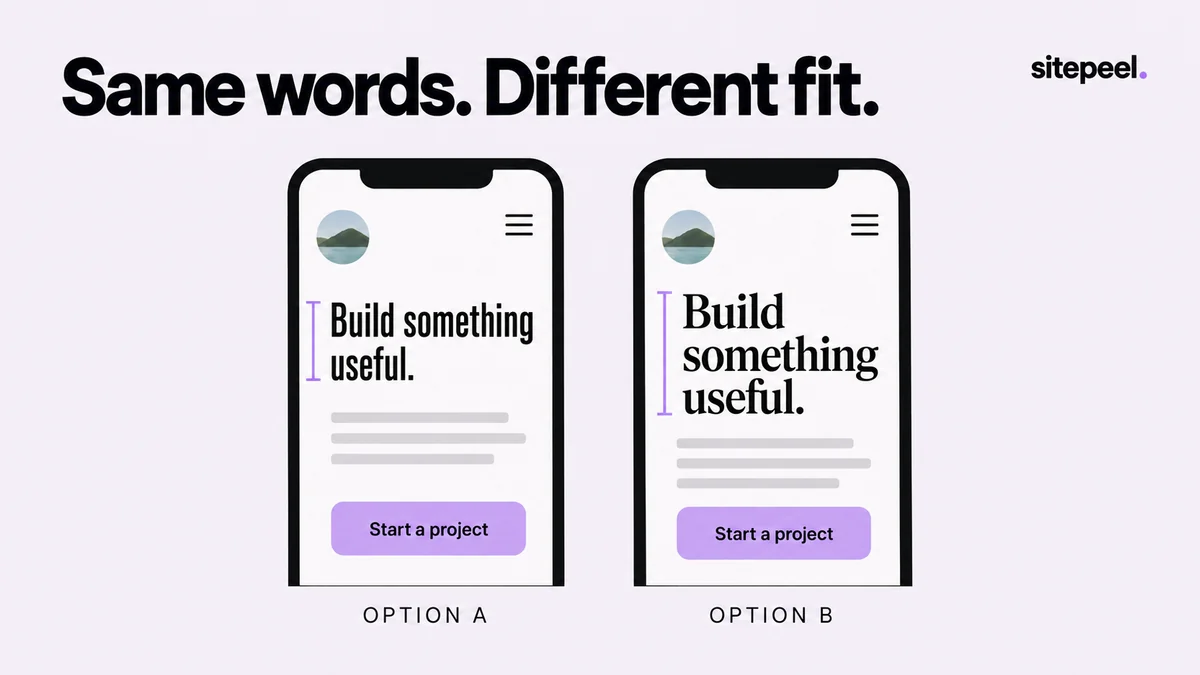
How do you preview a new font on a website?
Try new fonts on a real website before you code. Compare headings, body text and mobile wrapping with Swap fonts, then turn the choice into CSS.
Read the guide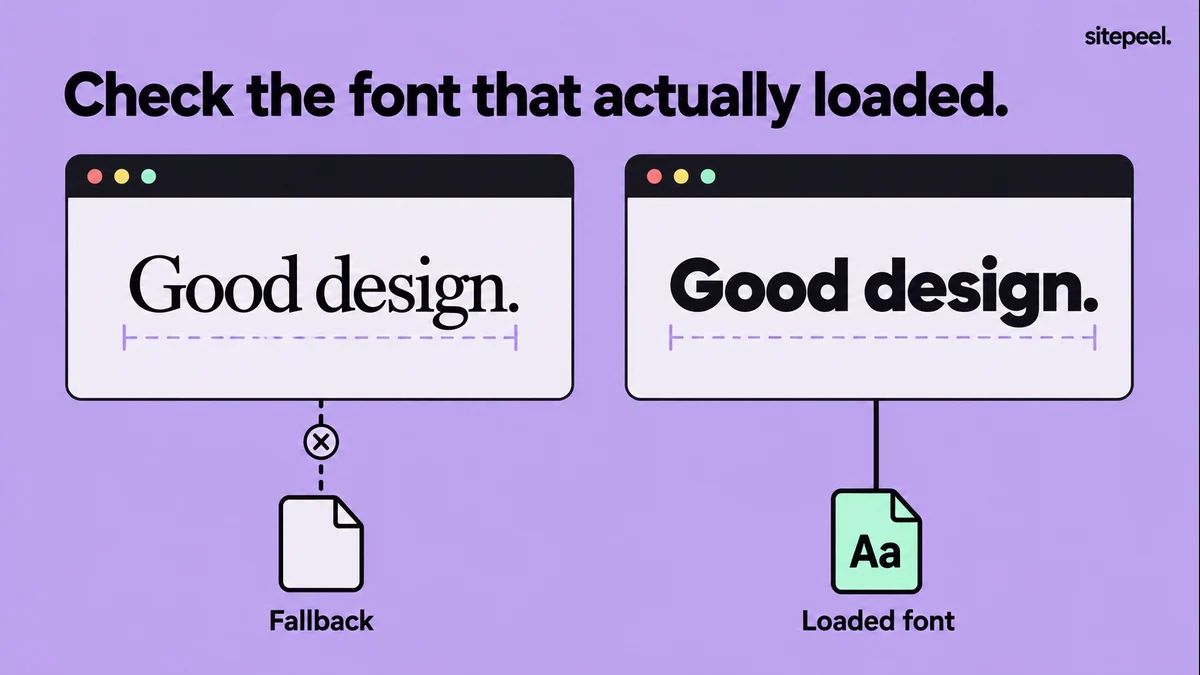
Why does the same website font look different in another browser?
A font looks wrong in another browser or device? Check the loaded file, weight, fallback and viewport, then fix it with a correct @font-face.
Read the guide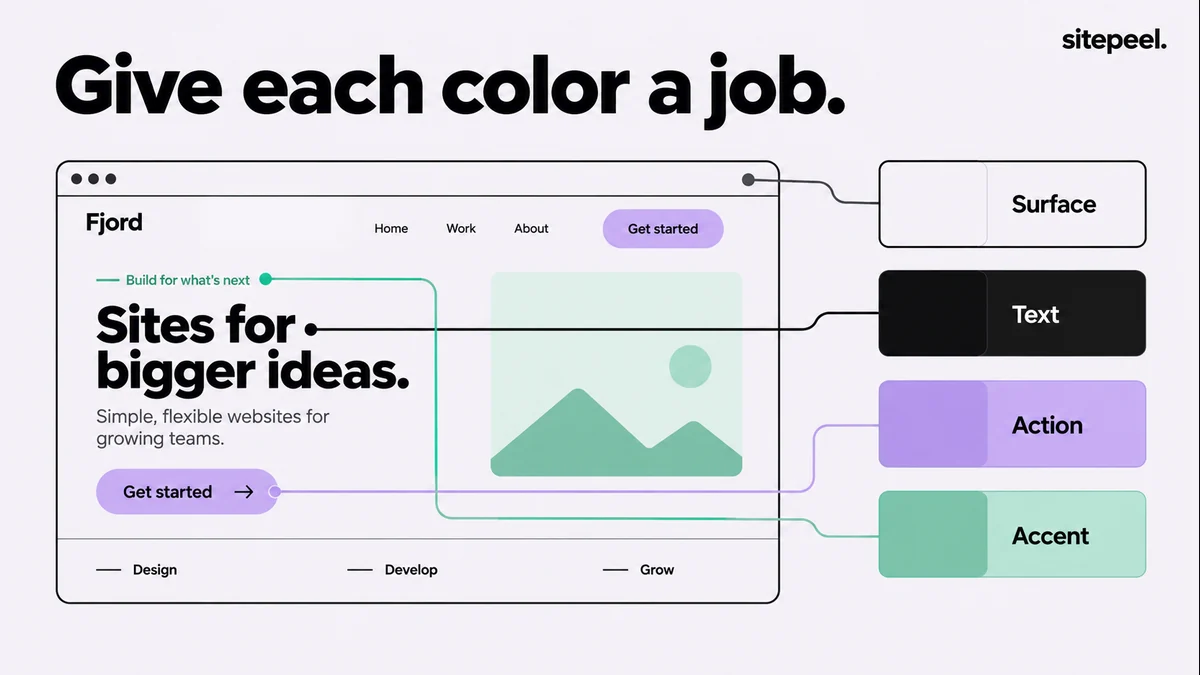
How to extract a website’s color palette
Get a website’s colors, give each one a role and turn them into CSS variables, with a short checklist for testing real text and background pairs.
Read the guide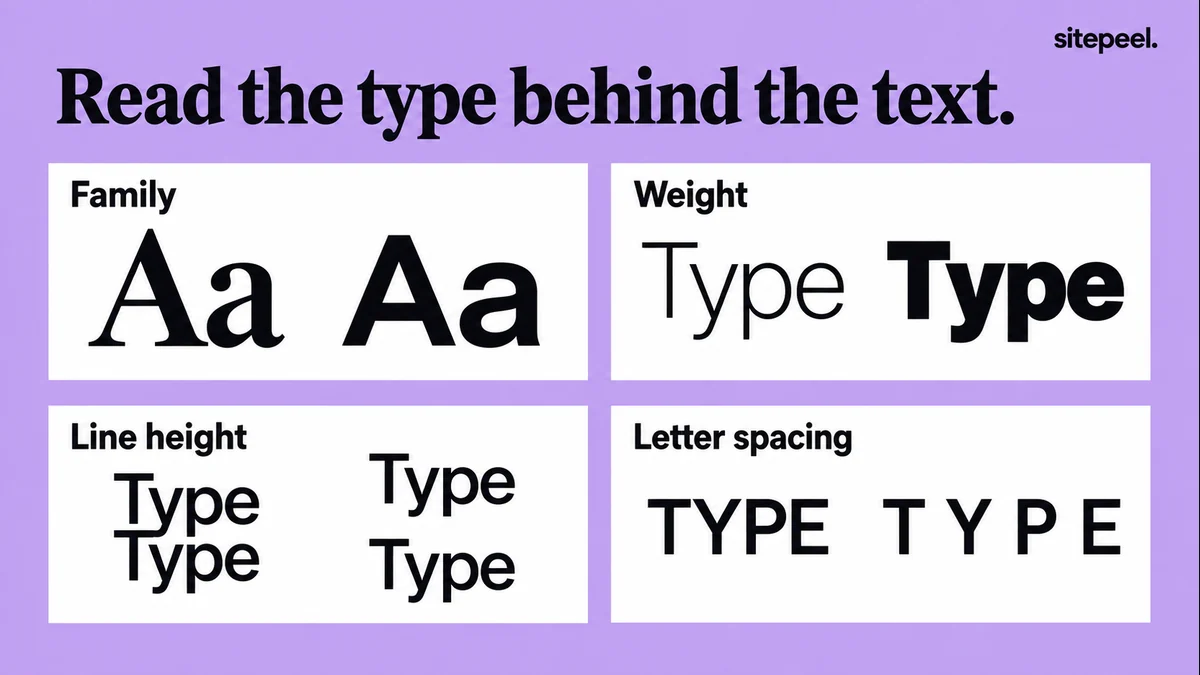
How to identify the fonts on a website
Find the font a website uses, plus its weight, size and line height. Check the fallback, then try it in your own layout with a licensed copy.
Read the guide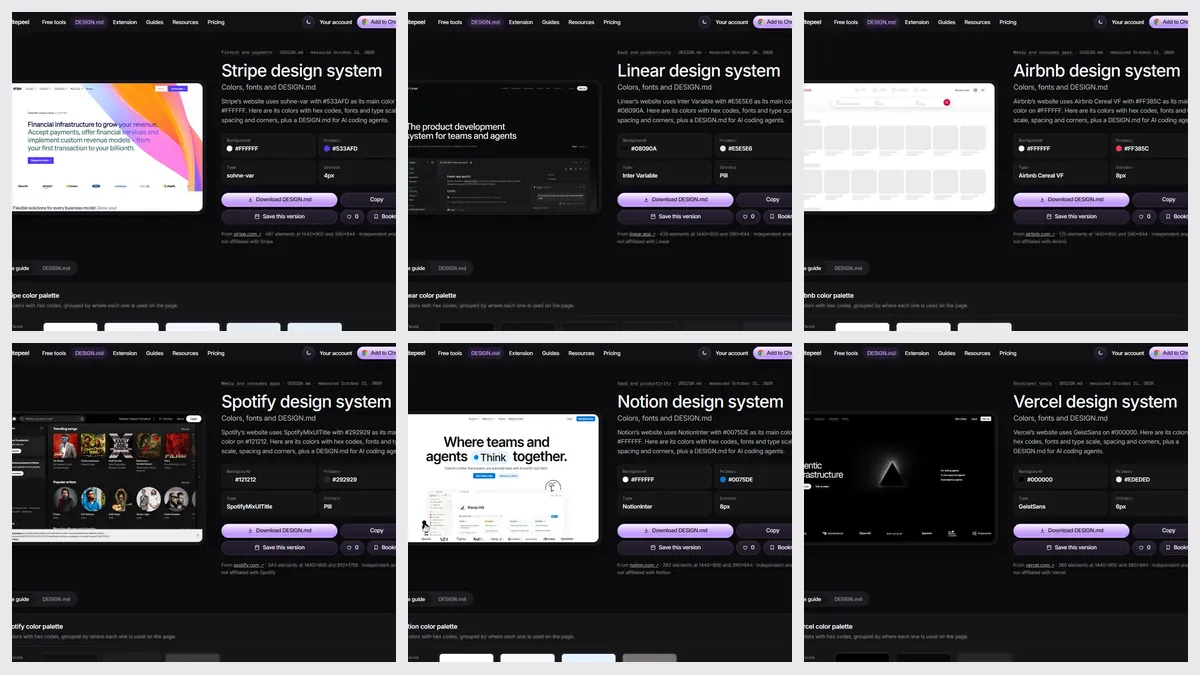
The fonts and colors of 168 top websites
The fonts and colors of 168 top websites, measured in October 2026: Inter on 26%, custom type on 54%, 44% in dark mode. Charts, method and a free CSV.
Read the guideComparisons
10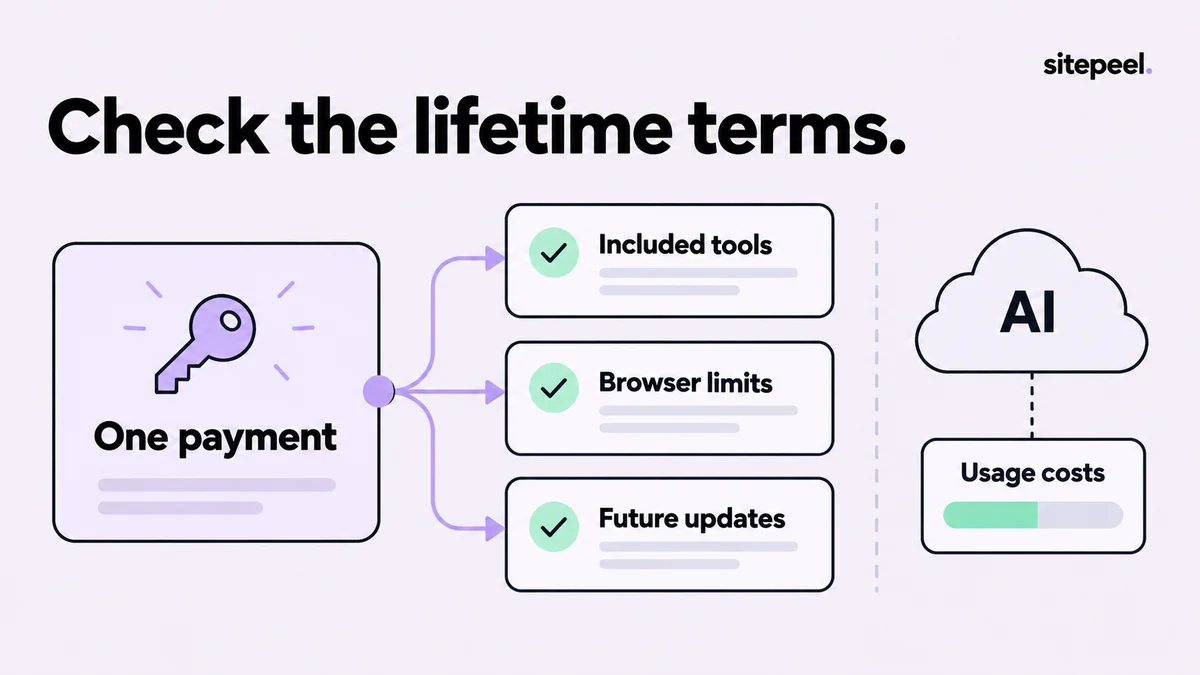
What to check before buying a pay-once website inspector
Compare pay-once website inspector extensions by included tools, browser activations and update terms, and keep AI-provider costs apart from the license.
Read the guide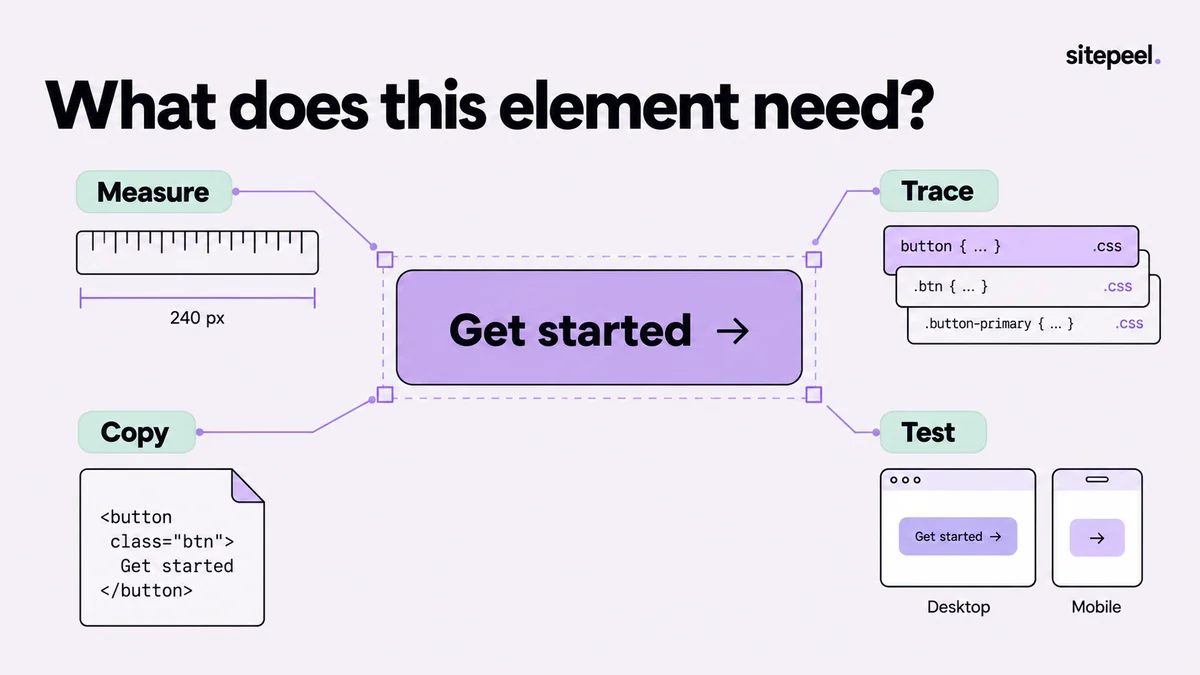
Best CSS inspector Chrome extensions in 2026, by task
The best CSS inspector Chrome extensions in 2026, by task: Sitepeel, CSS Scan, CSS Peeper and VisBug, plus when Chrome DevTools is the better pick.
Read the guide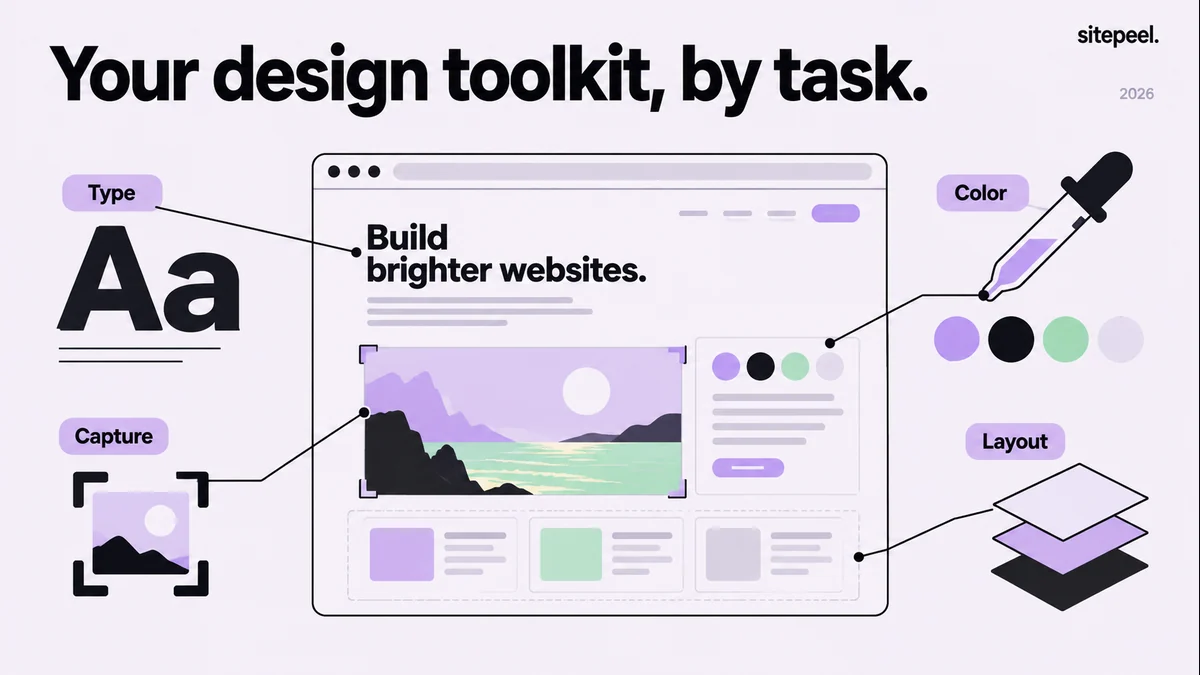
Best Chrome extensions for web designers in 2026
Six Chrome extensions for web designers in 2026, compared by task: fonts, colors, full-page screenshots, Figma import, tech stack and Design MD files.
Read the guide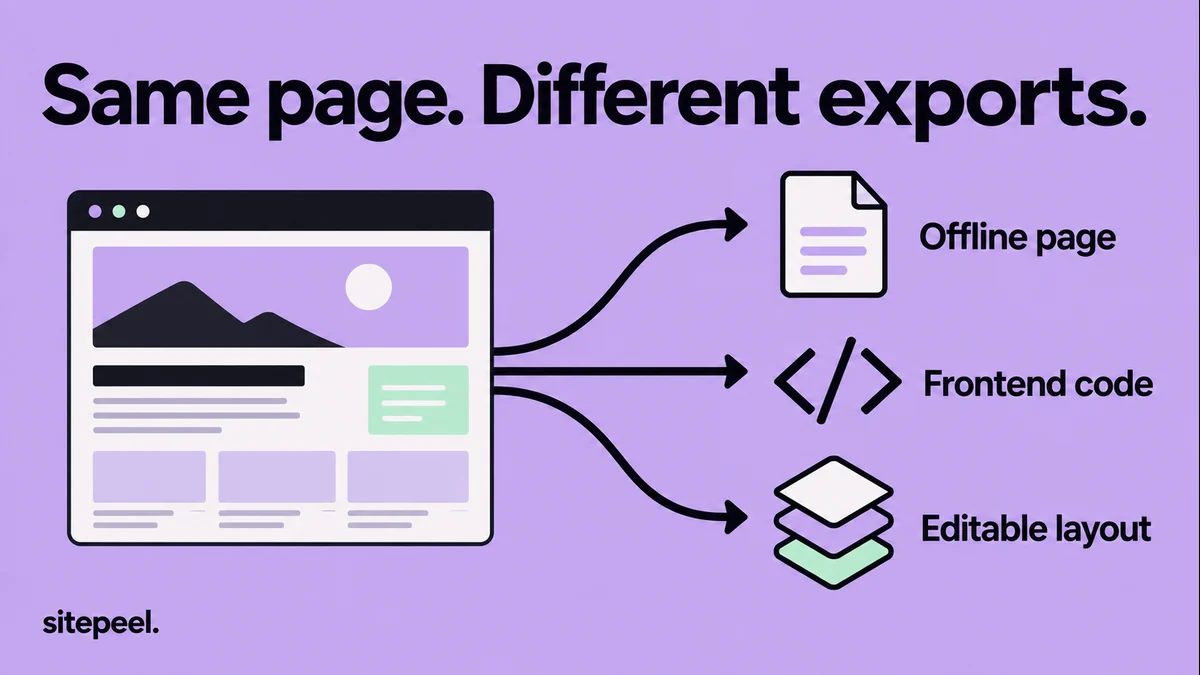
The best website cloner tools in 2026, compared
Ten website cloners checked in October 2026: AI rebuilders like Anima, Same and Kloner, file copiers like HTTrack, and a free Clone prompt. What each gives you.
Read the guide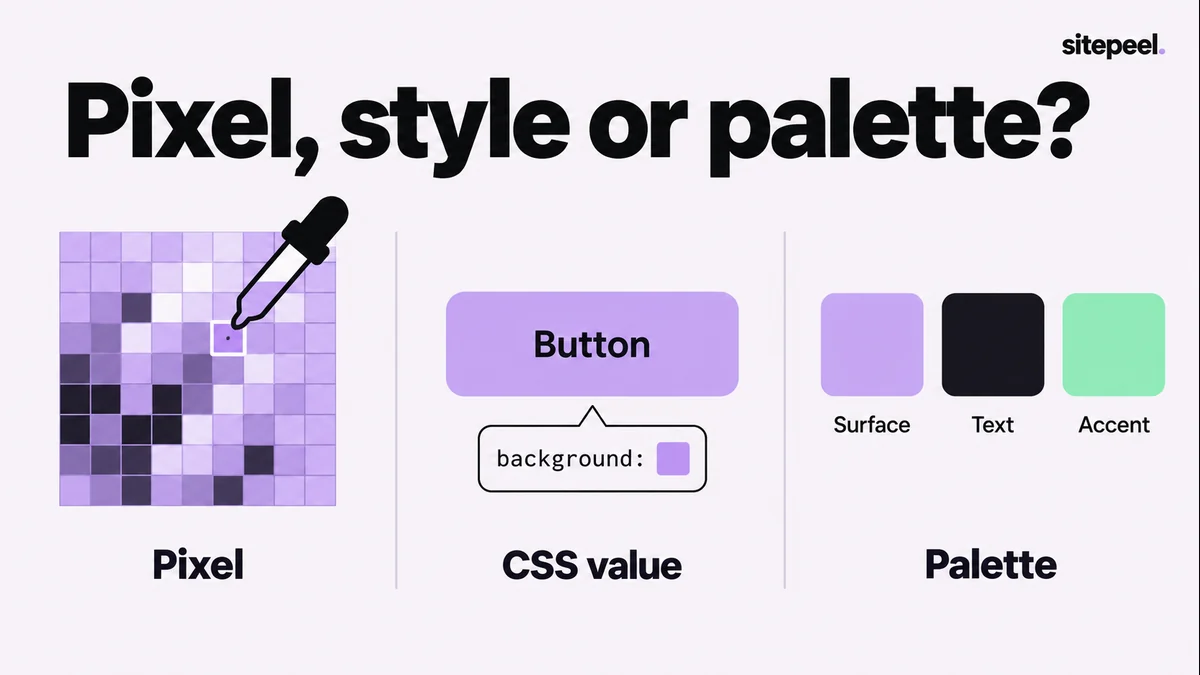
Best color picker Chrome extensions for website work
ColorZilla, Eye Dropper, Sitepeel and Chrome DevTools compared as color pickers, plus when to sample a pixel and when to read the real CSS color instead.
Read the guide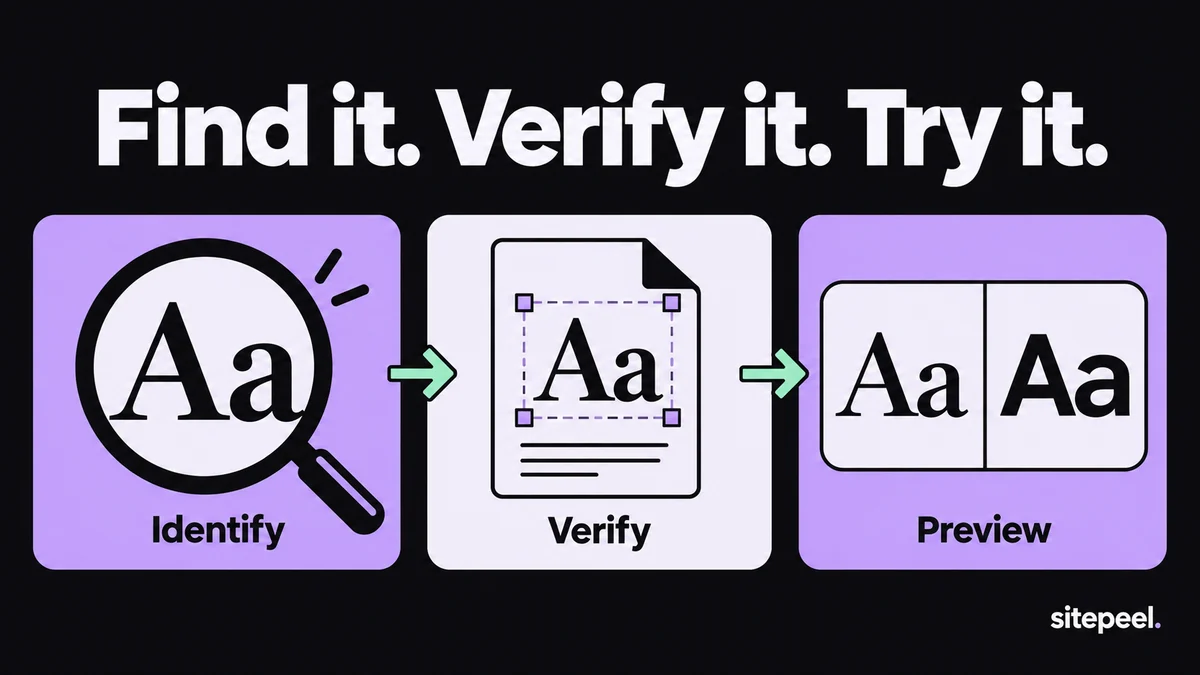
Best font finder Chrome extensions for real website text
WhatFont, Font Finder, Sitepeel and Chrome DevTools compared for identifying website fonts, plus how to confirm the font that actually rendered.
Read the guide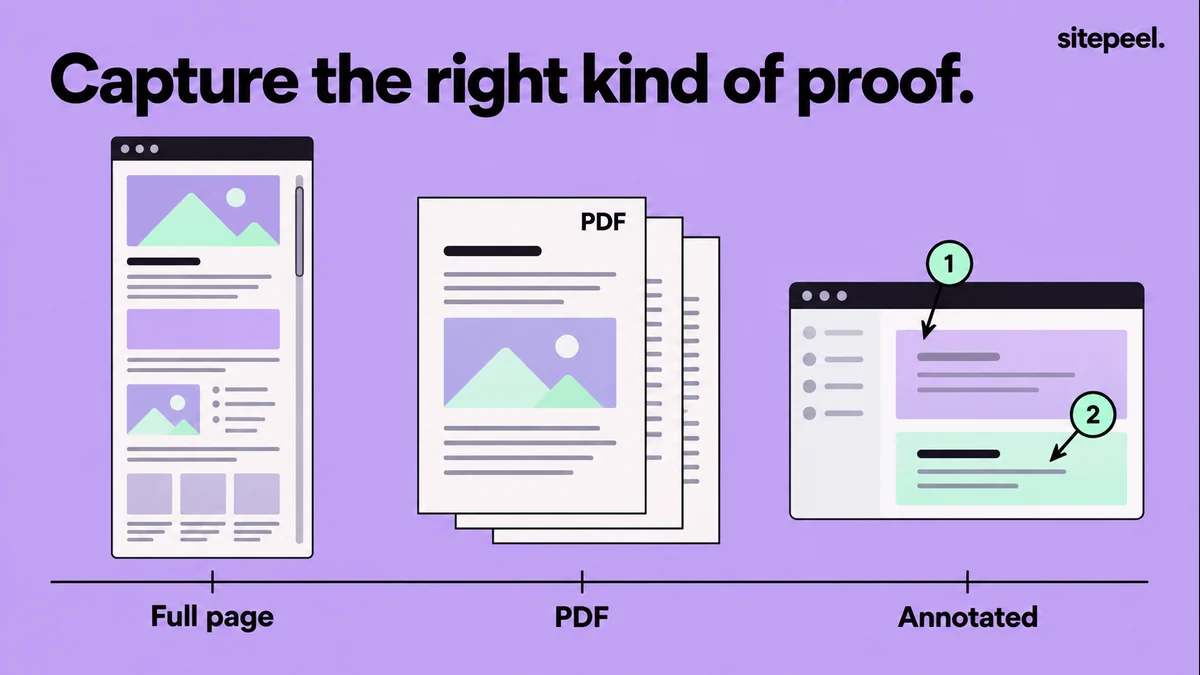
Best full-page screenshot Chrome extensions by workflow
GoFullPage, FireShot, Awesome Screenshot and Sitepeel compared by what you get: a full-page image, a PDF, an annotated bug report or a design reference.
Read the guide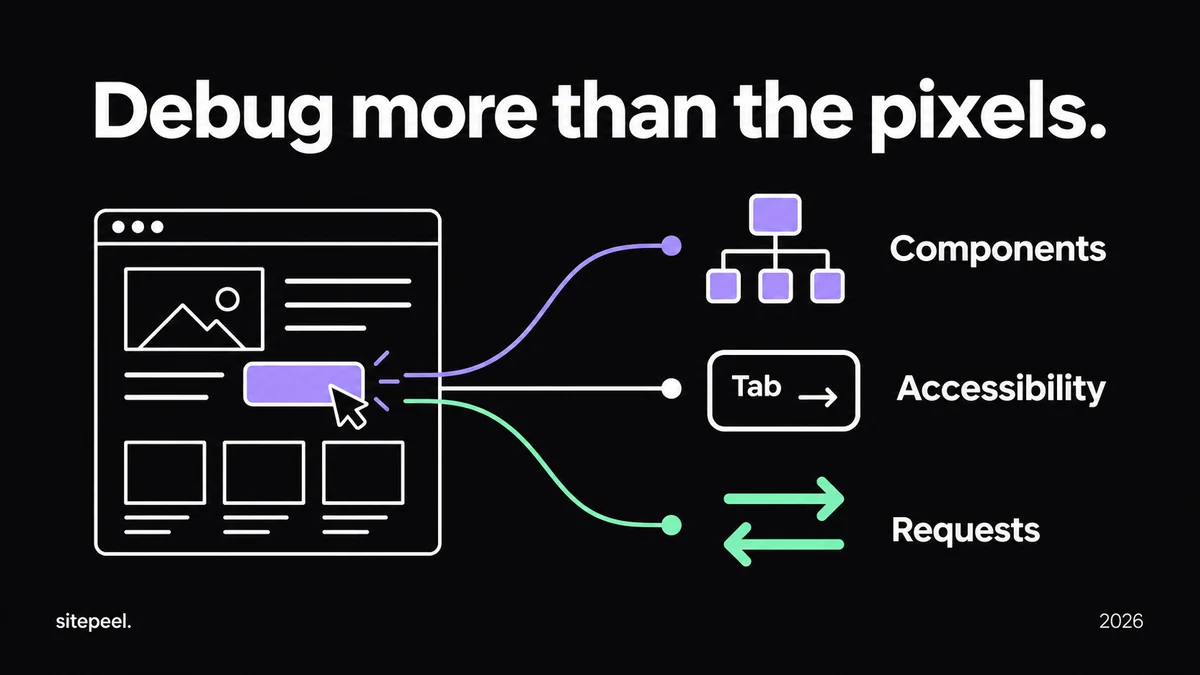
Best Chrome extensions for web developers in 2026
React Developer Tools, axe DevTools, Web Developer, Wappalyzer and Sitepeel compared by debugging task, with a template for recording each bug.
Read the guide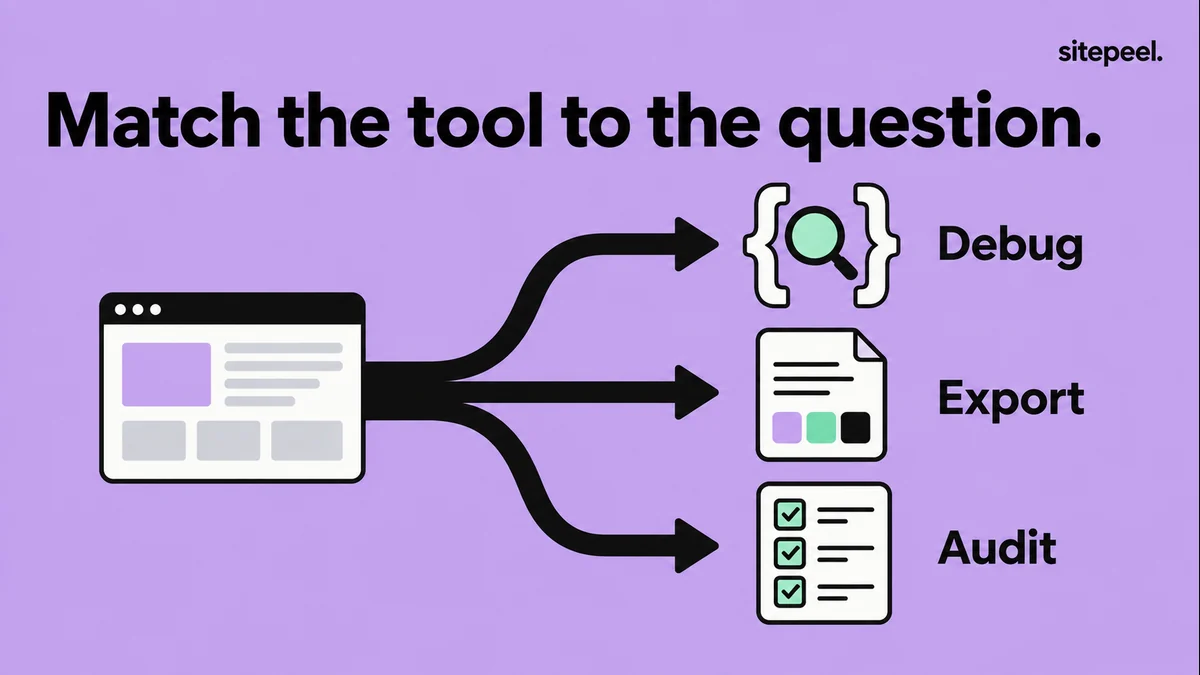
Browser tools for web designers: which one fits the task?
Compare Sitepeel, Chrome DevTools and Lighthouse for website inspection, HTML/CSS exports and page audits. Choose by task, with a reusable checklist.
Read the guide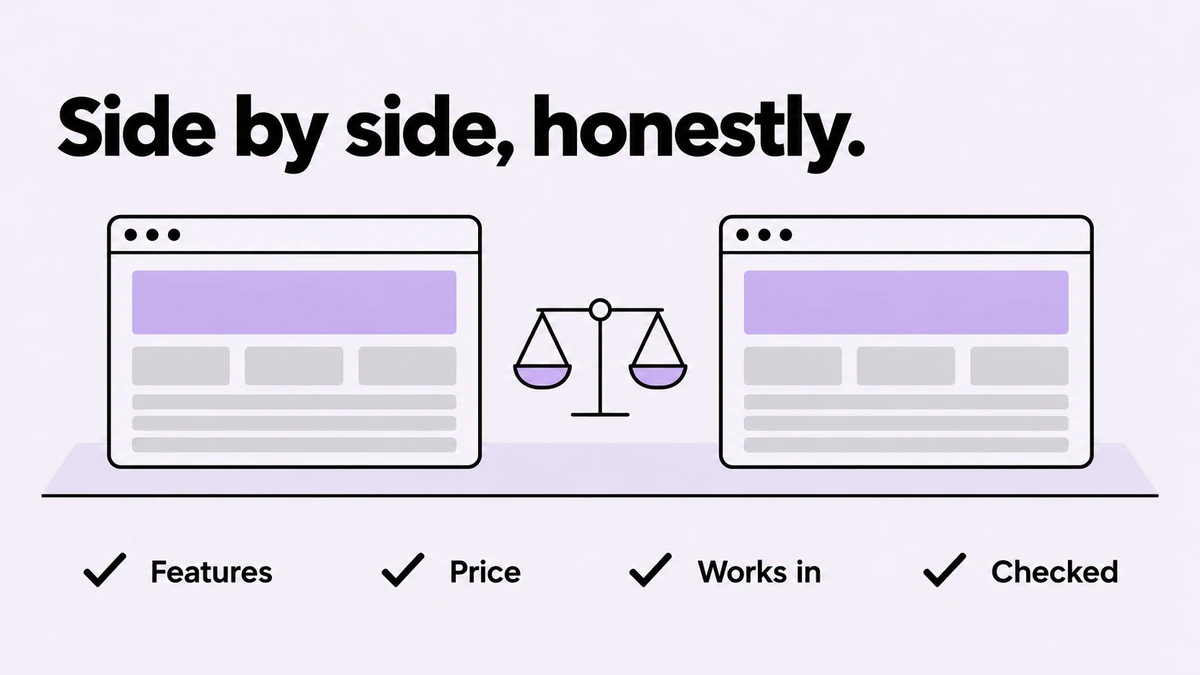
Compare tools
Honest, dated comparisons of website tools: Sitepeel vs MiroMiro, CSS Peeper and Hoverify, plus alternatives to BuiltWith, Wappalyzer, GoFullPage and more.
Read the guideTAKE A CLOSER LOOK
Your next starting point is already on the web.
Inspect it. Understand it. Build something of your own.