

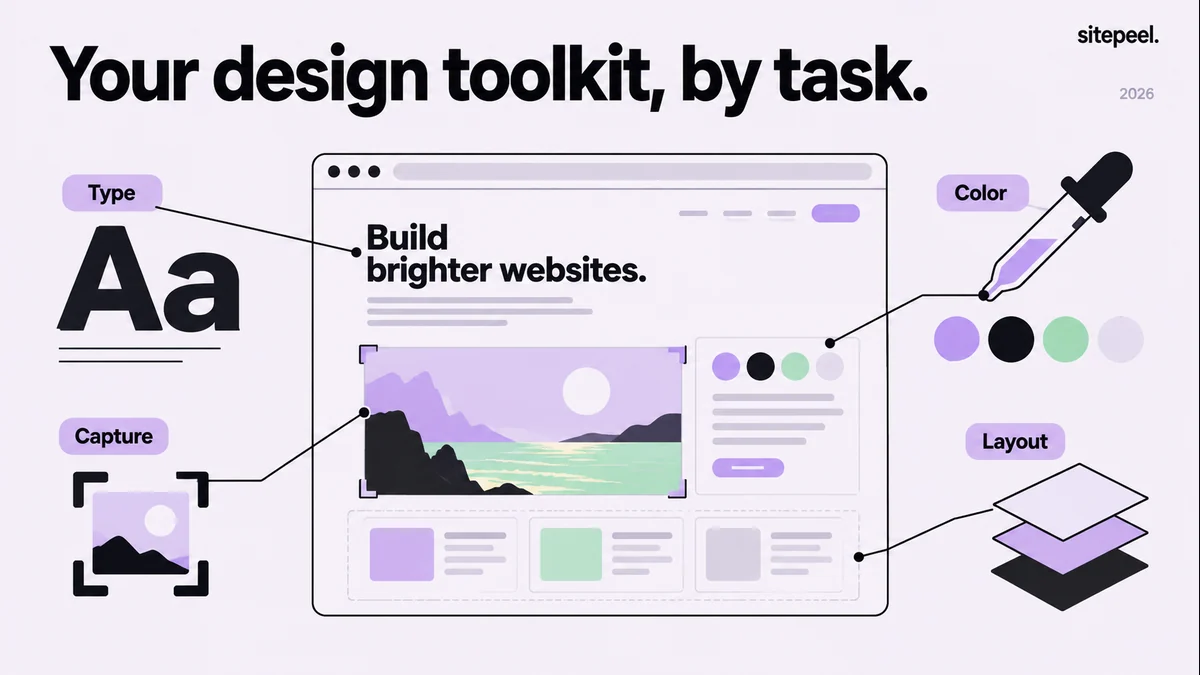
Which extension fits your design work?
We make Sitepeel. This is an editorial comparison based on official documentation and listings checked on September 20, 2026, not a speed benchmark or a claim that one tool wins every task. Check the publisher’s current plan and permissions before installing.
The six options below serve different outputs. Start with the row that matches what you need to hand to a teammate. A screenshot, an editable Figma frame and a Markdown design reference are useful in different situations.
| Extension | Choose it for | Check before adopting |
|---|---|---|
| WhatFont | Quick font identification on live text | Confirm the font actually rendered and its license |
| ColorZilla | Color sampling and gradient work | Distinguish a sampled pixel from a CSS color |
| GoFullPage | A visual record of a long page | Inspect lazy content and repeated sticky elements |
| html.to.design | Moving a website reference into Figma | Review imported layers and responsive states |
| Wappalyzer | Context about a site’s technology stack | Treat detections as clues, not source access |
| Sitepeel | Code, assets and Design MD from a live page | Review the export and record unknown states |
Pick a specialist for the detail you need
WhatFont is a focused choice when your first question is “what typeface is that?” Its hover workflow suits quick reference collection. For a font that looks wrong, investigate the rendered font in DevTools rather than trusting the first name in a CSS font stack.
ColorZilla is a useful candidate for color sampling and CSS gradient work. Record where each color came from: a primary button, text, a border or an illustration. That small note makes the sample usable after the original tab is closed.
Use these together only if both tasks recur. A designer who collects one font name a month can use built-in inspection instead of maintaining a large extension toolbar.
Choose a destination for the whole reference
GoFullPage suits a review where people need to see the complete page. Capture the relevant state and attach the URL and viewport. A tall image alone cannot explain what a menu does or how the layout changes on a phone.
html.to.design is relevant when the next step happens in Figma. Its plugin imports websites, and its browser extension can capture a page state. Review the resulting layers before treating the import as a reusable component library.
Sitepeel suits a code or AI handoff: collect an element, a rendered page, assets or a Design MD reference. Keep visual observations separate from implementation decisions. Sitepeel does not import editable Figma layers, and a page export does not recover a backend.
Use technology detection for context
Wappalyzer identifies technologies associated with a website. That can help when a client asks what an existing site may be built with. It does not reveal the complete private implementation, so verify important migration assumptions with the project owner.
Keep this task separate from visual reference collection. Knowing a framework name does not tell you the content width, font license or spacing rules you need for a redesign.
Evaluate your shortlist on one real task
Use a page you own and set a concrete outcome: prepare a reference for redesigning its hero. Collect the heading’s font information, the button’s foreground/background pair, one screenshot and the relevant design notes. Then ask a teammate to use those files without reopening the source.
Keep the tool that makes the handoff understandable. Remove duplicates that produce the same information without saving meaningful work. Check the installed publisher against the official site, especially when several extensions share a similar name.
Repeat the exercise at a narrow width. A tool that captures a desktop view well may still leave you with unanswered questions about navigation, wrapping and long content.
# Designer extension evaluation

Task: [the recurring design question]
Page and viewport: [your test conditions]

For each candidate:
- Intended output: [font / palette / image / layers / Markdown]
- Publisher and official install link: [verified]
- Useful result: [attach an actual export]
- Missing information: [record, do not guess]
- Handoff: [could a teammate use it?]
- Narrow-screen check: [result]
- Decision: [keep / remove / investigate]

Keep a small set with distinct purposes.