

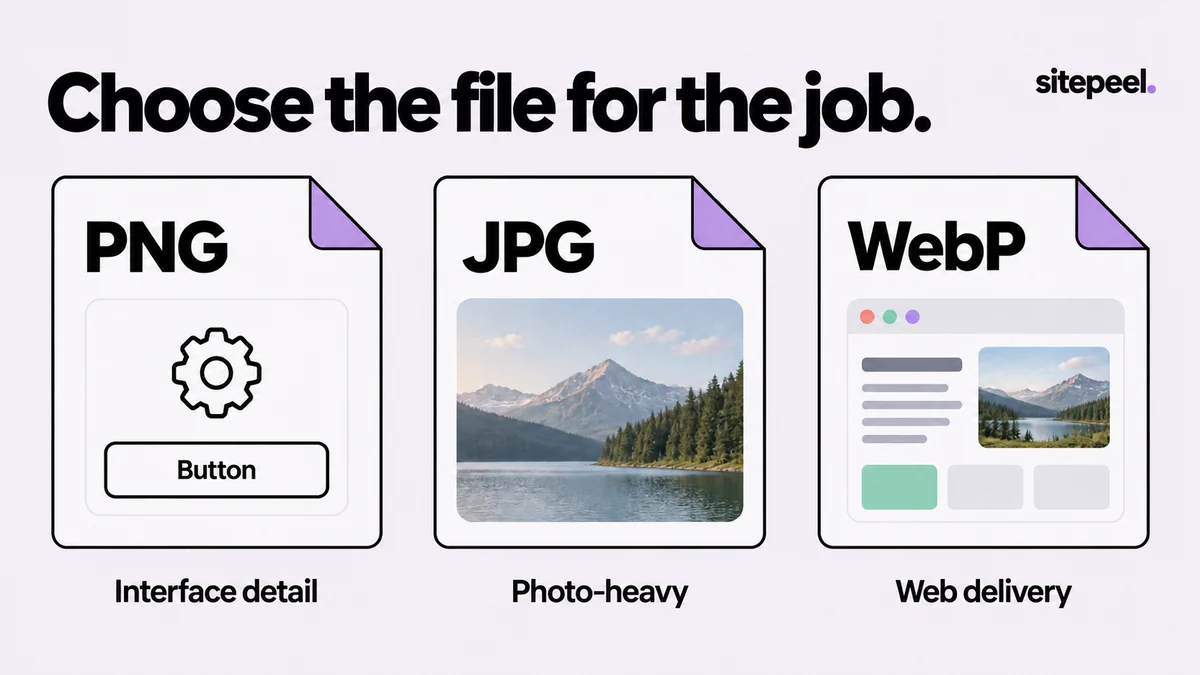
Start with the content people need to read
A screenshot of a settings panel is mostly small text, sharp edges and repeated flat colors. A photography portfolio contains different information: textured images and gradual changes in color. The best compromise for one can be a poor compromise for the other.
Decide what the image is for before exporting. A developer inspecting a one-pixel border needs a different delivery file from someone viewing a portfolio cover on a phone. Keep the first capture so you can make another export without recapturing or recompressing an already reduced copy.
| Destination | Start with | Review before sending |
|---|---|---|
| Interface bug or small text | PNG | Labels, thin borders and crop dimensions |
| Photo-heavy preview | JPG or WebP | Fine text as well as the photographs |
| An image on your website | WebP compared with PNG/JPG | Readability, actual file size and delivery support |
| A document for review | PDF when pagination is useful | Page breaks, readable scale and embedded image quality |
What the formats change
PNG uses lossless compression and supports transparency. JPEG uses lossy compression and does not preserve an alpha channel. WebP supports both lossy and lossless encoding, as well as transparency; the encoder and settings determine which behavior you get.
A format name alone is not a quality guarantee. A PNG made from a tiny image stays tiny, and converting a damaged JPEG into PNG does not repair the lost information. Likewise, a WebP export should not be described as lossless unless its encoding path actually provides that mode.
Compare the same crop at the same dimensions
Make a small test export containing the hardest parts of the page: the smallest label, a thin icon, a photo and a subtle background. Use the same crop and pixel dimensions for every format. Otherwise you may attribute a difference caused by resizing to compression.
Open each file at 100%. Look for fuzzy letter edges, ringing around high-contrast shapes and banding in gradual color transitions. Record the file size only after the image passes the readability check. Do not assume the smallest file is the most useful one.
Export comparison
Source: the same original capture
Crop and pixel dimensions: identical
Check: smallest label, thin icon, image detail
PNG: readable? file size?
JPG: quality setting? readable? file size?
WebP: quality setting? readable? file size?
Chosen destination: issue attachment / website / presentation
Know what a screenshot PDF contains
Sitepeel’s PDF export places the captured image on A4 pages and uses JPEG image encoding for the page slices. It is an image-based document, not an export of the website’s original selectable text or semantic HTML. Long captures can be split across pages, so inspect where headings and annotations land.
If searchable text, document accessibility or original links matter, use a workflow designed to preserve those features and verify its result. For a visual bug, the original PNG attachment may communicate the issue more directly than a multi-page PDF. Keep the recipient’s task in mind.
Using these tools in Sitepeel
The Sitepeel steps below describe the 1.0.3 tools. Preview 1.0.3 here. Browser-store availability may vary while the update rolls out. Try them on public Sitepeel pages in the website demo; use the installed extension for other websites. Changes made with inspection and preview tools do not publish changes to a website.