

First rule out a small preview
A long page displayed in a small editor window has to shrink. The text can look soft even when the file itself contains enough detail. Open the downloaded image in an image viewer at 100% and inspect a short line of body text. If it is sharp there, changing the capture settings is unlikely to help.
For a review of one card, send a focused crop as well as the overall page when context matters. A reviewer should not have to enlarge a whole landing page just to read a single error message. In Sitepeel, Snip & capture or Pick an element can create that focused starting image.
Separate CSS size, captured pixels and display scale
The browser lays out a page in CSS pixels. Device pixel ratio relates those units to the display’s physical pixels, and browser zoom can affect that ratio. A capture’s actual dimensions are the evidence you need; do not assume every capture path produces the same pixel count.
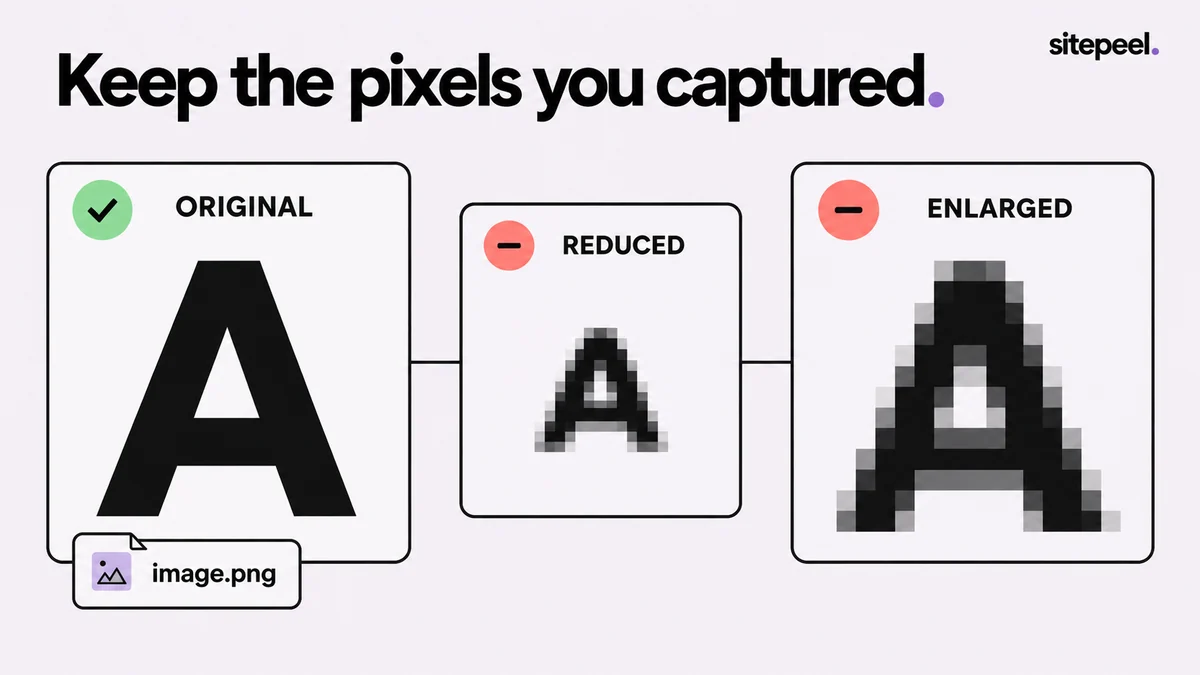
For example, a file that is 800 pixels wide cannot supply 1,600 distinct horizontal samples just because you display it at 1,600 pixels. Upscaling creates a larger file, but it does not recover small lettering that was missing from the original. Keep the original and compare it before applying any enlargement.
| Size | What it changes | What to check |
|---|---|---|
| CSS viewport | The page layout and wrapping | Width and height used for the capture |
| Captured image dimensions | The pixels available in the saved image | Pixel width and height in the file |
| Editor or viewer zoom | How large that image appears on screen | Compare at 100% before judging sharpness |
Check whether the page itself is ready
If the image inside the webpage is already a small thumbnail, a screenshot records that thumbnail. It does not download a hidden higher-resolution original. Wait for images and fonts to finish loading, and compare the relevant detail on the live page before capturing again.
For a full-page Sitepeel capture, use Scroll before capture under Advanced settings to prepare lazy-loaded sections. Stay on the tab while the progress messages run. If the page contains a continuously changing animation, choose a stable state or make a focused capture after the content has settled.
Fix missing or partially loaded sections
Find an original image instead of screenshotting a thumbnail
Change one export setting at a time
Use PNG as a straightforward first comparison for interface text and fine lines. Export the same crop in your intended delivery format and inspect the smallest text, button edges and gradient boundaries. If the PNG is clear but a compressed export is not, the problem occurs after capture.
In the Sitepeel editor, open Export to choose the file type. Check saved capture preferences if a previous workflow used a smaller export scale. Increase compression quality when appropriate, but avoid repeatedly exporting an already compressed copy. Work from the original capture each time.
Compare the file after sharing
Download the attachment from the place where your reviewer receives it. Compare its pixel dimensions with your original and inspect the same detail. A smaller attachment or an in-message thumbnail can explain a difference that never existed in the editor.
If the destination changes images, send the capture as an original file attachment where supported. For a bug report, a small crop at readable dimensions is usually easier to review than a huge page squeezed into a chat bubble. Keep a descriptive filename and state the viewport separately so image size is not mistaken for device size.
Capture check
Page and state: /pricing, yearly option selected
CSS viewport: 390 × 844
Original image dimensions: record from the saved file
Export: PNG, original-size comparison
Shared file dimensions: compare with original
Detail checked: plan description and button label
Using these tools in Sitepeel
The Sitepeel steps below describe the 1.0.3 tools. Preview 1.0.3 here. Browser-store availability may vary while the update rolls out. Try them on public Sitepeel pages in the website demo; use the installed extension for other websites. Changes made with inspection and preview tools do not publish changes to a website.