On this page7
How it works
Choose your capture
Open Screenshot and select Visible area, Full page, Snip & capture or Pick an element.
Review in the editor
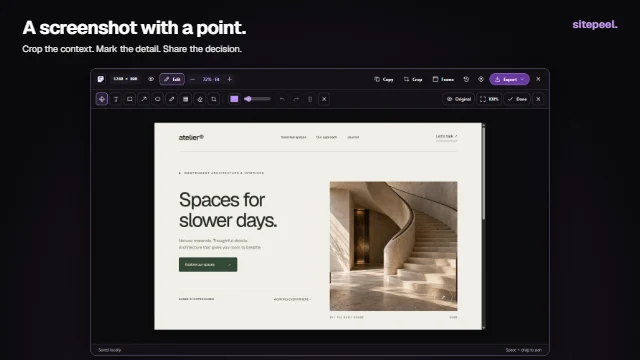
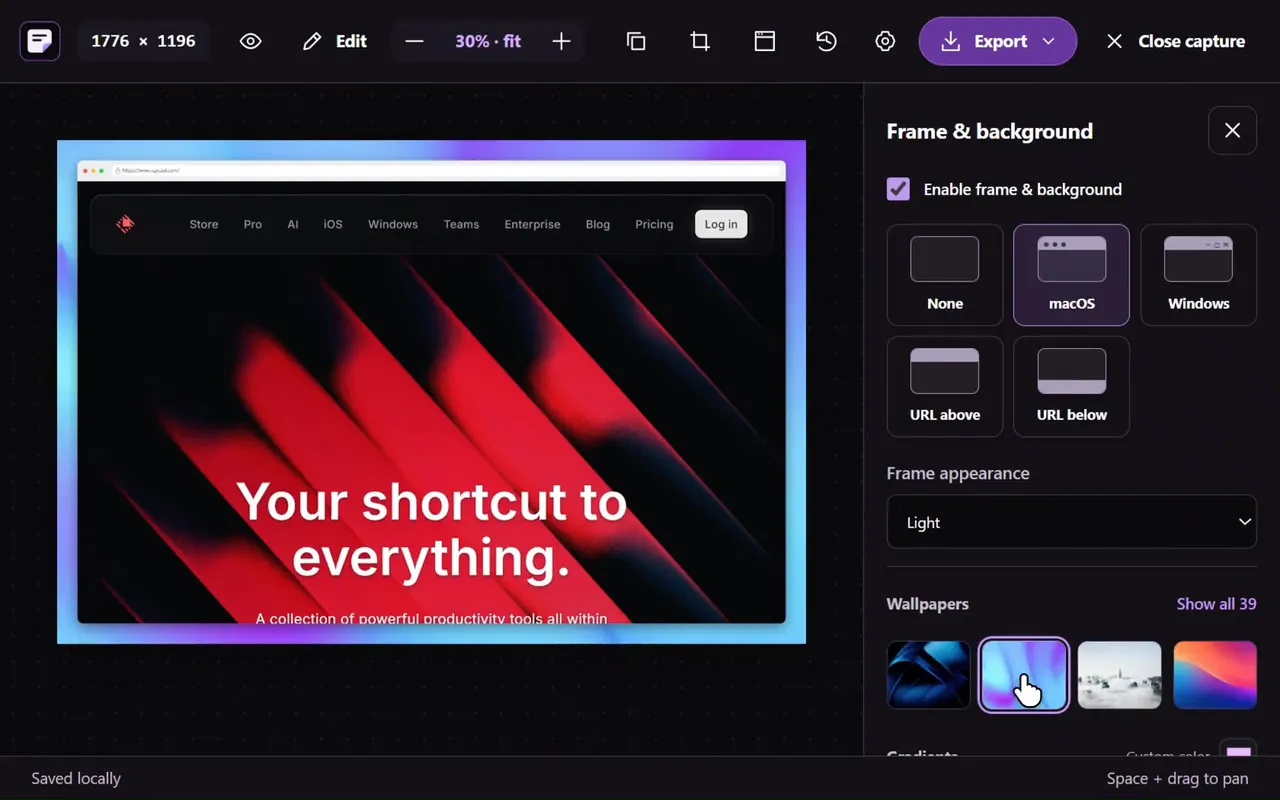
Adjust the crop, click Edit for annotations and add a frame or background when useful.
Copy or export
Choose a format and filename in Export. Check the final image before sharing it.
Screenshot an entire webpage in Chrome, or just part of it
Visible area records the current browser view. Full page scrolls and combines the page into a longer image. Snip & capture lets you draw a rectangle, while Pick an element captures a specific component. Choose the smallest area that explains the decision.
| Mode | Useful for |
|---|---|
| Visible area | A composition at a known viewport width |
| Full page | The sequence and rhythm of a long page |
| Snip & capture | A precise region that crosses element boundaries |
| Pick an element | One component, card or section |
Prepare lazy images and animated sections
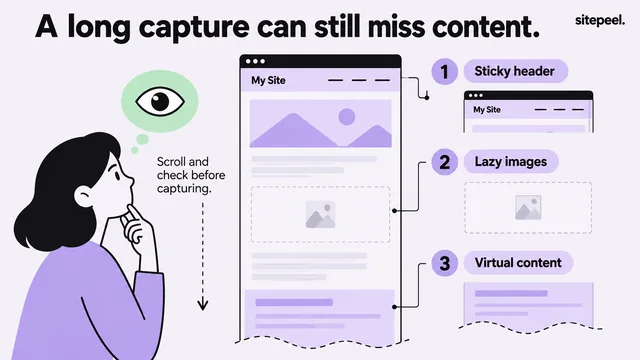
Scroll before capture is enabled by default. Sitepeel scrolls first so lazy images and scroll-triggered sections have an opportunity to load. Progress messages explain the preparation and capture stages; Escape cancels the operation.
Long page capture expands the default ten-screen limit, with a configurable limit up to 40 screens. Very large captures still have memory and image-size limits. Review the output, especially for sticky elements, embedded media or continuous animations.
A Chrome screenshot extension with an editor
Adjust the crop with handles, then click Edit for arrows, shapes, text, drawing and blur. Undo or redo changes as you work. The eraser removes annotations, not the underlying screenshot.
Add a browser frame and choose a wallpaper, gradient or solid background for a presentation. Keep a plain capture when page edges and exact spacing matter. Export PNG, JPG, WebP or PDF, with filename and size controls in the export menu.
Sitepeel, GoFullPage and Awesome Screenshot
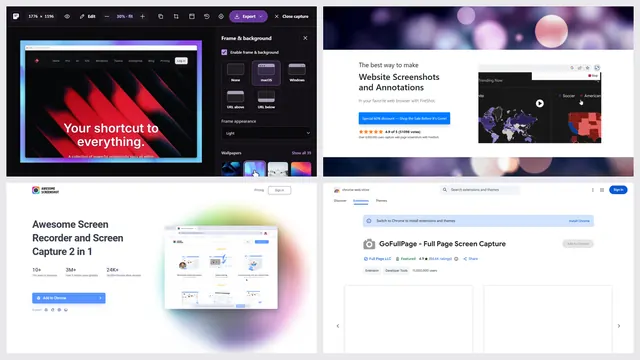
GoFullPage is the one-click classic, and Awesome Screenshot adds screen recording and sharing. Their facts are from each product’s own site and store listing, checked on 27 October 2026; No means we couldn’t find it there.
| Sitepeel | GoFullPage | Awesome Screenshot | |
|---|---|---|---|
| Full page | Yes | Yes | Yes |
| An area or the visible part | Yes | No | Yes |
| One element | Yes | No | No |
| Crop and annotate | Yes | Yes, in Premium | Yes |
| Browser frame and background | Yes | No | No |
| Export | PNG, JPG, WebP or PDF | PNG, JPEG or PDF | PNG, JPG or PDF |
| Screen recording | No | No | Yes |
| Price | A 24-hour trial, then lifetime access | Free; Premium editor $12 a year | Free plan with limits; paid from $5 a month |
Choose what happens after capture
Captures open in the editor by default. Dashboard → Capture lets you choose direct download instead and set export defaults. Capture history holds recent screenshots up to your configured retention and available browser storage. Download files you need to keep.
The website demo renders public Sitepeel pages, so its screenshots can differ from browser-native captures. Use the installed extension for screenshots on other websites.
Questions
How do I screenshot a full page on Chrome?
With Sitepeel, open Screenshot and choose Full page: it scrolls the page and joins it into one image. Without an extension, open DevTools, press Ctrl+Shift+P (Cmd+Shift+P on a Mac), type screenshot and choose Capture full size screenshot.
How do I take a scrolling screenshot?
Choose Full page. Sitepeel scrolls the page for you first, so lazy images and scroll effects load, then saves the whole page as one long image.
Can I screenshot just one part of a page?
Yes. Snip & capture draws a rectangle anywhere, and Pick an element captures one component, card or section.
Can I annotate the screenshot?
Yes. Click Edit for arrows, shapes, text, drawing and blur, then add a frame or background and export PNG, JPG, WebP or PDF.
Is the screenshot extension free?
Sitepeel is free to install. Screenshot, like every tool in the extension, has a 24-hour trial that starts the first time you use it. After that, lifetime access is one payment. The screenshot tool on our website is free.