On this page6
Step by step
Find what scrolls
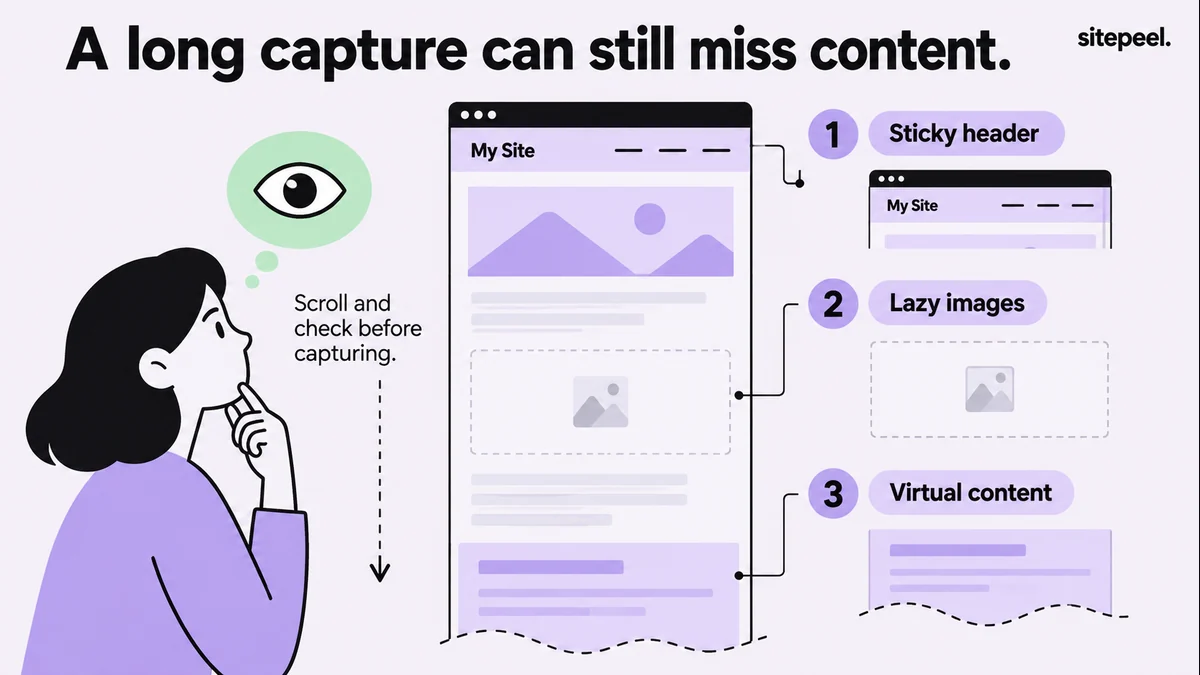
Look for a second scrollbar. If an inner panel or frame scrolls, a page capture sees only its visible part.
Load the content
Scroll through the section, open the tabs or accordions you need, and let images and fonts settle.
Pick the capture type
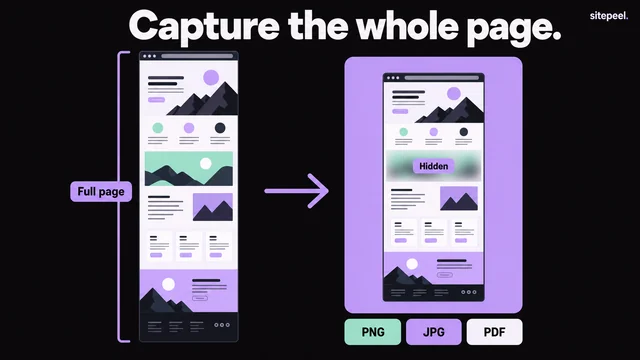
Use the visible area for a first impression, an element for one component, full page for a finite, loaded page.
Check the saved image
Look at the top, middle and bottom for repeated headers, half-played animations and blank images.
Sitepeel capture settings
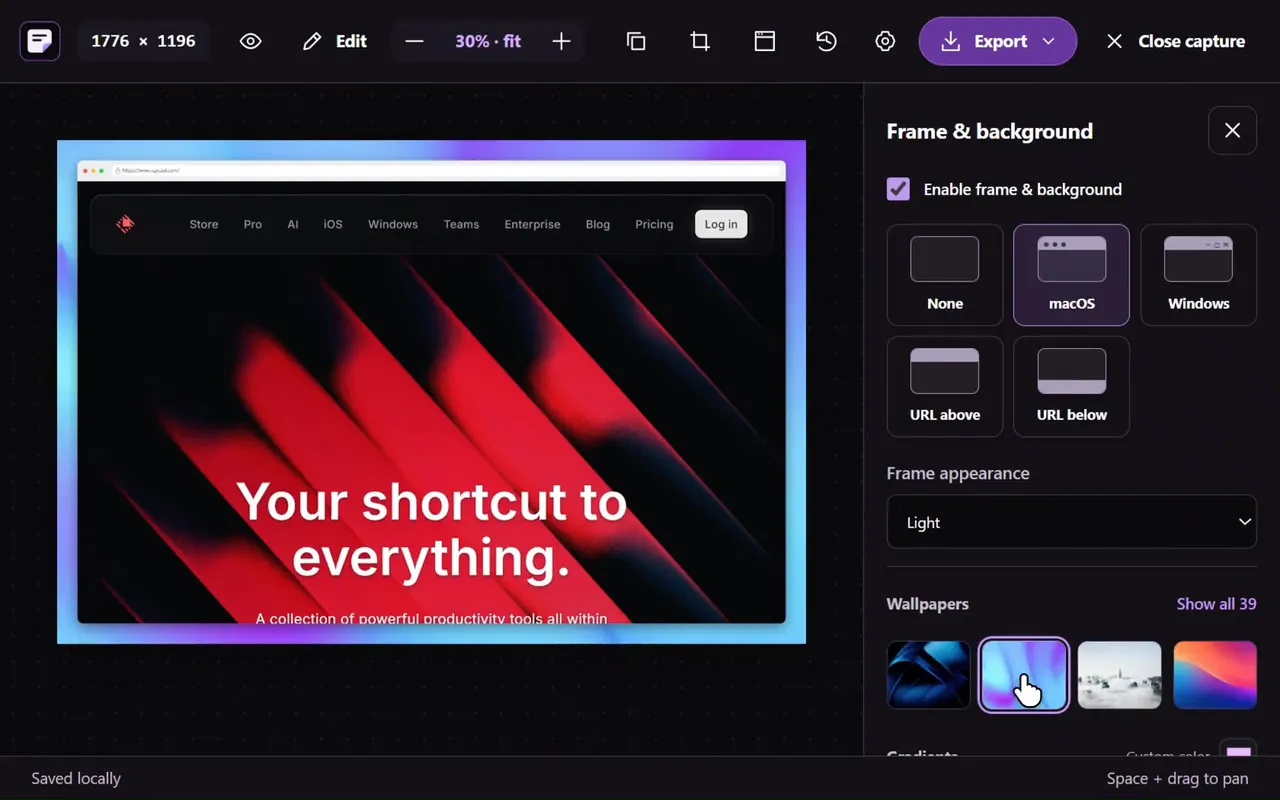
- Scroll before capture, under Screenshot → Advanced settings, scrolls the page first so lazy images and animated sections load. Leave it on.
- The progress message shows preparation, capture and assembly. Stay on the tab; Escape cancels.
- Long page capture handles pages over ten screens, with a limit you set of up to 40 screens.
- These settings are kept when you return to the panel.
Symptoms and fixes
| Symptom | Likely cause | Fix |
|---|---|---|
| Content cut off | An inner panel or frame scrolls, not the page | Open that content directly and capture it |
| Blank image areas | Lazy images hadn’t loaded | Scroll through the page first |
| Header repeated down the image | A sticky header in each stitched view | Use a viewport or element capture, or fix the header on your own page |
| Half-faded sections | Captured mid-animation | Let animations finish first |
| A feed that never ends | Infinite scroll or a virtualized list | Capture a set range, or use the app’s export |
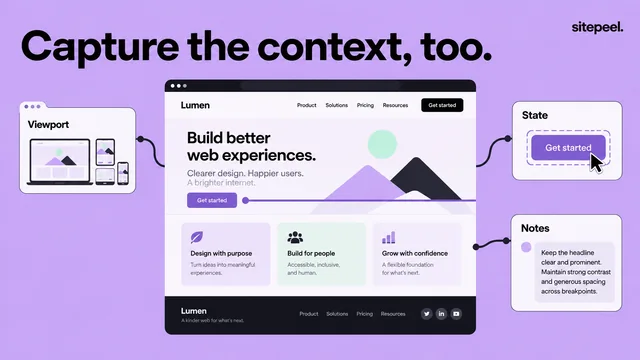
| Closed tabs missing | A capture shows the state you prepared | Open them before capturing |
Nested scrolling and frames
Some apps keep the page fixed and scroll an inner panel, such as a preview, table or editor. A tool can capture the whole outer page and still see only the visible part of that panel. An embedded frame is a separate document; open it directly if the site allows.
Repeatable captures of your own app
Playwright can screenshot a page or element at a set viewport. Prepare the content first: a load event doesn’t prove lazy sections are ready.
# Screenshot preflight

- Record the viewport size and browser zoom.
- Identify document, nested-panel or frame scrolling.
- Load the finite range of content you need.
- Open the intended tabs or expanded sections.
- Wait for relevant fonts, images and animations.
- Choose viewport, element or full-page capture.

After saving:
- Check the top, middle and bottom.
- Look for repeated headers and empty image areas.
- Confirm the crop and text remain readable.
- Split very long content into useful sections when needed.Questions
Why is my full-page screenshot cut off?
The page probably scrolls inside a panel or frame rather than the document itself, so the tool sees only the visible part. Open that content directly, or capture it in sections.
Why are images missing from my full-page screenshot?
They hadn’t loaded yet. Many sites load images only as you scroll near them. Scroll through the page first, or use a tool that scrolls before capturing, then check the saved image.
How do I stop a sticky header repeating in a screenshot?
On a page you control, keep the header in one position while capturing, then restore it. On other sites, a viewport or element capture may show the design more clearly.
How long a page can the free screenshot tool capture?
Full page captures up to 16,000 pixels tall. It scrolls the site first so lazy images load. For longer pages, capture the sections you need.