

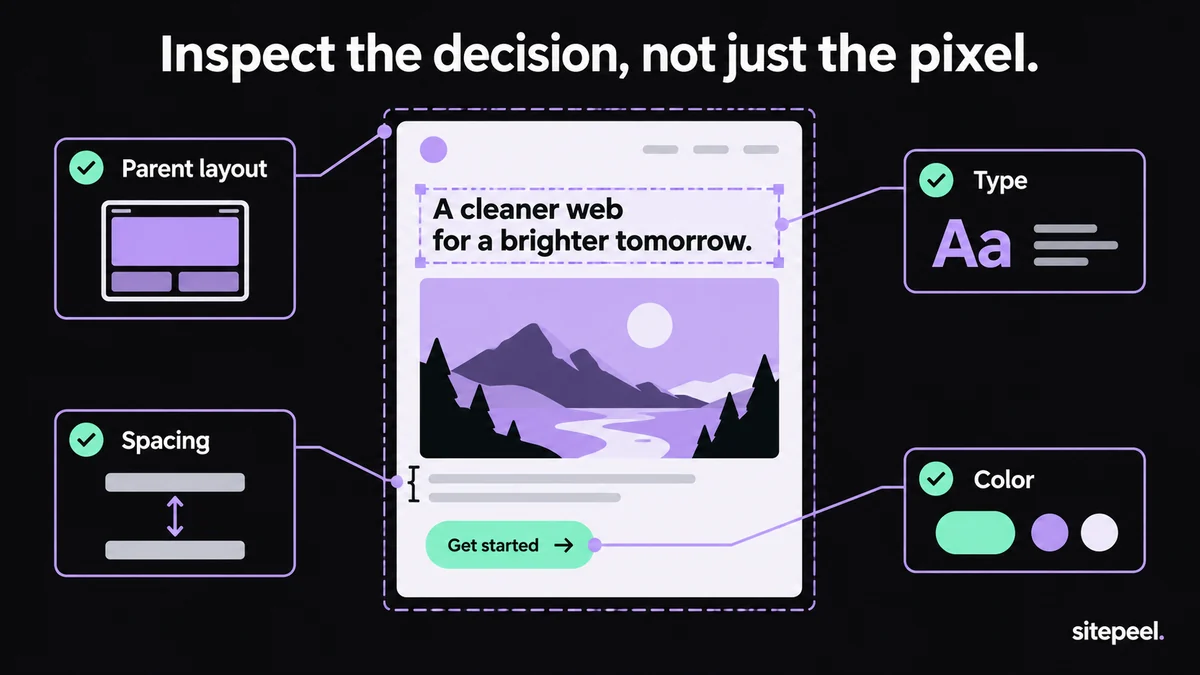
Start with one question and one screen
A useful inspection starts with a question: why does this heading wrap well, what keeps the columns aligned, or which spacing makes the form easy to read? Choose one page and one section before collecting details from the whole website.
For a repeatable exercise, use a page you own with a heading, supporting paragraph, image and button. Record the URL, viewport width and visible state. Wait for fonts and images to finish loading. An open menu, a cookie notice or a delayed font can change what you measure.
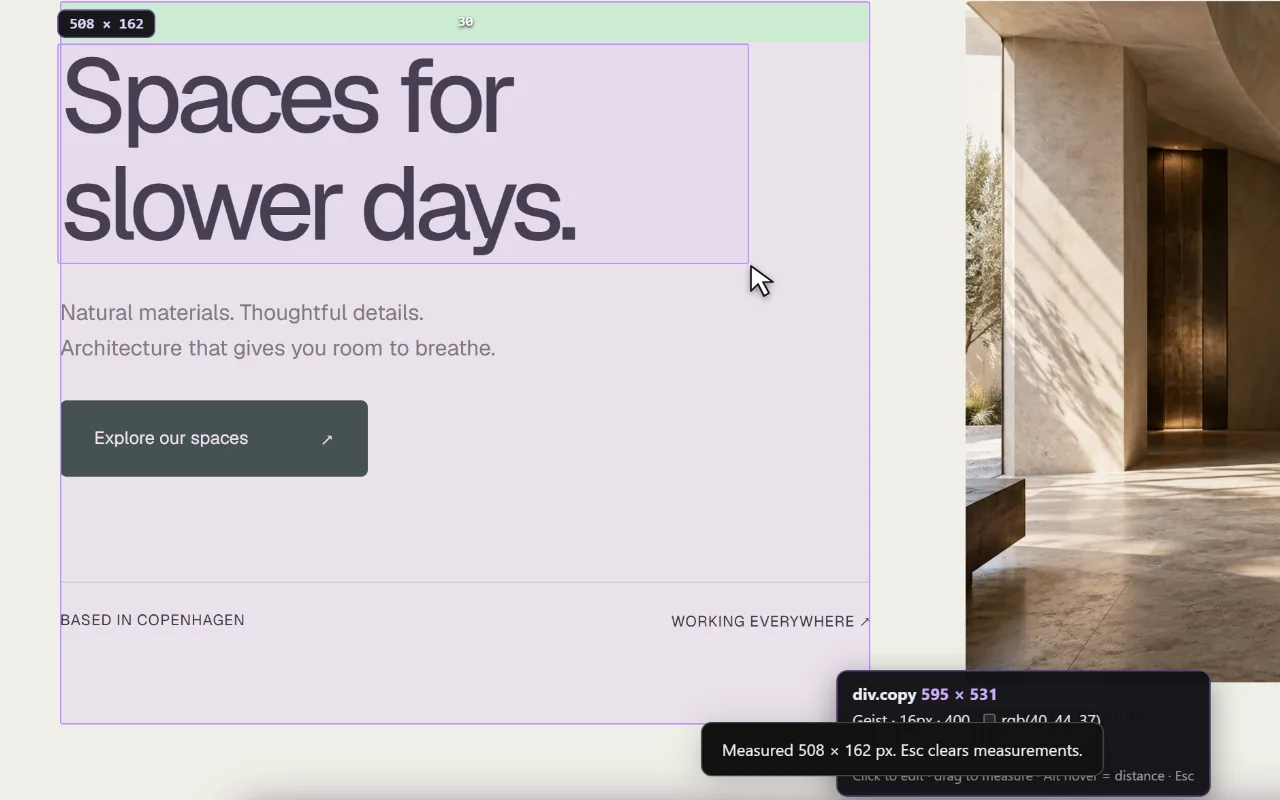
The screenshots below are real Sitepeel product captures on our demonstration page. Their measurements describe that captured state; they are not universal design recommendations or measurements from your website.
Inspect the element and its parent
In Chrome, right-click the part you want to understand and choose Inspect. The Elements panel connects the rendered page to its HTML. The Styles view shows matching CSS rules; the Computed view helps check the values the browser has resolved.
Start with the heading, then inspect its parent container. A line break can come from the available width as well as the font size. A large gap can belong to the parent’s layout rather than the selected element’s margin. Compare both before changing a value.
Sitepeel’s Inspect & measure tool gives you an on-page view of dimensions and spacing. In this capture, the selected heading is measured at 508 × 162 pixels. Treat that as evidence for this view, then measure again after the layout changes.
Record typography and color roles
Inspect a main heading, a paragraph and a button label. Record the observed font family, weight, size and line height for each. Check whether the expected font has loaded: a fallback can change wrapping even when the declared CSS looks right.
For colors, record the foreground and the surface behind it together. A white label on a dark button has a different role from white text over a photograph. Gradients, transparency and image backgrounds also affect the appearance; a single sampled pixel cannot describe all of them.
Group the observations by role, such as page surface, body text and primary action. Keep the original values next to those labels. Do not assume that a color appears across the entire site because it appeared in one banner.
Separate spacing from layout behavior
Measure the content container, the gap between columns and the distance from a heading to its paragraph. Compare repeated cards or sections to see which values recur. A repeated relationship is a stronger clue than one isolated number.
Check whether the layout uses flex, grid, a fixed width or a maximum width. Look at the parent’s rules before copying a child’s dimensions. A button can look correct in its original container and overflow when placed inside a narrower card.
Next, resize the viewport and watch where the arrangement changes. Chrome’s device mode can help approximate narrow layouts, but it does not replace testing on a real phone. Record the widths you inspected instead of declaring a page responsive after one screenshot.
Check states before collecting the reference
Move through the page with the keyboard, open its navigation and expand a disclosure. Note what changes when a control receives focus or a label becomes longer. Use a test environment when an action would submit real data or trigger a purchase.
Keep visual inspection separate from a complete accessibility or performance audit. Seeing a focus indicator is useful, but it does not establish that every control is accessible. A fast load on your computer does not establish the experience of someone on a slower connection.
Choose browser tools for CSS debugging, design exports and audits
Export the smallest reference that answers the question
Use Pick element for one component’s rendered HTML and CSS. Use Clone page for a snapshot of the current page. Use Design MD when you want to record the visual direction without taking the page markup into your project.
Review the export against the source at the same width. Replace source branding and assets where needed, and only publish material you have permission to reuse. A browser snapshot does not recover the original framework components, backend or database.
If you pass the reference to an AI coding assistant, include the task and the missing behavior explicitly. Keep observed measurements distinct from new design decisions you want the assistant to make.
Copy the website inspection checklist
Use this template for your own observations. The empty fields are intentional: fill them from the page you inspect instead of guessing values.
# Website design inspection

Page URL: [record the page]
Date and viewport: [record the inspection conditions]
Question: [what are you trying to understand?]

## Observed design
- Container and columns: [widths, gaps and alignment]
- Heading: [family, weight, size and line height]
- Body text: [family, weight, size and line height]
- Colors: [values, roles and background pairs]
- Spacing: [repeated relationships and exceptions]

## Checks
- [ ] Fonts and images finished loading.
- [ ] Selected element and parent were inspected.
- [ ] Narrow and wide layouts were compared.
- [ ] Keyboard focus and relevant states were reviewed.
- [ ] Export was compared with the source.
- [ ] Unchecked states are documented.
- [ ] Reuse permissions are confirmed before publishing.

## Open questions
[Record unknowns separately from measured values.]