

When capture belongs inside the design toolkit
A dedicated capture extension can be enough when the job ends with an image. An integrated workflow is useful when you also need to inspect a gap, try a layout change or document the same component across widths before capturing it.
Sitepeel 1.0.3 adds a capture editor, Snip & capture and saved capture preferences to that workflow. Use Scroll before capture for lazy-loaded sections, then check the top, middle and bottom of the saved image. Browser-store availability may vary during rollout; the website demo lets you preview the updated tools on Sitepeel pages.
Choose a capture tool by the handoff
We make Sitepeel. This is an editorial comparison based on official documentation and listings checked on September 20, 2026, not a speed benchmark or a claim that one tool wins every task. Check the publisher’s current plan and permissions before installing.
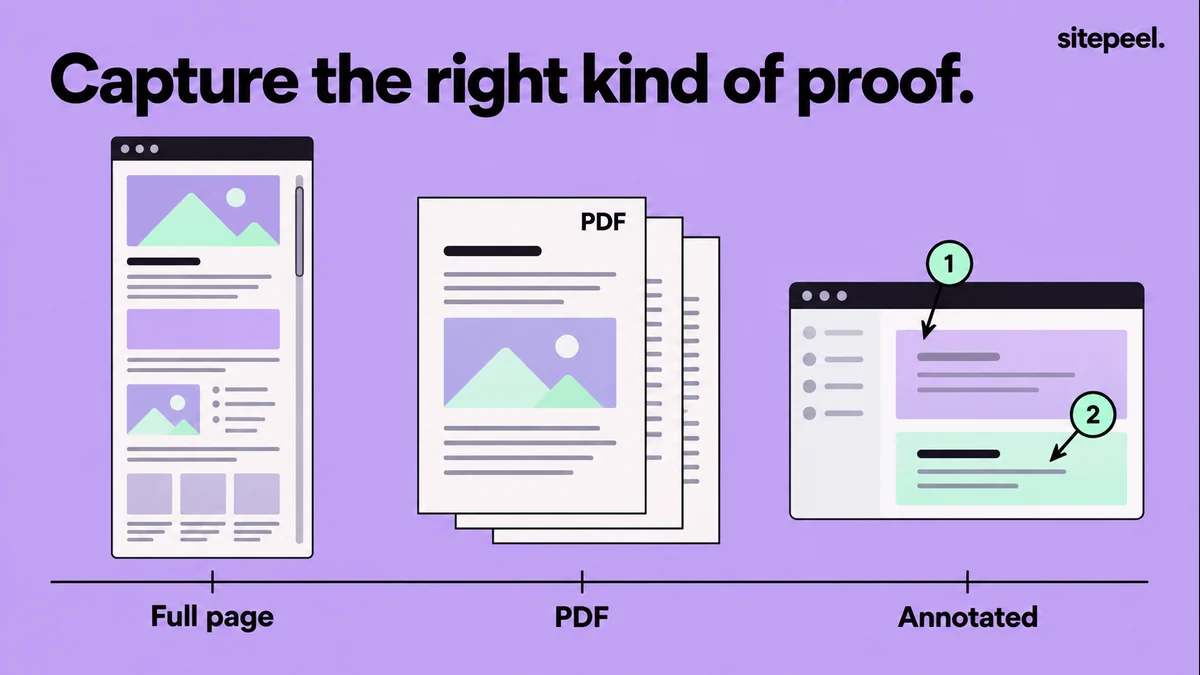
A long PNG for a design review, a PDF for a document archive and a marked-up bug report are different deliverables. Decide which one your teammate needs before you install another tool.
| Tool | Consider it for | Check on your page |
|---|---|---|
| GoFullPage | A focused full-page screenshot | Lazy loading and sticky content |
| FireShot | Capture, PDF and editing workflows | Which capabilities require Pro or a platform-specific option |
| Awesome Screenshot | Screenshots, annotation and communication | Local export versus account or sharing features |
| Sitepeel | Captures collected with other design references | The required page state and capture result |
| Chrome DevTools | An occasional built-in full-size capture | The current viewport and device-mode settings |
GoFullPage for a focused page capture
GoFullPage’s official listing describes full-page screen capture. It is a natural candidate when you want a visual record of a long page without building a larger design-handoff process around it.
Start from the official listing linked below. After capture, inspect the image at readable zoom: a thumbnail can hide blank bands, clipped text or a header repeated through the page.
Save the viewport width with the file. Two captures of the same URL at different widths may have different line breaks and section heights even when neither is broken.
FireShot and Awesome Screenshot for a richer handoff
FireShot’s product documentation describes full-page, visible-area and selection captures, with editing and PDF-oriented workflows. Some capabilities are presented as FireShot Pro features, so verify the edition and browser you intend to use.
Awesome Screenshot combines screen capture with annotation and screen-recording workflows. It is worth evaluating when the result is part of a conversation about a bug or a design change. Check whether your desired handoff is a local file or a hosted share.
For a bug report, annotate the exact failure and include the expected behavior. A clear arrow and a short reproduction are often more helpful than a very tall image with no context.
Use Sitepeel when the screenshot needs supporting details
A screenshot records appearance but cannot supply the actual CSS, font family or interaction rules. Sitepeel lets a capture sit alongside code, asset and Design MD collection. Choose that workflow when someone must implement the design after reviewing it.
Keep the screenshot and extracted reference tied to the same viewport and state. If you open a menu after collecting the code, record that difference rather than presenting the files as one identical capture.
For a one-off image, Chrome DevTools also offers a built-in full-size screenshot command. Try the browser’s existing capability before adopting a dedicated extension solely for occasional captures.
Run the same capture check for every candidate
Open a page you own and wait for fonts and images. Scroll through the intended content so you can see whether lazy sections exist, then return to the required starting state. Decide whether menus, banners and dialogs should appear in the record.
Capture and inspect the beginning, middle and end at full resolution. Check one sticky element, one image near the bottom and one expanded section. Infinite feeds and virtualized lists may not keep the entire document in the DOM at once; a screenshot tool cannot photograph content that is not rendered.
If the output fails, record the specific symptom before switching extensions. A duplicated header and an unloaded image have different causes and may need a change in page state rather than a different tool.
# Full-page capture review

Page / date / viewport:
Tool and output format:
Intended state:

Before capture:
- [ ] Fonts and required images are loaded.
- [ ] Relevant lazy content has appeared.
- [ ] Menus and dialogs match the intended record.

After capture:
- [ ] Top, middle and bottom are readable.
- [ ] Sticky elements are not repeated unexpectedly.
- [ ] No important sections are blank or clipped.
- [ ] Sensitive account details are excluded from the shared file.
- [ ] URL, viewport and reproduction notes accompany the image.

Observed limitation and next step: