On this page5
Step by step
Decide what it shows
Pick the smallest area that explains the point. A tiny button in a long screenshot is hard to judge.
Prepare the page
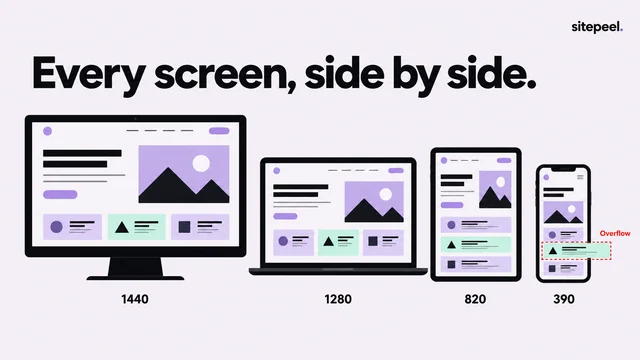
Set viewport and zoom, wait for fonts and images, set the state you want and close unrelated overlays.
Capture with Screenshot
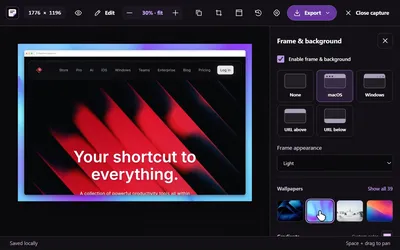
Open Sitepeel’s Screenshot tool and choose Visible area, Full page, Snip & capture or Pick an element.
Review before saving
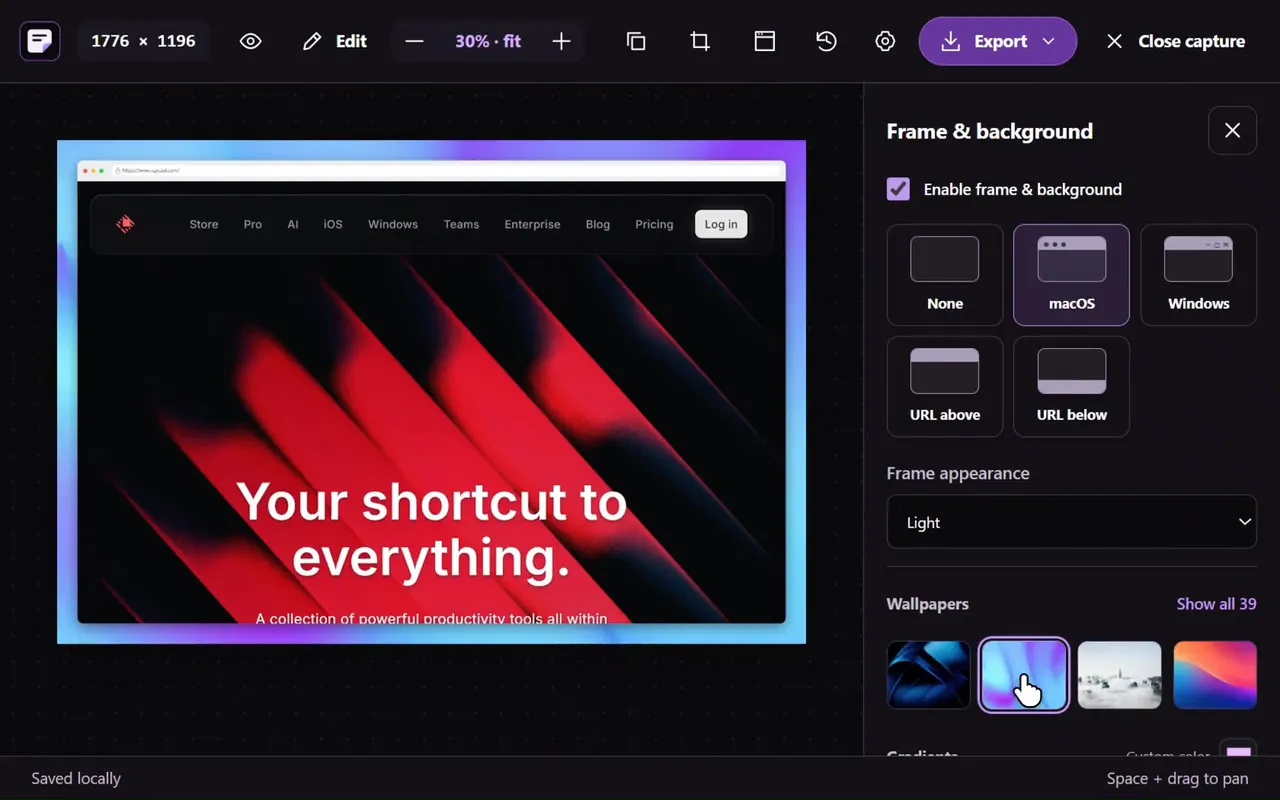
Look for missing media, sticky elements and loading placeholders, then crop or annotate in the editor.
Add the context
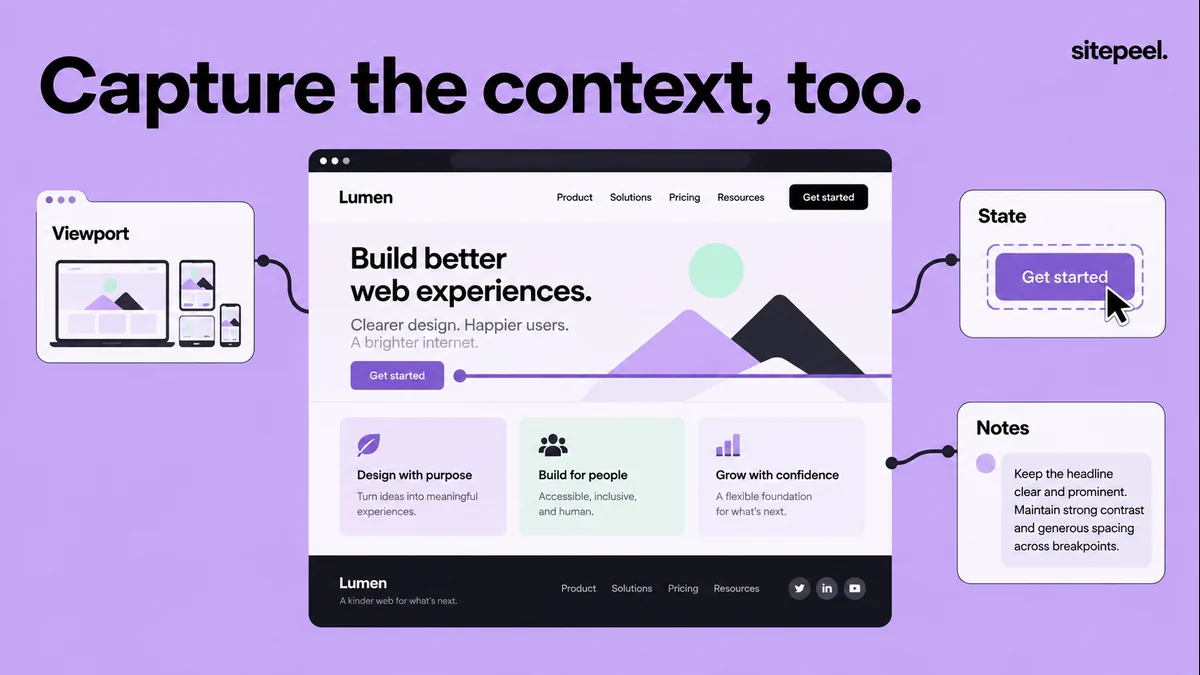
Record the URL, the viewport and one or two notes on hierarchy, type or spacing.
Which capture to use
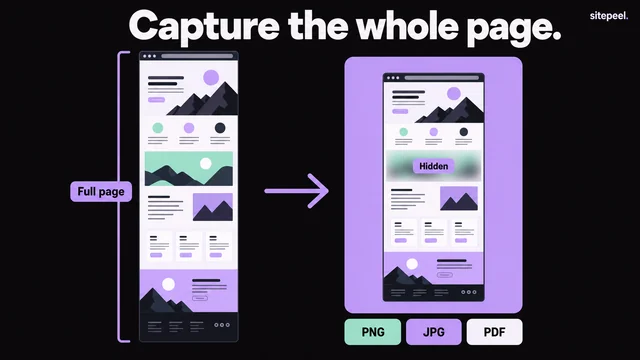
The free screenshot tool captures the full page or the first screen. The Screenshot tool in Chrome adds Snip & capture and Pick an element.
| Capture | Best for |
|---|---|
| Full page | Section order and the rhythm of a long page |
| Visible area or first screen | A composition at a known width |
| Snip & capture | A precise region that crosses element edges |
| Pick an element | One component, card or section |
Add what the image can’t show
- The page URL and the viewport width.
- One or two notes on hierarchy, type or spacing.
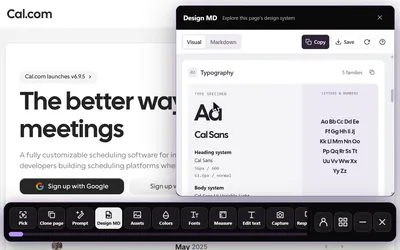
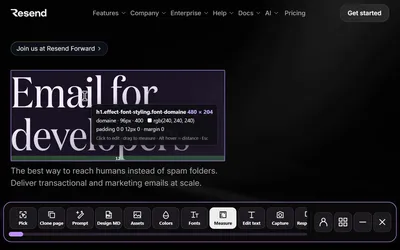
- Exact font and spacing values from Detect fonts or Inspect & measure.
- A narrow-screen capture when responsive behavior matters.
- Which parts are inspiration and which assets you may reuse.
Compare before and after
Capture your build at the same viewport and page state as the reference, then compare the relationships between elements, not single pixels. Update the reference when the project changes on purpose; the first screenshot isn’t a permanent spec.
Questions
How do I take a full-page screenshot of a website?
Paste the link into Sitepeel’s free screenshot tool and choose Full page, or choose Full page in the Screenshot tool in Chrome. Both scroll first so lazy images load.
Which formats can I export?
PNG, JPG, WebP or PDF, from both the free screenshot tool and the Screenshot tool’s editor in Chrome.
Why is part of my full-page screenshot missing?
Lazy images, sticky headers, embedded media and animations can interfere. Let the page load fully, then check the result before saving.