On this page6
Step by step
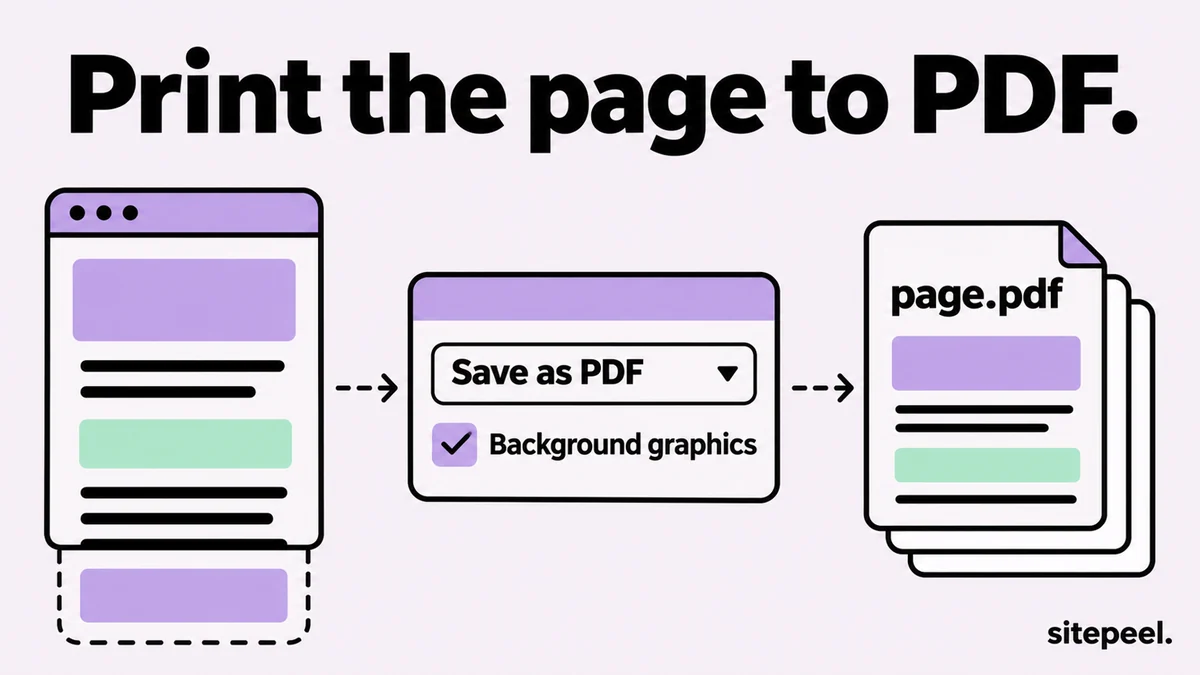
Open the print dialog
Press Ctrl+P on Windows or Cmd+P on a Mac, or choose Print in the browser menu.
Pick Save as PDF
Set the destination to Save as PDF. Firefox calls it Save to PDF.
Check the settings
Tick Background graphics (Print backgrounds in Firefox and Safari), then pick the layout, paper size and margins.
Save and check it
Press Save, pick a folder, then open the PDF to check nothing was cut off.
Save as PDF in each browser
| Browser | Shortcut | Where to find it |
|---|---|---|
| Chrome | Ctrl+P or Cmd+P | Destination: Save as PDF |
| Edge | Ctrl+P or Cmd+P | Printer: Save as PDF |
| Firefox | Ctrl+P or Cmd+P | Destination: Save to PDF |
| Safari on a Mac | Cmd+P | The PDF menu in the print dialog, or File > Export as PDF |
| Chrome on Android | None | Menu > Share > Print, then Save as PDF |
| Safari on iPhone | None | Take a screenshot, tap it, choose Full Page, then Save PDF to Files |
When the PDF looks wrong
| Problem | Fix |
|---|---|
| Colors and pictures are missing | Turn on Background graphics (Print backgrounds in Firefox and Safari). |
| Images are blank | They load as you scroll. Scroll to the bottom first, then print. |
| Content is cut off at the side | Switch to landscape, or lower Scale in the print settings. |
| Only one screen prints | The site scrolls inside a box. Take a full-page screenshot instead. |
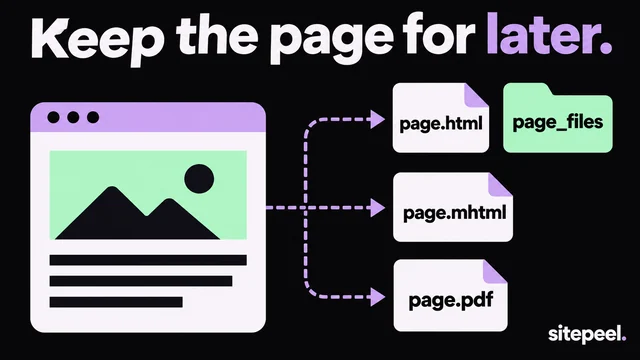
| Text breaks across pages | Pick a larger paper size, or save the page as it looks, below. |
Keep the page exactly as it looks
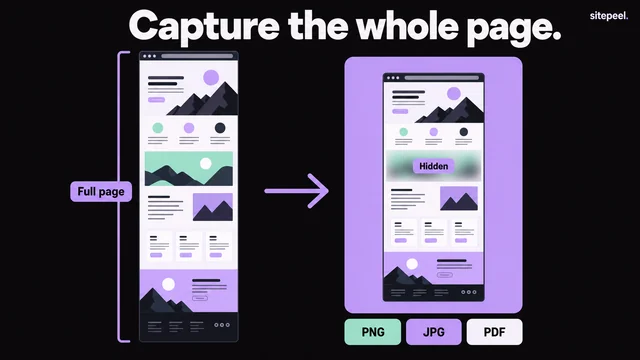
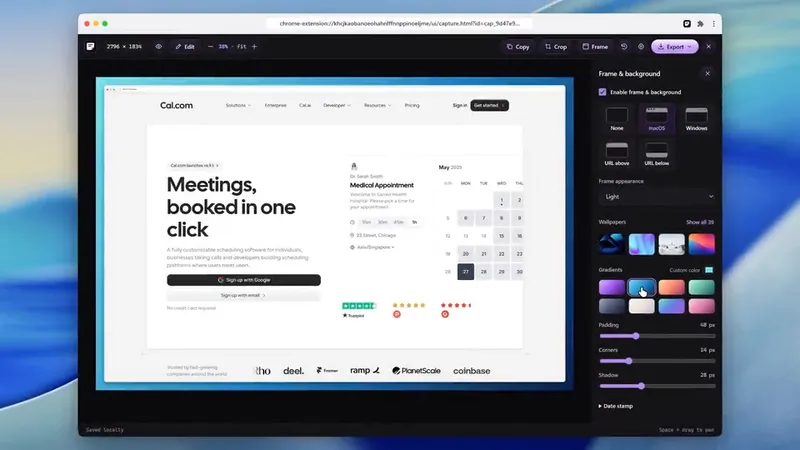
Printing reflows the page for paper. To keep the on-screen layout, paste the link into Sitepeel’s free screenshot tool, choose Full page and export PDF. It scrolls the page first, so lazy images load.
- The PDF is the screenshot split over A4 pages, so it looks like the site.
- Its text is part of the picture: you can’t select or search it.
- For one unbroken image, export PNG instead.
Save more than one page
- Print saves one page at a time. For a few pages, repeat it on each.
- For a clean article, open Reader view first (Firefox, Safari and Edge), then print.
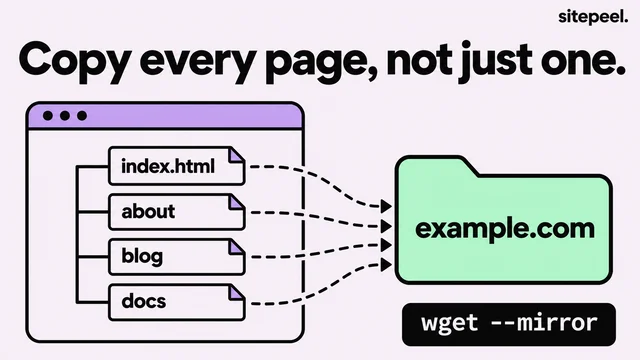
- For a whole site, download it with a site copier, then print the pages you need.
Questions
How do I save a webpage as a PDF in Chrome?
Press Ctrl+P (Cmd+P on a Mac), set Destination to Save as PDF, open More settings and tick Background graphics, then press Save.
How do I save a webpage as a PDF on my phone?
On Android, open Chrome’s menu, tap Share, then Print, and choose Save as PDF. On an iPhone, take a screenshot in Safari, tap it, choose Full Page and save the PDF to Files.
How do I save a webpage as a PDF without page breaks?
Printing always splits the page into sheets. For one unbroken copy, take a full-page screenshot and save it as PNG. Exported as PDF, it keeps the on-screen look over A4 pages.
Why is my PDF missing images or colors?
Background graphics is off, or the images hadn’t loaded. Tick Background graphics in the print settings, scroll to the bottom of the page so lazy images load, then print again.
Can I save a whole website as a PDF?
Not in one step: print saves one page at a time. Save each page you need, or download the site with a site copier like HTTrack and print pages from your copy.