On this page6
Step by step
Load the whole page
Scroll to the bottom so lazy images load, and open any tabs or sections you want kept.
Press Save
Press Ctrl+S on Windows or Cmd+S on a Mac, or choose Save page as in the browser menu.
Choose a format
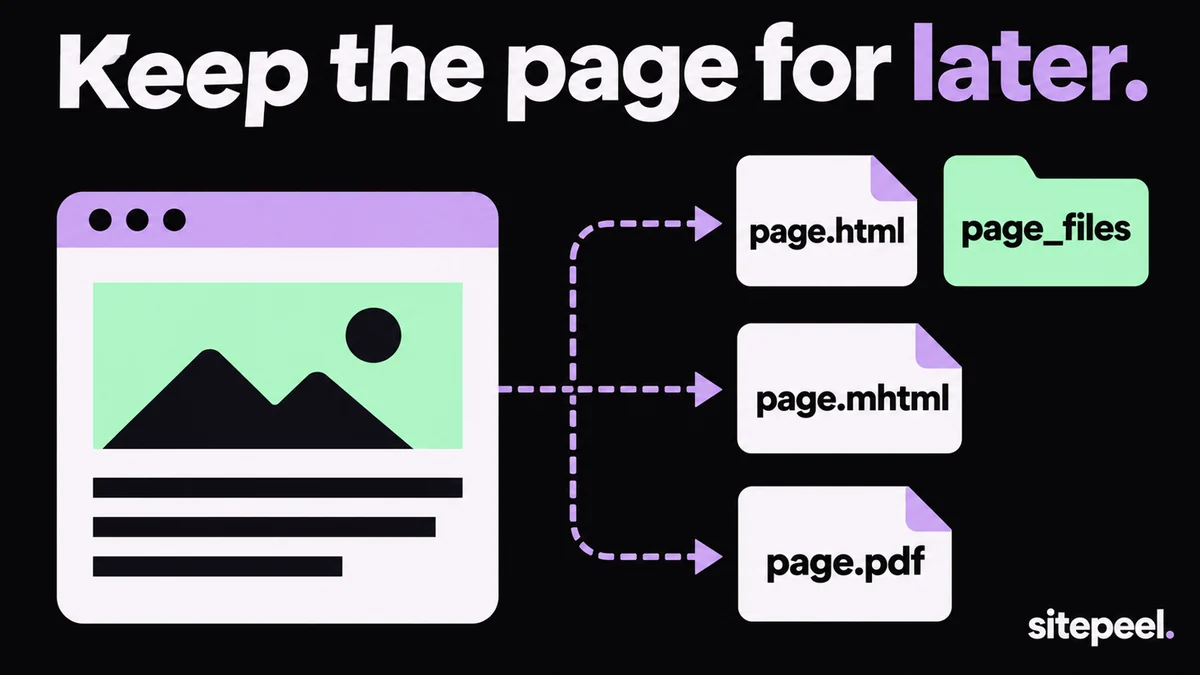
Pick Webpage, Complete for HTML and images, or Single File for one .mhtml file.
Open the copy
Double-click the saved file. It opens in your browser without the internet.
Which format to save
| Format | What you get | Opens in |
|---|---|---|
| Webpage, Complete | An .html file and a folder of images, styles and scripts | Any browser |
| Webpage, HTML only | Just the HTML; images still load from the site | Any browser, online |
| Single File (.mhtml) | One file with the page and its images | Chrome and Edge |
| Web Archive | Safari’s one-file format | Safari |
| A fixed copy split into printable pages | Any device | |
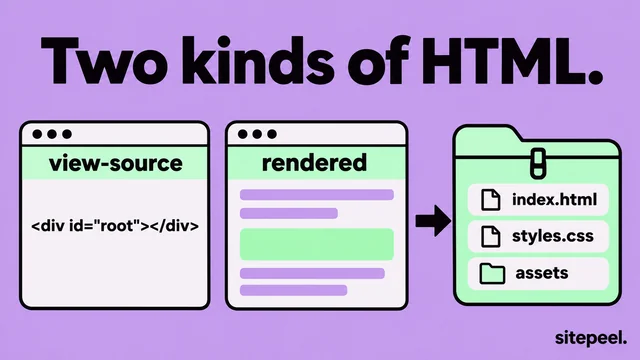
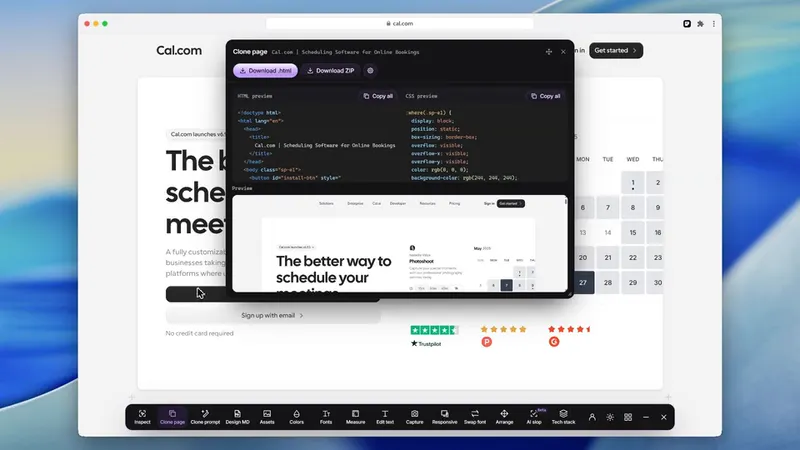
| Website to HTML ZIP | Rendered HTML without scripts, one CSS file and the images | Any browser |
Save a web page on your phone
- Chrome on Android: open the menu and tap the download arrow. The page is kept in Downloads.
- Safari on iPhone: tap Share, then Add to Reading List, with Automatically Save Offline on in Safari’s settings.
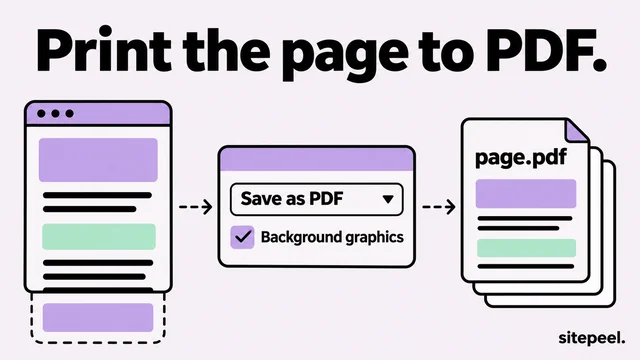
- For a file you can keep or send, save the page as a PDF.
Why the saved page looks broken
| Problem | Why, and what to do |
|---|---|
| Images missing | They hadn’t loaded. Scroll to the end, then save again. |
| Blank or half-empty page | Scripts build it, and they don’t run the same from a file. Save it as rendered. |
| Wrong fonts | Some sites only allow their fonts on their own domain. |
| Menus and sliders don’t work | They need the site’s scripts or server. |
Keep a lasting copy online
For a public page you may need to cite later, use Save Page Now at web.archive.org/save. The Internet Archive keeps a dated copy that anyone can open.
Questions
How do I download a web page to view offline?
Press Ctrl+S (Cmd+S on a Mac) and choose Webpage, Complete, or Single File in Chrome and Edge. Open the saved file later in your browser, with no internet needed.
What is the difference between Webpage, Complete and Single File?
Complete saves an HTML file plus a folder of its images and styles. Single File saves everything in one .mhtml file, which is easier to keep and send but opens best in Chrome and Edge.
How do I save a web page on my iPhone?
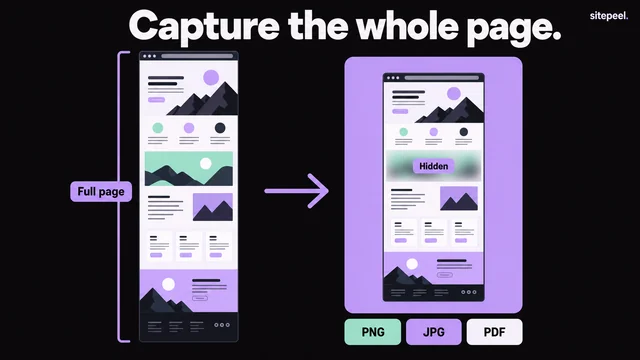
In Safari, tap Share and choose Add to Reading List, with Automatically Save Offline turned on in Safari’s settings. For a file, take a screenshot, tap it, choose Full Page and save the PDF to Files.
Why does my saved web page look different?
Images that hadn’t loaded, scripts that don’t run from a file and fonts locked to the site’s domain all change the copy. Scroll to the end first, or save the page as rendered with Website to HTML.
Can I download a whole website, not just one page?
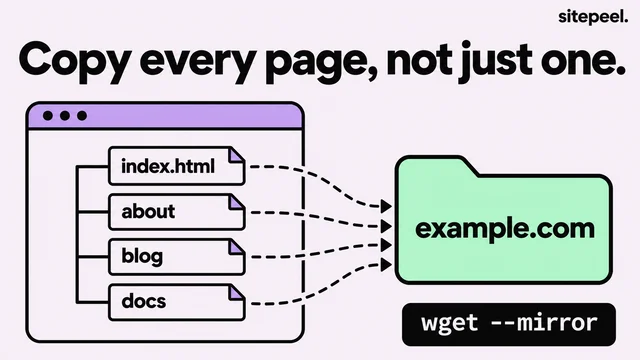
Yes, with a site copier such as HTTrack, SiteSucker or wget. They follow the links and save every page with its files.