On this page6
How it works
Add Sitepeel to Chrome
Install it free from the Chrome Web Store and pin it to your toolbar. It works in Edge and Brave too.
Open Extract assets on the page
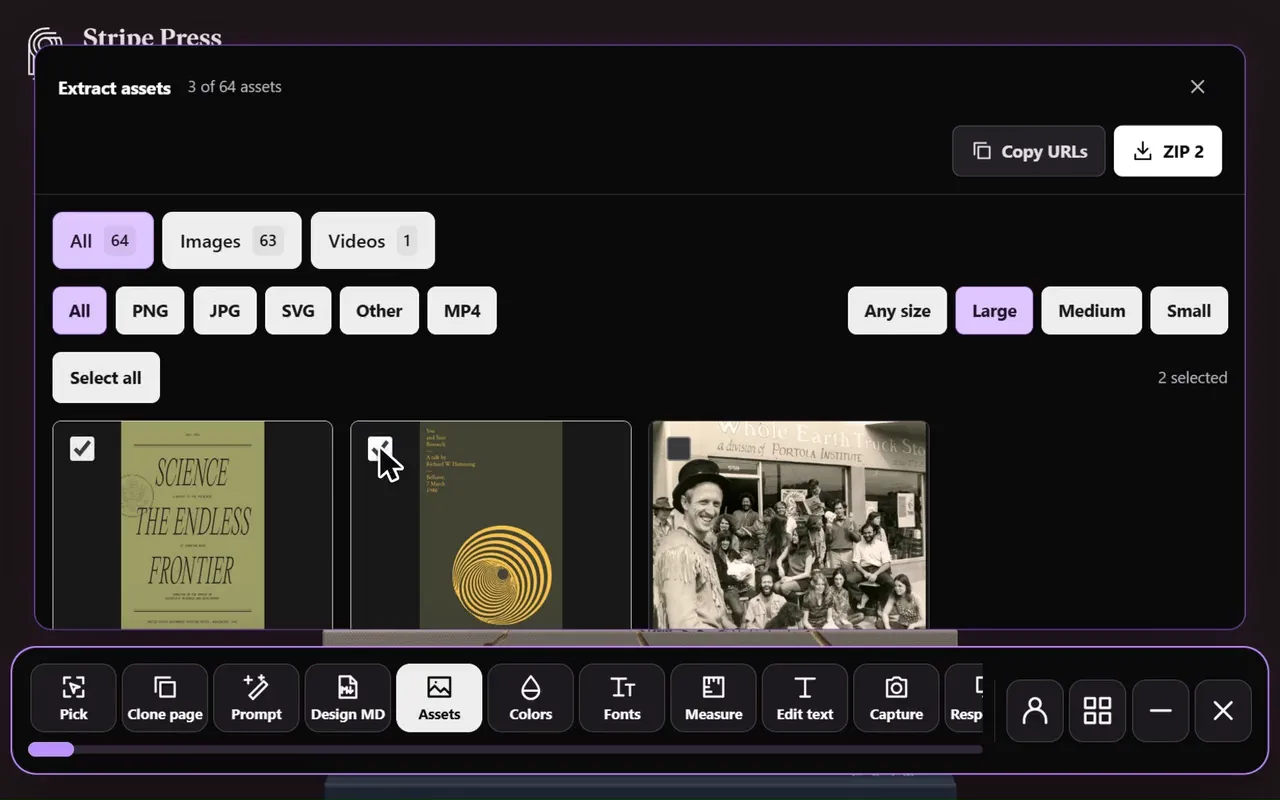
Click the Sitepeel icon and choose Extract assets. Scroll the page: new images join the list as they load.
Filter and save
Pick Images or Videos, a format and a size, select what you need, then press ZIP or Copy URLs.
What it finds
Extract assets reads the page as it is in your tab, so it sees what you see, signed in or not.
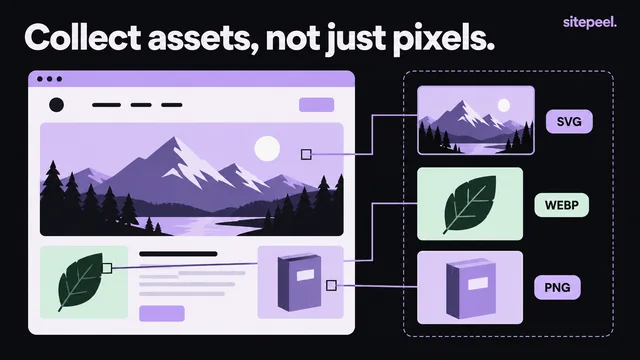
- Images in every format: JPG, PNG, WebP, AVIF, GIF and SVG
- CSS background images, not just image tags
- Videos the page plays, like MP4 and WebM; streams (HLS, DASH) as a link to copy
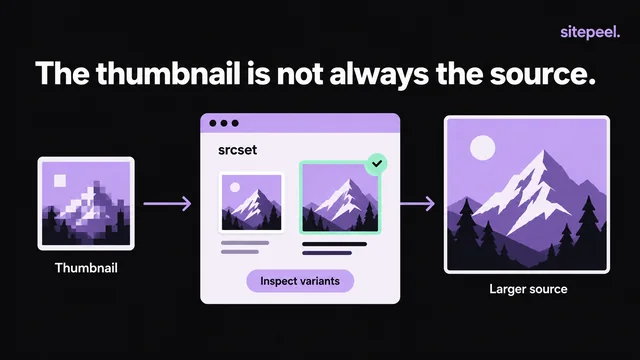
- Images that load as you scroll, added to the list as they appear
Sitepeel, Imageye, Image Downloader and DownThemAll!
All four work on the page you have open. This is what each Chrome Web Store listing says it does, checked on 28 October 2026. No means we couldn’t find it in the listing.
| Sitepeel | Imageye | Image Downloader | DownThemAll! | |
|---|---|---|---|---|
| Every image on the page | Yes | Yes | Yes | Yes |
| CSS background images | Yes | No | No | No |
| SVGs | Yes | No | No | No |
| Videos | Yes | No | No | No |
| Filter by size | Yes | Yes | Yes | Yes, with custom filters |
| Save everything as one ZIP | Yes | No | No | No |
| Save to a subfolder and rename | No | No | Yes | Yes |
| Convert to WebP, JPG or PNG | No | Yes | No | No |
| Price | A 24-hour trial, then lifetime access | Free | Free | Free, open source |
The extension or the free image extractor
Both find a page’s images. The extension works on the page you have open. The image extractor on our website works from a link, with nothing to install, and also lists fonts, animations and 3D models.
| Chrome extension | Web image extractor | |
|---|---|---|
| Pages behind a login | Yes | No, public links only |
| Works on | The page in your tab, in Chrome, Edge or Brave | Any link, in any browser, phones too |
| Fonts, animations and 3D models | No | Yes |
| Install | Free, from the Chrome Web Store | Nothing to install |
| Price | A 24-hour trial, then lifetime access | A few free runs, then sign in free |
Good to know
Extract assets lists what the page has loaded. Scroll long pages and open galleries first, so their images load.
Images and videos belong to the site’s owner. Use them for reference, or ask for permission before you reuse them.
Questions
What is the best image downloader Chrome extension?
It depends on what you need. Imageye and Image Downloader are free and made for images. DownThemAll! queues downloads of many links. Sitepeel’s Extract assets also finds SVGs, videos and CSS backgrounds and saves them as one ZIP, next to the other Sitepeel tools for the page.
How do I download all images from a website in Chrome?
Add Sitepeel to Chrome, open the page and choose Extract assets. Scroll so every image loads, press Select all, then ZIP. Without an extension, paste the link into the free image extractor.
Does it work on pages behind a login?
Yes. It reads the page you have open, so it works on dashboards, members’ pages and anything else you can see in your browser.
Can it download background images and SVGs?
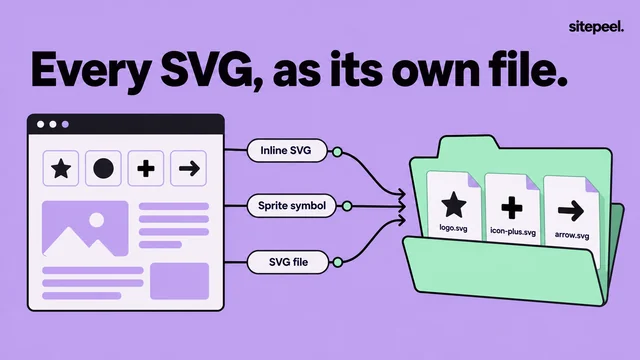
Yes. It lists CSS background images and SVG files along with ordinary images, each with its format and size.
Can it download videos?
Yes, the video files the page plays. Streaming videos (HLS or DASH) are listed as a link to copy and open in a player. Protected (DRM) videos can’t be saved.
Is the image downloader extension free?
Sitepeel is free to install. Extract assets, like every tool in the extension, has a 24-hour trial that starts the first time you use it. After that, lifetime access is one payment. The image extractor on our website is free to start, with nothing to install.
Does it work in Edge and Brave?
Yes. It installs from the Chrome Web Store in Chrome, Edge and Brave on desktop.
Can I reuse the images?
They belong to the site’s owner. Use them for reference, or ask for permission before you reuse them.