On this page7
How it works
Open the page
Visit the page you want to study. Let its images load and scroll through the sections you need.
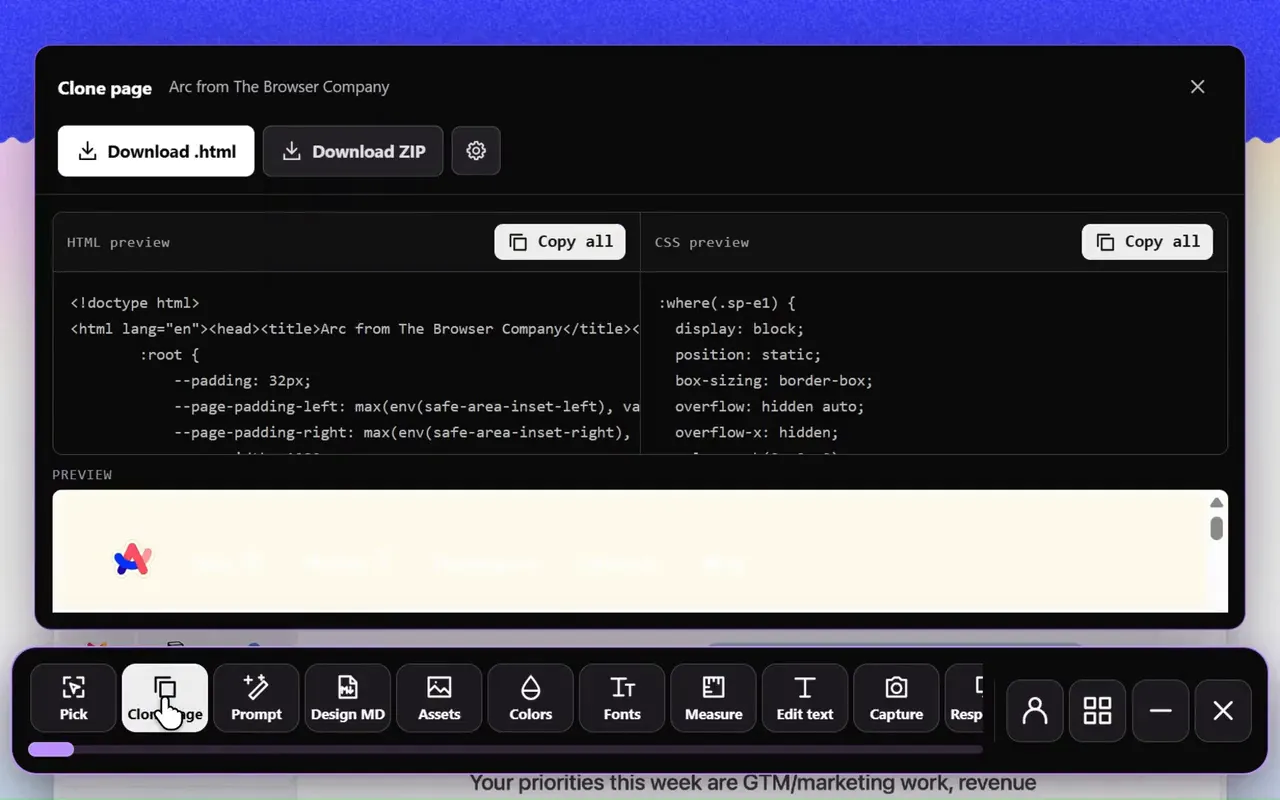
Choose Clone page
Open Sitepeel, choose Clone page and review the snapshot in the preview.
Export and adapt
Save the result, check it locally and replace the content and assets for your own project.
Two ways to clone a website
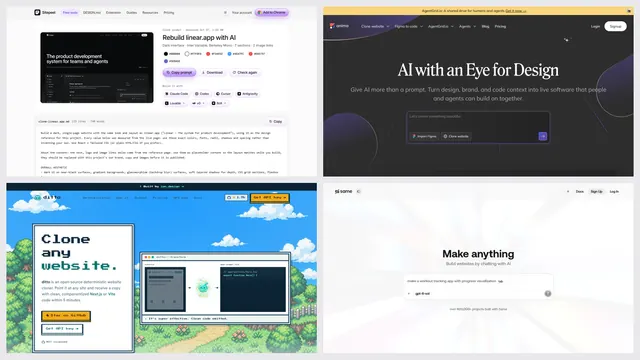
Pick by what you want back. A prompt gives an AI app builder what it needs to rebuild the page in your own stack. An export gives you the page’s own HTML and CSS to study or move: free on the web with Website to HTML, or in Chrome with Clone page, which also works behind a login.
| Clone page (Chrome extension) | Clone prompt (free web tool) | |
|---|---|---|
| What you get | The rendered page as HTML and CSS, with its assets | One prompt that rebuilds the page with AI |
| Works on | The page in your tab, even behind a login | Any public link, in any browser, phones too |
| Paste it into | Your own project or editor | Lovable, Bolt, v0, Cursor, Claude Code or Codex |
| Install | Free, from the Chrome Web Store | Nothing to install |
| Price | A 24-hour trial, then lifetime access | A few free runs, then sign in free |
A starting point you can inspect
A useful website clone preserves the relationship between content and styling. Sitepeel captures the rendered page, so you can study the layout your browser is displaying instead of starting with an empty file.
Use it to explore a landing-page structure, document a page before a redesign, or understand how a section is put together. For a single button or card, the HTML and CSS extractor gives you a smaller export.
What a page export includes
The export is a snapshot of the current page. Its HTML and styles help you reconstruct the visible layout; available assets can be included when the export offers that option. Check the preview before saving, especially on long pages.
- Open menus or expand sections you want represented before capturing.
- Scroll to load images that only appear near the viewport.
- Review font and image URLs when moving the export to another domain.
Example workflow: rebuild your own landing page
Suppose you are moving a landing page you own into a new project. Open the published page at the width you want to capture, wait for its fonts and images, then use Clone page. Compare the preview with the original before downloading the snapshot.
In your project, rebuild the navigation and forms using your own application code. Replace external asset references with files you are allowed to host. A rendered export gives you a visual starting point; it does not restore the original React components or the service behind a contact form.
Use this review checklist after exporting. If you only need the visual language for a new layout, generate Design MD instead of carrying over the page markup.
# Page export review

- [ ] Compare the saved page with the source at the same width.
- [ ] Check that fonts and images load in the new project.
- [ ] Replace source branding, copy and links where needed.
- [ ] Implement and test navigation, forms and interactive states.
- [ ] Check mobile wrapping, keyboard focus and long labels.
- [ ] Confirm permission to reuse each asset before publishing.Turn the snapshot into your own website
Start with a small section and replace the branding, copy and imagery. Move repeated values into your own CSS variables, connect your own navigation and test the layout at phone and desktop widths.
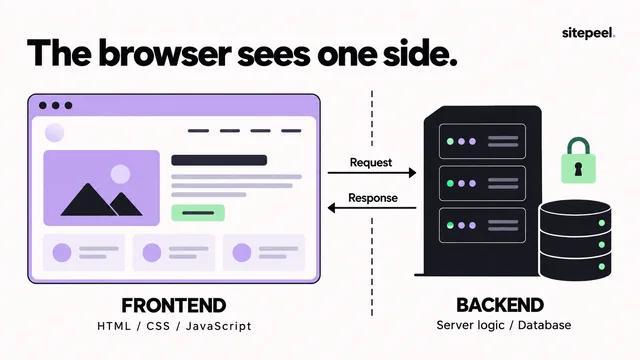
A clone does not include a website’s backend, database or authentication system. Application behavior, third-party embeds and protected media may need separate implementation. Only reuse material you have permission to use.
Questions
Is it illegal to clone a website?
Copying a design to learn from it is generally fine, but a site’s text, images, logos and code belong to its owner. Use a clone to study and prototype, replace the owner’s content with your own, and ask for permission before you publish anything that copies their work.
What is the best website cloner?
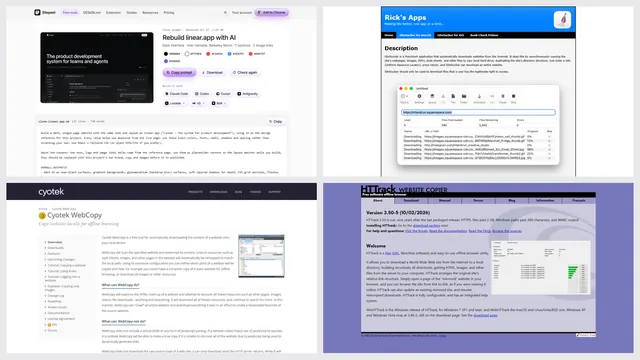
It depends on what you want back. For an AI rebuild, Clone prompt writes a prompt for Lovable, Bolt, v0 or Cursor. For the page’s own HTML and CSS, Website to HTML saves it free from a link, and Clone page in the Chrome extension exports the page you have open. For an offline copy of a whole site, use a site copier like HTTrack.
Is it possible to clone an entire website?
Clone page and Clone prompt work one page at a time, so run them on each page you need. A site copier like HTTrack or wget downloads every file a server sends, but no tool copies a site’s backend, database or sign-in.
What is a cloned website?
A copy of a website’s look and layout, made to study it or rebuild it. It has the same design but not the original’s server code, data or accounts, so forms, logins and payments need your own.
Can I clone a website with AI?
Yes. Paste the link into Clone prompt, free, and paste the prompt it writes into Lovable, Bolt, v0, Cursor, Claude Code or Codex. Clone page in the extension gives you the HTML and CSS instead.
Can I try it before installing?
Yes. Choose Try on this page to run the website cloner on this Sitepeel page. The extension lets you use the tools on supported websites.
Why does an exported page look different?
Fonts or images may still depend on the original site, and scripts or third-party embeds may not work in a snapshot. Compare both pages at the same viewport width, check asset requests, and implement the interactions in your own project.