On this page6
Step by step
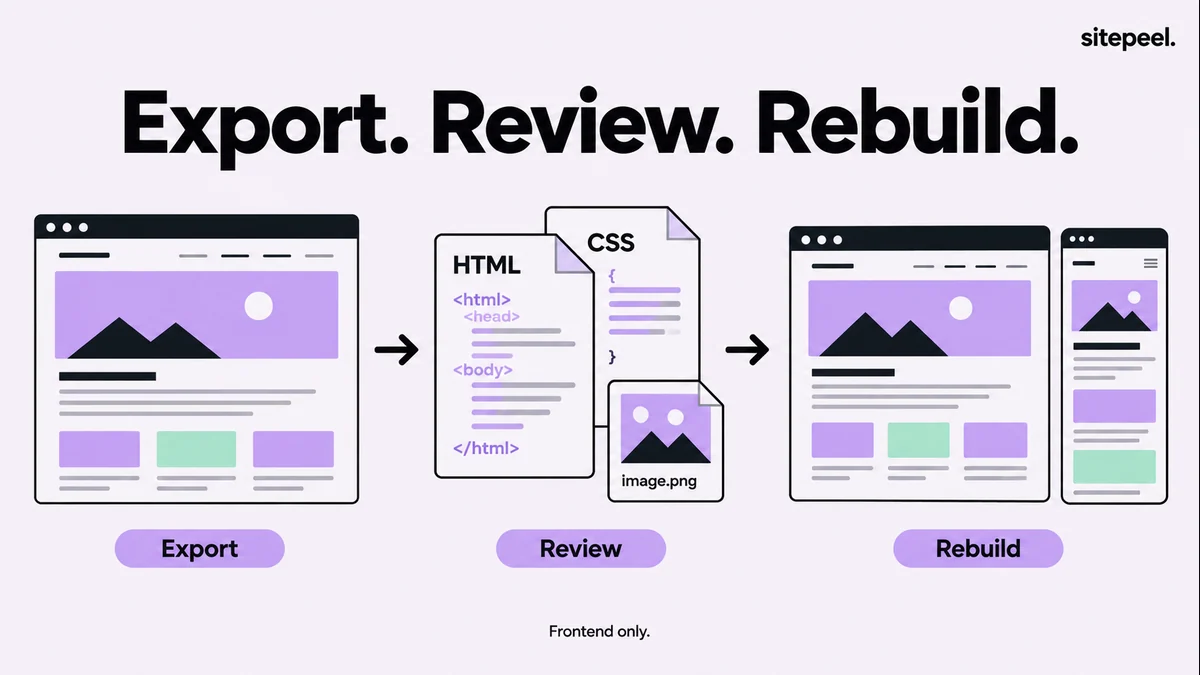
Load the page fully
Set the width you want, wait for fonts and images, scroll through lazy sections and close overlays.
Set the state you need
Open the menu, accordion or tab you want in the copy. Clone page captures the state the page is in.
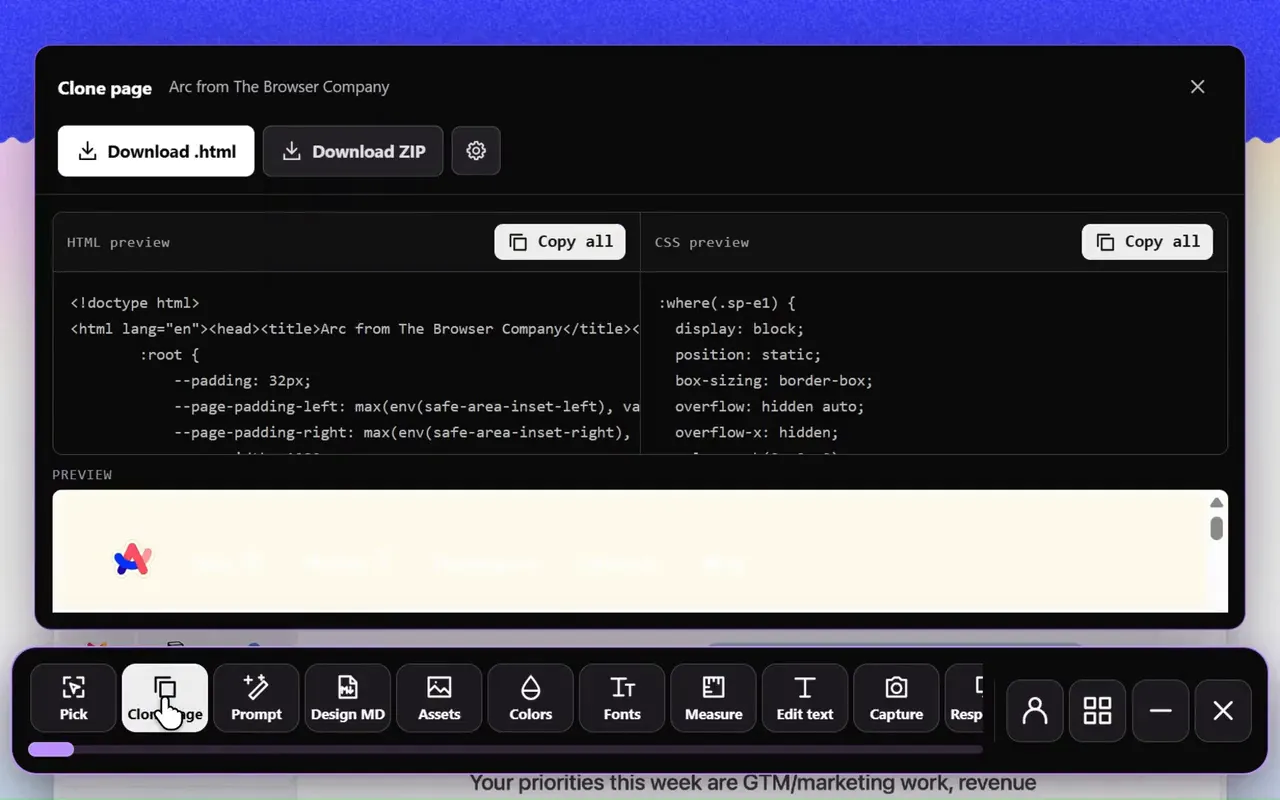
Run Clone page
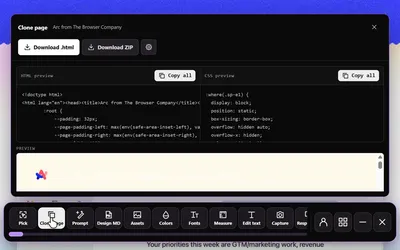
Open Sitepeel, choose Clone page and check the preview. If something is missing, load it on the page first.
Open the export locally
Save it, open it in a local project and compare it with the source at the same width.
Rebuild what doesn’t carry over
Swap in your own content and media, fix asset URLs and build forms and menus in your own stack.
What a clone includes
| Part of the site | In the export? |
|---|---|
| Rendered HTML of the current page | Yes |
| CSS styles | Yes |
| Images and other assets | Optional; some URLs may still point to the source site |
| Other pages on the site | No; capture each page separately |
| Backend, database and accounts | No |
| Framework source, such as React components | No |
Check the export
- Compare the hero, one middle section and the footer with the source.
- Check the desktop layout and at least one narrow width.
- Look for missing fonts, images, animations and external embeds.
- Find resource URLs that still point to the source site.
- Test every navigation link and call to action.
Example: rebuild a two-column hero
Capture a hero you own, with text on the left and an image on the right. Compare both versions at the same desktop width: content width, heading wrap, gap and image crop.
Then narrow both windows. If the source stacks the image below the text and the export doesn’t, check its media queries and script-set classes, and rebuild that behavior yourself.
Make it your own
- Replace text and media with content you can publish.
- License any font the layout depends on and set up font loading.
- Move repeated styles into components or shared CSS.
- Build forms, menus and other interactions in your own stack.
Questions
Can Sitepeel clone an entire website?
No. Clone page exports the page you have open, so capture each page separately. It doesn’t copy the server, database or login system.
Can I reuse a cloned page?
Only content you own or have permission to use. An export doesn’t give you rights to the site’s text, images or fonts.
Why does my cloned page look different?
Fonts, images or scripts may still depend on the original site, and the export shows one state at one width. Check asset URLs, font loading and media queries.